Many people around the world use the Microsoft Authenticator app every day. This small app helps keep your online accounts safe. It adds an extra step when you sign in. You enter your password first. Then the app gives you a special code or asks you to tap “Approve” on your phone. This stops strangers from getting into your email, work files, or other important places.
Sometimes the app stops working correctly. You might see no code appear. Push messages might not come to your phone. Or you cannot sign in at all. People often search online with questions like “Why is my Microsoft Authenticator app not working?” or “Microsoft Authenticator app not working on new phone.” These problems can happen on Android phones, on iPhones (including iPhone 14), or right after you switch to a brand-new phone.
In this guide, we explain everything in very clear and simple English. We use proper sentences and full paragraphs so it is easy to read and understand. Follow the steps slowly. Most problems have easy solutions.
What the Microsoft Authenticator App Really Does
The Microsoft Authenticator app is completely free. You can download it from the Google Play Store for Android phones or from the App Store for iPhones. It works with your personal Microsoft accounts (such as Outlook.com or Hotmail) and also with work or school accounts (like Microsoft 365 or Office apps used at your job or university).
The main job of the app is to make your sign-in safer. After you type your password, the app does one of these things:
- It shows a six-digit code that changes every thirty seconds.
- It sends a push notification to your phone so you can tap “Yes, it’s me” to approve the sign-in.
- On some accounts, it lets you sign in without typing a password at all.
Because the app is so important for security, when it stops working it feels very annoying. The good news is that almost every issue has a simple fix.
The Most Common Reasons the App Stops Working
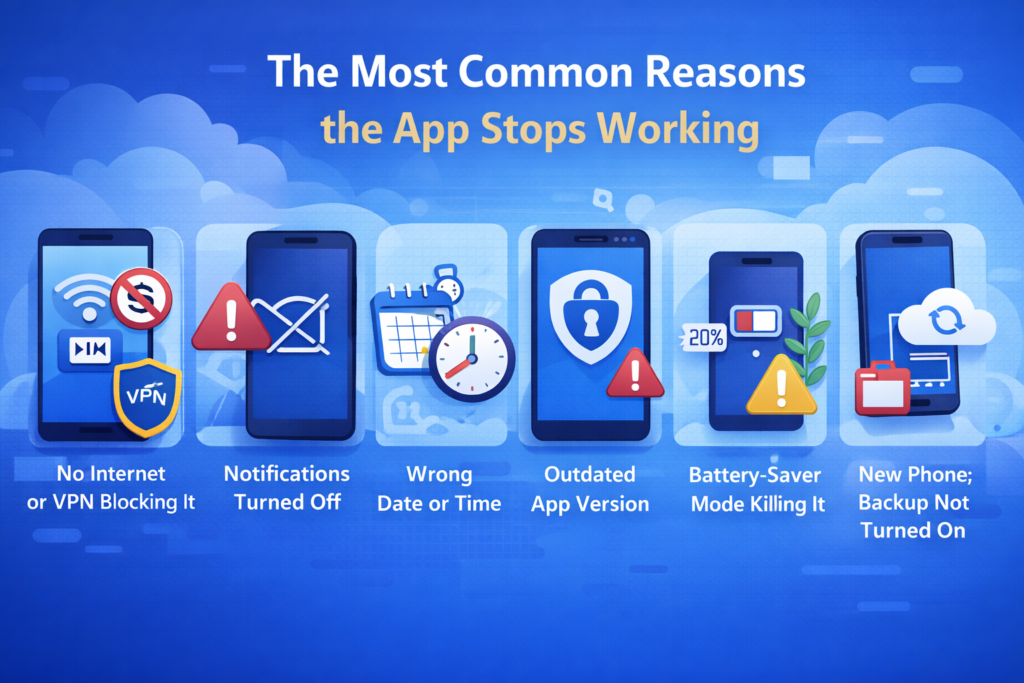
There are only a few usual reasons why the Microsoft Authenticator app suddenly fails. Here they are in plain words:
Your phone does not have a strong internet connection, or you are using a VPN that blocks the app. Notifications are turned off in your phone settings, so approval messages never arrive. The date and time on your phone are set wrong, which makes the time-based codes useless. The app itself is very old, and Microsoft no longer supports versions that are more than twelve months behind. Your phone is in battery-saving mode, and it forces the app to stop running quietly in the background. You just got a new phone, but you did not move your accounts over because backup was not turned on. On an iPhone, sometimes a big iOS update causes a small problem with iCloud backup. There is a temporary glitch after you update the app or update your phone’s software.
These are the problems people face most often. Right now in February 2026, there are no big server problems with Microsoft Authenticator. So the issue is almost always on your phone.
Quick Fixes That Work on Any Phone
Before you try anything complicated, do these easy steps first. They solve most cases very quickly.
Make sure your internet is working well. Switch from Wi-Fi to mobile data, or from mobile data to Wi-Fi. Turn off Airplane mode if it is on. If you use any VPN app, turn the VPN off for a minute and test again.
Restart your phone completely. Turn it off, wait ten seconds, and turn it back on. This clears many small errors.
Update the Microsoft Authenticator app. Open the Google Play Store on Android or the App Store on iPhone. Search for “Microsoft Authenticator” and press the Update button if you see it. Microsoft always wants everyone to use the newest version.
Check that your phone’s date and time are correct and set automatically. On Android phones, go to Settings, then System, then Date & time, and turn on “Set time automatically.” On iPhones, go to Settings, then General, then Date & Time, and turn on “Set Automatically.”
Close the app completely and open it again. On Android, go to Settings > Apps > Microsoft Authenticator > Force stop. On iPhone, swipe up from the bottom of the screen (or double-click the Home button on older models) and swipe the Authenticator app card away.
If the app still does not work after these steps, move to the section for your phone type.
Fixing the Problem on Android Phones
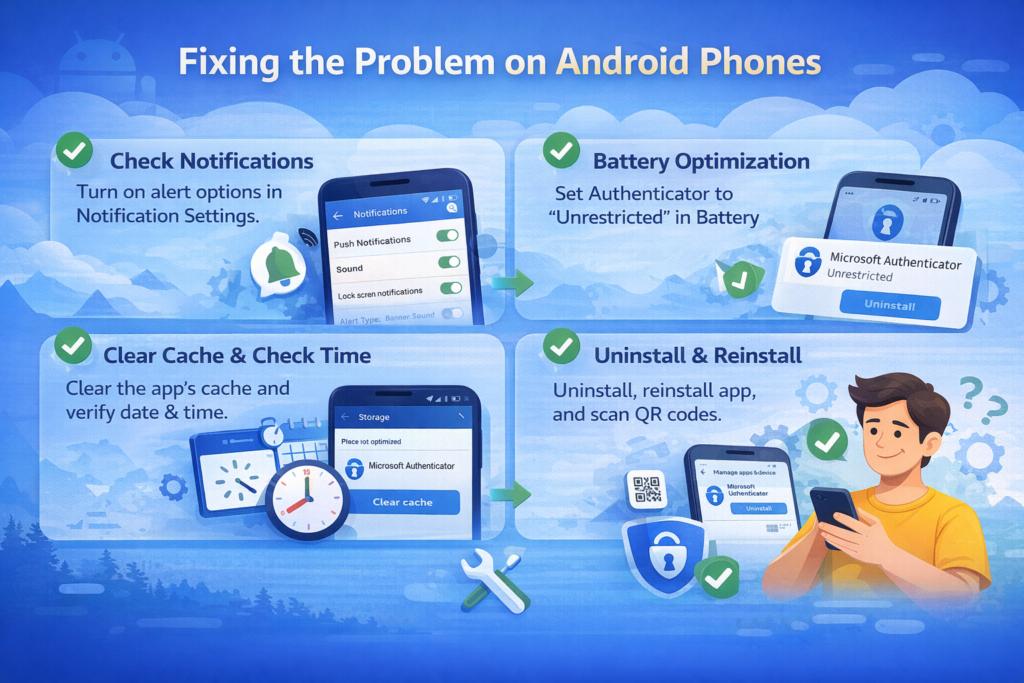
Android phones sometimes show no codes, miss push notifications, or make the app crash. Follow these steps to fix Microsoft Authenticator app not working on Android.
First, check notifications. Go to Settings > Apps > Microsoft Authenticator > Notifications. Make sure every notification option is turned on.
Next, stop the phone from killing the app to save battery. Go to Settings > Battery > Battery optimization (the name can be a little different on some phones). Find Microsoft Authenticator in the list and choose “Don’t optimize” or “Unrestricted.”
If the codes look wrong or do not appear, double-check the date and time setting again. Then clear the app’s cache. Go to Settings > Apps > Microsoft Authenticator > Storage > Clear cache. Do not press Clear data yet because that will remove all your accounts.
If nothing helps, uninstall the app and install it again. Before you uninstall, make sure you have another way to sign in (like a code sent to your email or backup codes you saved earlier). After you install it fresh, open the app and add your accounts again by scanning the QR code from your account’s security settings page.
For work or school accounts, your company’s IT team can help if the problem continues.
Fixing the Problem on iPhones
iPhone users often miss push notifications or lose codes after an iOS update. These steps help fix Microsoft Authenticator app not working on iPhone, including iPhone 14 and newer models.
Start by checking notifications. Go to Settings > Notifications > Microsoft Authenticator. Turn on “Allow Notifications” and select banners, sounds, and badges so you see everything.
Update your iPhone software. Go to Settings > General > Software Update and install any available updates.
Make sure the date and time are automatic. Go to Settings > General > Date & Time and turn on “Set Automatically.”
If you have Low Power Mode turned on, switch it off for now. Go to Settings > Battery and turn Low Power Mode off.
You can also offload the app to clear small problems. Go to Settings > General > iPhone Storage > Microsoft Authenticator > Offload App. Then reinstall it from the App Store.
If the app is still not working, delete it completely and download it again from the App Store. Remember to have another sign-in method ready before you delete it.
Most iPhone problems go away after you turn notifications on fully and restart the phone.
What to Do When the App Does Not Work on a New Phone
Switching to a new phone is one of the biggest reasons people say “Microsoft Authenticator app not working new phone.” Your accounts stay on the old phone unless you move them properly.
The easiest way is to use cloud backup.
On your old phone: Open Microsoft Authenticator. Tap the Settings gear icon. Turn on Cloud backup (or iCloud backup if you have an iPhone). Sign in with your personal Microsoft account if the app asks you to.
Important note: Backup only works between the same type of phone. iPhone backups go to other iPhones. Android backups go to other Android phones.
On your new phone: Install Microsoft Authenticator from the app store. Open the app. Look for the option that says “Restore from backup” or “Sign in to recover.” Sign in with the same personal Microsoft account you used before. Your accounts should appear again automatically.
If you did not turn on backup before, or if you no longer have the old phone, you will need to add each account manually. Go to the security page for each account (for example, account.microsoft.com/security for personal accounts). When you try to sign in, choose the option “I can’t use my Authenticator app right now.” Use an email code, text message code, or any recovery codes you saved earlier. Remove the old Authenticator entry. Add a new one by opening the app on your new phone and scanning the QR code shown on the website.
For work or school accounts that have no other sign-in method, contact your IT support team. They can temporarily turn off the extra security step and help you set it up again.
Extra Steps If Nothing Else Works
Remove the broken account from the app (tap the account, then choose Remove), then add it back fresh by scanning the QR code again. Sign in using email or phone number first, then update your security information inside your account settings. Check if your phone is rooted (Android) or jailbroken (iPhone). In 2026, Microsoft blocks work accounts on phones that have been changed this way. On Android, clear the cache again or reinstall the app. On iPhone, reinstall it completely.
If you are still stuck, visit the official Microsoft support website and search for “troubleshoot Microsoft Authenticator.” For personal accounts you can also use the account recovery page. For work accounts, your IT department is the best place to get fast help.
How to Stop This Problem from Happening Again
Turn on cloud backup as soon as you set up the app. Save your recovery codes in a safe place that is not on your phone (like on paper in a drawer). Always keep an up-to-date email address and phone number in your account settings. Update both the app and your phone software whenever a new version is available. Every few months, test the app by signing in to one of your accounts.
Final Thoughts
It is very common to wonder “Why is my Microsoft Authenticator app not working?” But in almost every case, the fix is simple. Start with the quick checks: internet, restart, update, and correct time. Then look at notifications and battery settings. When you get a new phone, cloud backup is the secret to making everything smooth.
Take your time with each step. You will get the app working again soon. If you see a special error message on the screen, write it down and search for it on Microsoft’s help site for even more exact advice.
This app does a great job protecting your accounts. Once it is fixed, it will keep working reliably. Stay safe online, Super! If you need help with anything else, just let me know.
Disclaimer: This guide provides general troubleshooting steps for common issues with the Microsoft Authenticator app. It is not a substitute for professional technical support. While we aim to offer accurate solutions, some problems may require further assistance from Microsoft support or your organization’s IT team. Always back up your data and follow security best practices when managing your accounts.
Explore More
- Lockbox App – Secure, Easy, and Smart Storage for Your Valuables
- Zlink App: What It Is, CarPlay Features, Download & Best Alternatives
About the Author