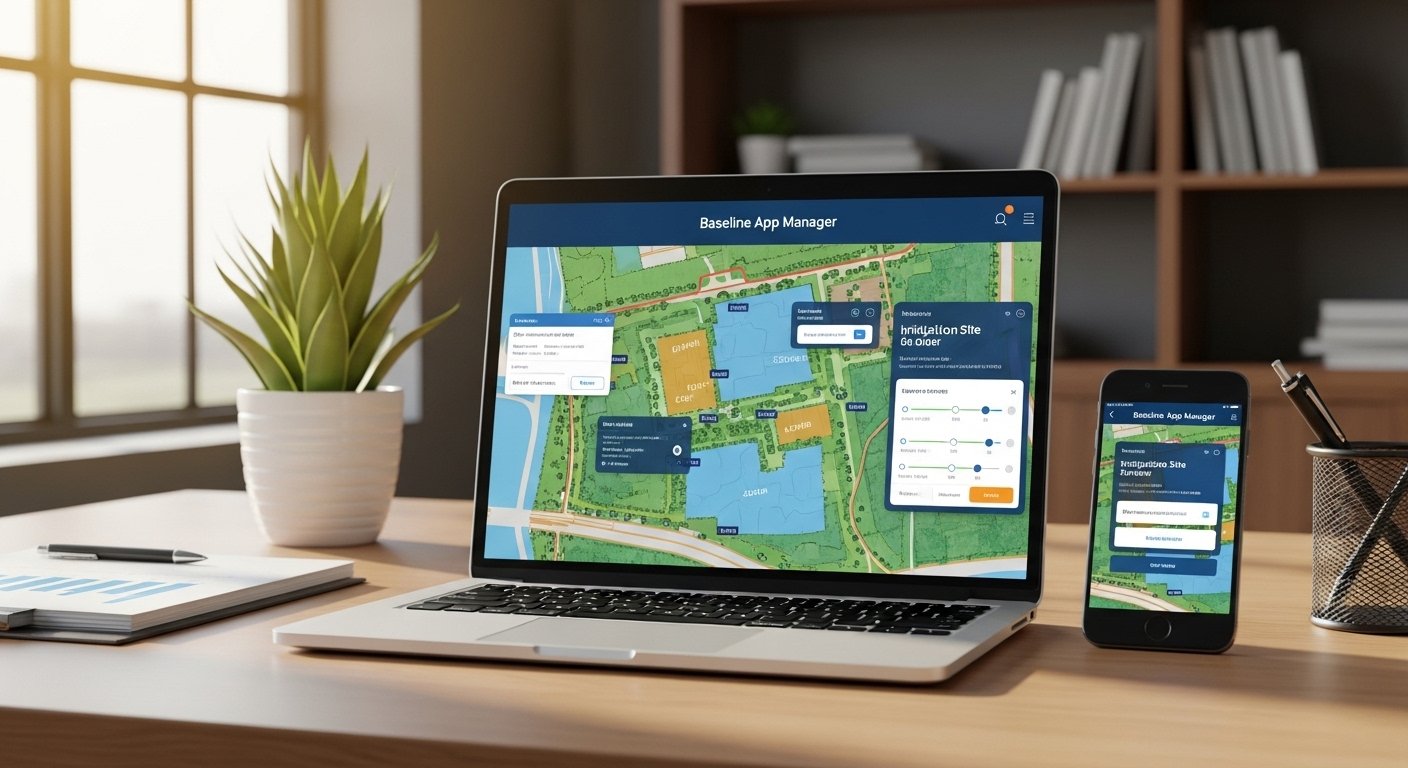
Baseline App Manager is a helpful tool from Baseline Systems (now part of HydroPoint). It helps people manage irrigation systems for large sites like parks, schools, golf courses, farms, and commercial properties. With this tool, you can control water use from far away using your computer or phone. This saves time, water, and money.
The main part of Baseline App Manager is BaseManager. You log in to AppManager first, then open BaseManager to do your work. Many people search for “baseline app manager login” because they want to start using it quickly. This guide will show you how to log in step by step. It will also give simple tips to make access easy every day.
This article uses easy English so anyone can understand. We explain everything clearly with real steps from official sources.
What Is Baseline App Manager?
Baseline App Manager is a web-based system. It acts like a door to different apps for managing irrigation controllers. The main app inside it is BaseManager.
BaseManager lets you:
- See and change watering programs for your controllers (like BaseStation 3200 or BaseStation 1000).
- Start or stop watering zones manually.
- Check flow rates and fix leaks fast.
- Use weather data to adjust watering automatically.
- Manage many sites from one place.
- Get reports on water use.
It is cloud-based, so you can use it from any internet-connected device. No need to be at the site. This is great for managers who look after many locations.
AppManager is free to access the framework. But some features in BaseManager need a subscription (like BaseManager Plus for full tools or LiveView for basic access).
New controllers often get a free trial of advanced features.
Why Use Baseline App Manager?
Using this tool has many benefits:
- Save water by smart scheduling.
- Reduce costs on water bills and labor.
- Fix problems fast from your phone.
- Keep records of everything for reports.
- Work safely without going to dangerous or far places.
Many users say it makes their job much easier.
How to Get Started with Baseline App Manager Login
Before you log in, you need an account. Most times, your company admin or Baseline support sets it up.
If you are new:
- Contact Baseline support or your company admin.
- They will give you a username and password.
- Sometimes they send an email to set up or reset.
For controller connection (important step):
- Your irrigation controller needs to connect to the cloud.
- On the controller screen, find the authorization PIN.
- Use that PIN in AppManager to link the controller to your account.
This step is key. Without it, you cannot see or control your sites.
Step-by-Step Baseline App Manager Login Guide
Follow these easy steps to log in.
Step 1: Open Your Web Browser
Use a modern browser like:
- Google Chrome (best choice)
- Mozilla Firefox
- Safari
Make sure it is updated. AppManager works best on these.
Step 2: Go to the Login Page
Or go to the official Baseline website (hydropoint.com/baseline) and find the login link. But most users go straight to baselineapps.net.
Step 3: Enter Your Login Details
You will see a sign-in box.
- In the username field, type your username (often your email or given ID).
- In the password field, type your password.
Passwords are case-sensitive, so check capital letters.
Step 4: Click Sign In
Press the Sign In button.
If correct, you go to the AppManager home page.
Step 5: Open BaseManager
On the AppManager page, you see available apps.
Click on BaseManager (it may say BaseManager or Site Management).
Now you are in! You can see your sites, controllers, and start managing.
What If You Forget Your Password?
- On the login page, look for “Forgot Password” or similar link.
- Enter your username or email.
- Follow instructions to reset. You get an email with a link.
- If no link, contact support at support@baselinesystems.com or phone 208.323.1634 (or toll-free 866.294.5847).
Common Login Errors and Fixes
- Wrong username/password: Double-check spelling. Try caps lock off.
- Browser issue: Clear cache or try another browser.
- No internet: Check your connection.
- Account not active: Ask admin to check.
- Controller not linked: Make sure PIN authorization is done.
Easy Access Tips for Baseline App Manager
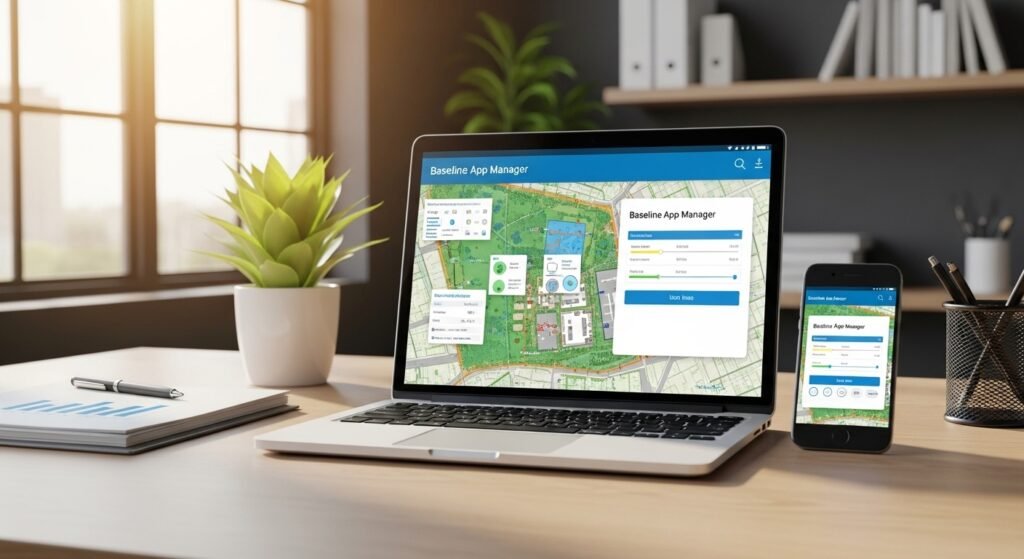
Here are simple ways to make login and use faster.
Tip 1: Save the Login Page as Bookmark
In your browser:
- Go to https://baselineapps.net/
- Click the star icon to bookmark.
- Name it “Baseline Login”.
- Next time, click bookmark to go fast.
Tip 2: Use Password Manager
Tools like Google Password Manager, LastPass, or browser built-in save your details safely.
- When you log in first time, browser asks to save.
- Say yes. Then it fills automatically.
But never share your device if it has saved passwords.
Tip 3: Enable “Stay Signed In” If Safe
Some logins have “Remember me” or “Keep me signed in”.
Use this only on your personal computer, not public ones.
This skips typing every time.
Tip 4: Use Mobile Access
Baseline has Mobile Access (app or web).
- After login on computer, you get mobile features.
- Use phone browser to go to same URL.
- Or check if there is a Baseline app on Google Play (some versions exist for mobile control).
- Great for on-the-go: Start zones, check status from field.
Tip 5: Set Up Multiple Users Correctly
Company admins can add users with levels:
- Company Admin: Full control.
- Site Manager: Control assigned sites.
- Other levels for limited access.
This keeps things secure.
Tip 6: Use Shortcuts Inside BaseManager
Once in:
- Use maps to find sites fast.
- Set alerts for flow issues.
- Quick manual operations for quick fixes.
Tip 7: Keep Browser Updated
Old browsers may not work well.
Update every month for best speed and security.
Tip 8: Log Out When Done
Especially on shared computers.
Click sign out at top or menu.
This protects your account.
Advanced Tips for Better Use
After login, try these to get more value.
- Check subscriptions: See if you have Plus or LiveView.
- Use WeatherAccess: It adjusts watering by weather.
- Set geo-location: Pin your controllers on map.
- Run reports: See water savings over time.
- Manual operations: Start/stop zones with few clicks.
Videos on YouTube from HydroPoint show these steps (search “BaseManager tutorial”).
Troubleshooting Common Problems
Problem: Cannot reach baselineapps.net
Fix: Check internet. Try different network.
Problem: Page loads slow
Fix: Close other tabs. Use Wi-Fi not mobile data.
Problem: No apps show after login
Fix: Subscription may be basic. Contact support for upgrade.
Problem: Controller offline
Fix: Check power, internet at site. Re-authorize PIN.
Always contact support for hard issues. They help fast.
Security Tips for Safe Use
- Use strong password (mix letters, numbers, symbols).
- Change password every few months.
- Do not share login details.
- Use two-factor if available (check with support).
- Log out after use on public devices.
This keeps your irrigation system safe from wrong hands.
Final Thoughts
Baseline App Manager login is simple once you know the steps. Go to https://baselineapps.net/, enter username and password, and open BaseManager. With the tips here, you can access it quickly every day.
This tool helps save water and make work easy. If you follow this guide, you will use it like a pro.
For more help, visit official HydroPoint Baseline pages or contact support. They have quick start guides and videos.
Happy managing your sites!
Disclaimer:
This article is for information only. It is not a promotion, advertisement, or affiliate content. We do not sell or earn money from Baseline App Manager. We try to give correct and simple steps, but we are not responsible for any problems, mistakes, or changes in the app or website. Always follow official instructions from Baseline Systems / HydroPoint.
Explore More
- Vending Machine Locator App: Find Nearby Machines Easily
- Stackin App Review 2026: What Is the Stackin App, Is It Legit & How to Download
- Highfive App: What Is It? How to Download Highfive App for Windows & Mac
About the Author