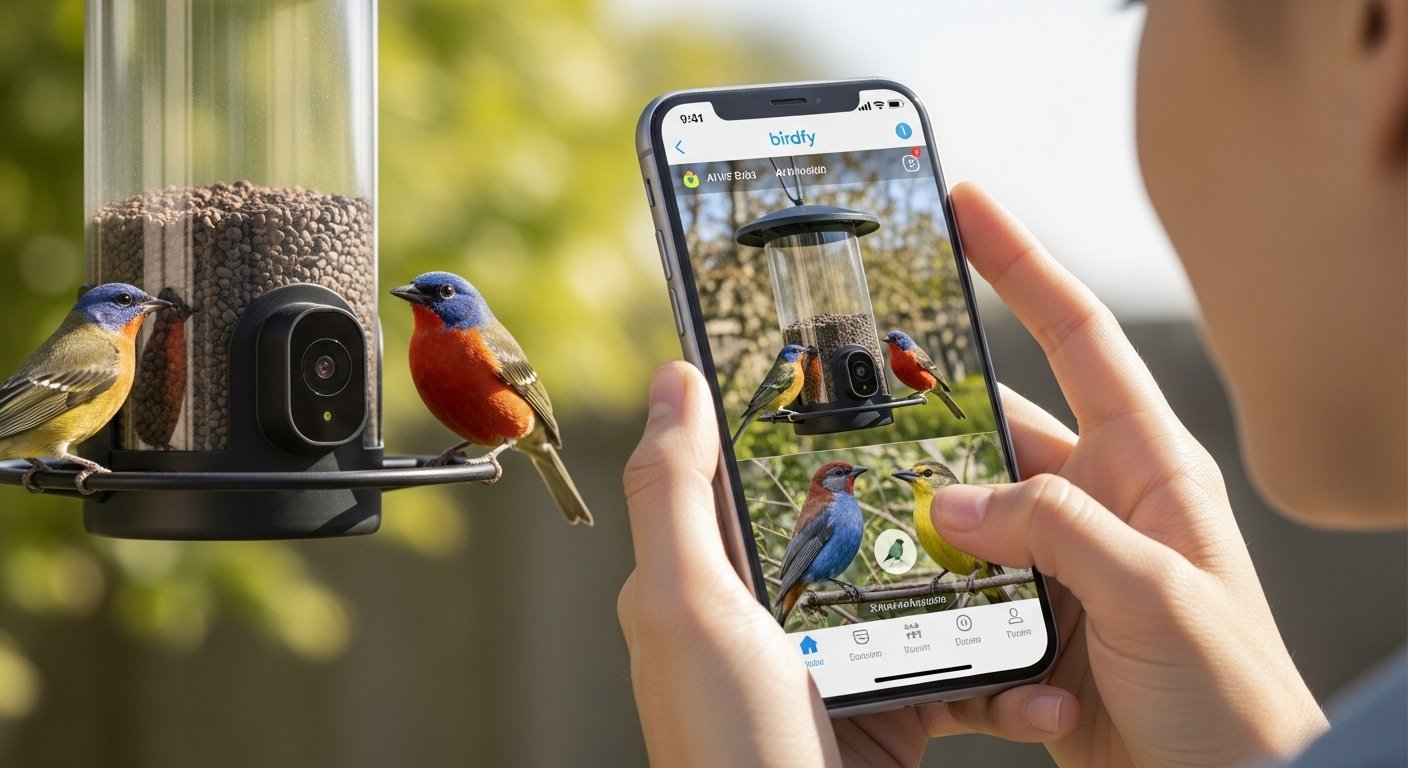
The Birdfy app is a helpful tool for people who love watching birds in their backyard. It works with smart bird feeders that have built-in cameras. These feeders let you see birds up close on your phone. The app uses AI (artificial intelligence) to tell you what kind of bird is visiting. Many people enjoy it because it makes birdwatching fun and easy from home.
This guide explains everything about the Birdfy app in simple words. We cover if the app is free, its cost, how to download it, set it up on Android phones or PC, a honest review, and useful tips for settings — like how to turn off notifications on Birdfy app when they become too many.
What Is the Birdfy App?
The Birdfy app comes from Netvue (the company behind Birdfy products). It connects to Birdfy smart bird feeders with cameras. When a bird (or sometimes a squirrel or other animal) comes to the feeder, the camera records a short video or takes photos. The app sends these to your phone right away.
Key things the app does:
- Live view: Watch the feeder in real time.
- Auto capture: The camera starts recording when it sees movement.
- Bird identification: AI names the bird species (over 6000 types).
- Alerts: Get push notifications on your phone.
- Collection: Save and look at old videos and photos.
- Monthly summaries: See which birds visited most.
The app is made for bird lovers who want to enjoy nature without sitting outside all day. It is popular with families, older people, and anyone who likes birds.
Is the Birdfy App Free? (Birdfy App Free / Is Birdfy App Free / Is the Birdfy App Free)
Yes, the Birdfy app is free to download and use for basic things. You can get it without paying anything.
What is free:
- Download and install.
- Live streaming from the feeder.
- Auto-recorded short clips (usually 20 seconds).
- Basic motion alerts.
- View photos and videos.
- Free cloud storage for clips (up to 30 days).
- Monthly visitor recaps.
But some advanced features need payment. The main one is AI bird recognition. Without it, the app may detect movement but not tell you the exact bird name.
Birdfy app cost for extra features:
- AI Bird Recognition: Often starts with a free trial (like 7 days). After that, options are monthly (around $4–$5 per month), yearly, or a one-time lifetime payment (around $99–$100).
- Cloud upgrades: For longer clips (30 seconds instead of 20) or more storage, there is Birdfy Cloud (about $2 per month or $20 per year in some plans).
- These prices can change, so check the app or official site birdfy.com for the latest.
Many users say the basic free version is good enough if you just want to watch live or see clips. If you love learning bird names, the AI subscription is worth it.
Birdfy App Review: What Users and Experts Say
The Birdfy app gets good feedback from many users and reviews in 2025–2026. It is not perfect, but it does a great job for smart bird feeders.
Good points from reviews:
- Easy to use once set up.
- Lots of customization — change sensitivity, notifications, and more.
- Good video quality (1080p or better on newer models).
- Catches almost every visitor (more alerts than some other brands).
- Color night vision for night animals.
- Helpful customer support from Birdfy/Netvue.
- Trustpilot and other sites show happy users who like picture quality and easy setup.
From expert sites like Wirecutter (NYT), PCMag, and Tom’s Guide:
- Wirecutter calls it a strong runner-up for smart feeders. It sends many notifications and has free 30-day cloud clips.
- PCMag gave the Feeder 2 Pro 4.0/5 — good app for sorting videos, but camera not the absolute best.
- Tom’s Guide tested for months and liked the detail in captures.
- Some say the app is not the fanciest, but it has many settings and works well.
Not so good points:
- Can send too many notifications if sensitivity is high.
- AI sometimes makes mistakes on rare birds.
- Setup needs good Wi-Fi (2.4GHz).
- App is mobile-first; no full native PC app.
Overall, if you want a feeder that catches everything and has okay AI, Birdfy is a solid choice. Many users are happy after months of use.
How to Download the Birdfy App (Birdfy App Free Download)
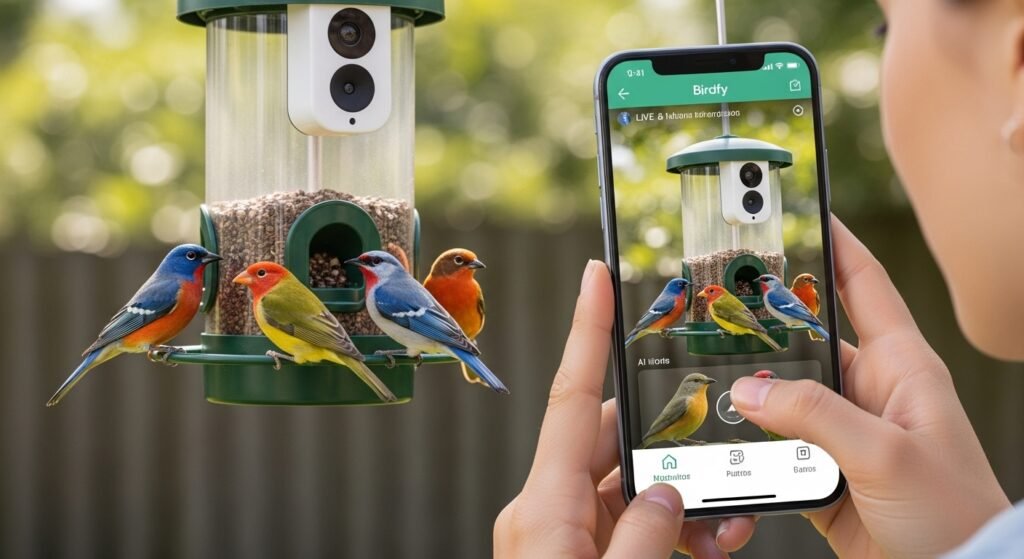
The app is easy to get.
For Android (Birdfy app for Android):
- Open Google Play Store on your Android phone.
- Search for “Birdfy”.
- Tap the app by NETVUE, INC.
- Click “Install”. It is free.
- Wait for download and open it.
For iPhone/iPad:
- Open App Store.
- Search “Birdfy”.
- Download the free app.
It needs iOS 15.5 or later. Android version works on most recent phones.
Birdfy App for PC: How to Use on Windows or Computer
There is no official Birdfy app for PC or Windows. But you can use it on computer!
Best way: Use the Birdfy Web Client.
- Go to my.birdfy.com in any browser (Chrome, Firefox, etc.).
- Log in with your app account.
- See live view, videos, snapshots, manage subscriptions, and share.
It works well for bigger screen viewing.
Another way: Use an Android emulator.
- Download free programs like BlueStacks or LDPlayer on your PC.
- Install the Birdfy app inside the emulator from Google Play.
- Use it like on a phone, but on computer screen.
This is good if you want full app features on PC. Many people do this.
Setup on Android and General Tips
Setup is simple.
- Buy a Birdfy feeder and set it up outside (follow box instructions — add seeds, mount it).
- Download the app (as above).
- Make an account or log in.
- Follow in-app steps to connect the feeder to Wi-Fi (needs 2.4GHz network).
- Pair the camera — scan QR code or follow guide.
- Place the feeder where birds come, with good view and Wi-Fi signal.
Tips for Android setup:
- Turn on location and Wi-Fi during pairing.
- Update app if asked.
- Give permissions for notifications, camera, storage.
If problems: Check help center at support.birdfy.com.
Birdfy App Settings Tips (Birdfy App Settings)
The app has many settings to make it just right for you.
Go to device settings in the app (tap your feeder, then settings icon).
Important settings:
- Motion sensitivity: High for more captures, low for fewer false alerts.
- Cooldown time: Time between recordings (0 seconds for continuous, longer to save battery/data).
- Clarity/bitrate: Higher for clear videos (uses more internet), lower for slow connections.
- High frame rate: For smooth or slow-motion videos (on supported models).
How to Turn Off Notifications on Birdfy App
Many users get too many alerts. Here is how to fix.
In the app:
- Go to your device/feeder.
- Tap settings > Moment Settings > Notification.
- Options:
- All Push: Every movement.
- Birds & Squirrels: Only when AI sees them (needs subscription).
- Smart Push: One alert per species per hour.
- Never: Turn off all app notifications.
Also:
- Must Push (whitelist): Always get for favorite birds.
- Do Not Disturb (blacklist): Never get for unwanted ones (like squirrels).
On your phone:
- Android: Settings > Apps > Birdfy > Notifications > Turn off.
- iPhone: Settings > Notifications > Birdfy > Allow Notifications off.
Or pause for a time if the app has that.
These tips help reduce spam while keeping important alerts.
Final Thoughts
The Birdfy app is a great way to enjoy birdwatching from your phone. It is free for basics, with optional low-cost extras for AI and more storage. Reviews show it is reliable, fun, and full of features. Setup is easy on Android, and you can use it on PC via web or emulator.
If you love birds, try the Birdfy app. Start with the free version and see the magic! Visit birdfy.com for latest info or buy the feeder.
Disclaimer:
This guide is only for information. We are not selling anything, and this is not an ad or affiliate article. We do not get money if you buy the app or the feeder. The information here is based on what we found online and user experiences. We cannot promise the app will always work perfectly. Use it at your own risk. Always check the official Birdfy website or instructions for the latest details.
Explore More
- Logistics Mobile App: Features, Development Services, Custom Solutions & Cost Guide
- Relion Premier Blu App: Download for Android & iPhone – Easy Guide
- Easy Line Remote App for Android & iPhone: Free Download, Install Guide & Fix Not Working Issues
About the Author