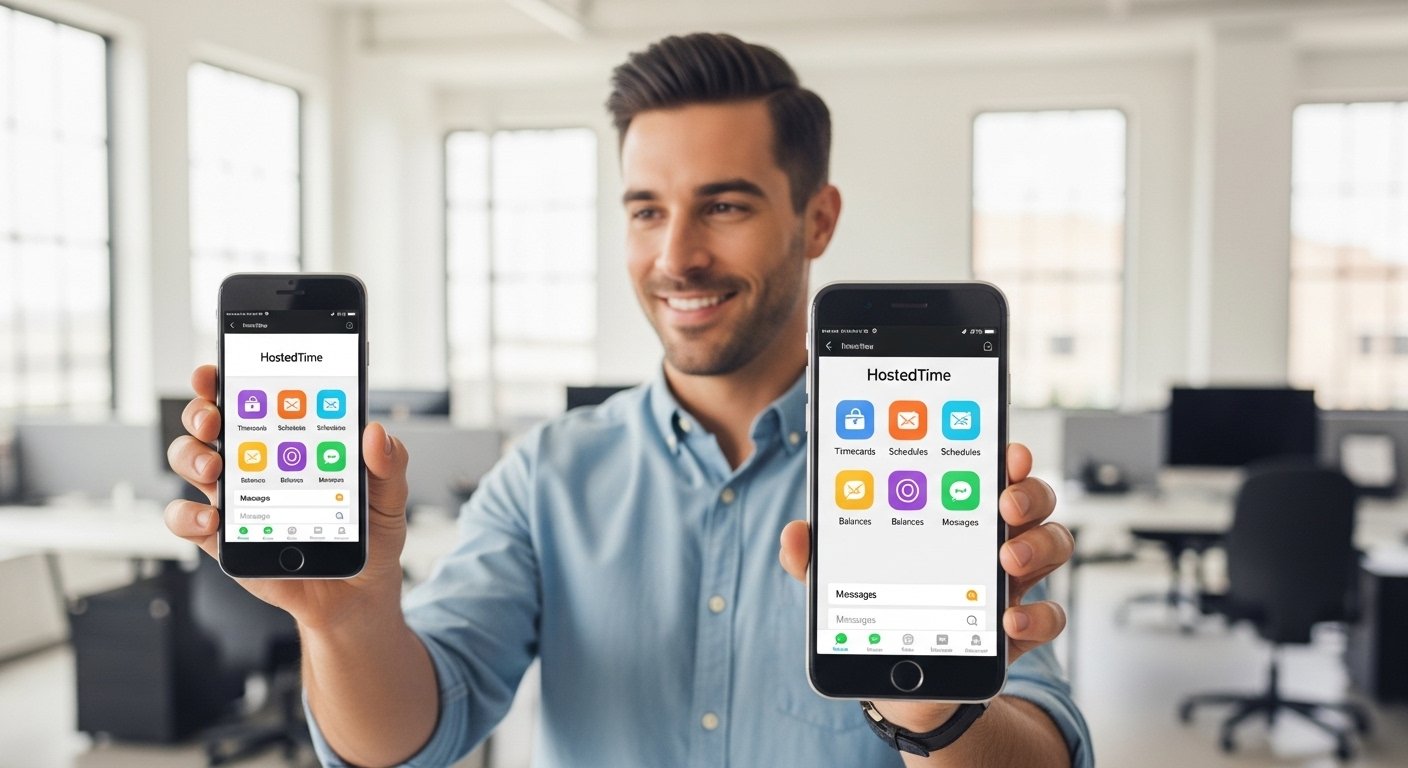
The HostedTime app is a simple phone tool for workers. It is made by Bektek Enterprises, Inc. This app helps you see your work hours, shifts, leave days (like vacation or sick leave), and send messages to your boss or team.
Many companies use this app to make work easier. You do not need a computer. Just open the app on your phone. It pulls info from your company’s cloud system. Everything stays safe and updates fast.
This guide is for everyone. We use very easy words. Follow the steps one by one. You will learn:
- How to download the app on Android or iPhone
- How to log in safely
- How to fix problems when the app is not working
Let’s start!
What Does the HostedTime App Do?
This app is like a pocket helper for your job. Here are the main things it shows:
- Your timecards: See how many hours you worked each day or week.
- Your schedule: Check your next shifts so you never miss work.
- Your balances: Look at how many vacation days, sick days, or other leave you have left.
- Messages: Send or read notes from your manager or team.
Some companies let you see more, like pay info or requests for time off. The app is free. Your company gives you the login details.
It works on most Android phones and iPhones. You need a good internet connection (Wi-Fi or mobile data) to use it.
Why Download the HostedTime App?
Many workers love it because:
- You can check things anytime, anywhere.
- No need to call HR or your boss for simple questions.
- It helps avoid mistakes in hours or schedules.
- You get quick updates if something changes.
But sometimes the app has issues. Users say things like “can’t connect” or “login error.” We will fix those later.
Important: Always download from official stores only. Do not use other websites. Fake apps can steal your info.
Step-by-Step: Download HostedTime on Android Phone
Follow these easy steps:
- Open your phone.
- Find the Google Play Store app. It has a colorful triangle icon.
- Tap the search bar at the top.
- Type HostedTime (or HostedTime Bektek).
- Look for the app by Bektek Enterprises, Inc. The name is “HostedTime”. It says something like “Time/Attendance Mobile Application”.
- Tap Install. It is free.
- Wait a short time. It downloads and installs.
- When done, tap Open. Or find the icon on your home screen.
Now the app is ready!
Tip: If you do not see it in search, your company may send a link. But Google Play is safest.
Step-by-Step: Download HostedTime on iPhone
For iPhone users, do this:
- Open your iPhone.
- Tap the App Store app. It has a blue “A” icon.
- Tap the search icon at the bottom (magnifying glass).
- Type HostedTime.
- Find the one by Bektek Enterprises, Inc.. It says “View Timecards, Schedules, Balances, Messages”.
- Tap Get (or the cloud icon if you had it before).
- Use Face ID, Touch ID, or your password if asked.
- Wait for download.
- Tap Open when ready. The icon appears on your home screen.
It also works on iPad. The app is made for phones but looks good on bigger screens too.
How to Log In to HostedTime App (Very Easy Steps)
After download, open the app. Now log in.
- Open the HostedTime app.
- First screen may ask for Client ID (or Company ID). This is a special number or code your company gives you.
- Type it and tap Go or Next.
- If no Client ID screen, go straight to next step.
- Type your Username. This is often your employee number, badge number, or work email.
- Type your Password. Be careful – big and small letters matter.
- Tap Login or Sign In.
- If correct, you see your main screen with buttons like Timecards, Schedules, Balances, Messages.
Helpful Tips for Login:
- Ask your HR or manager for exact username, password, and Client ID if you do not know.
- First time? The app may ask to allow notifications. Say yes to get alerts about shifts.
- Forgot password? Some companies let you reset on the website www.hostedtime.com. Or ask HR.
- If it says “wrong ID or password,” double-check typing. No extra spaces.
What If the App Is Not Working? Easy Fixes Here!
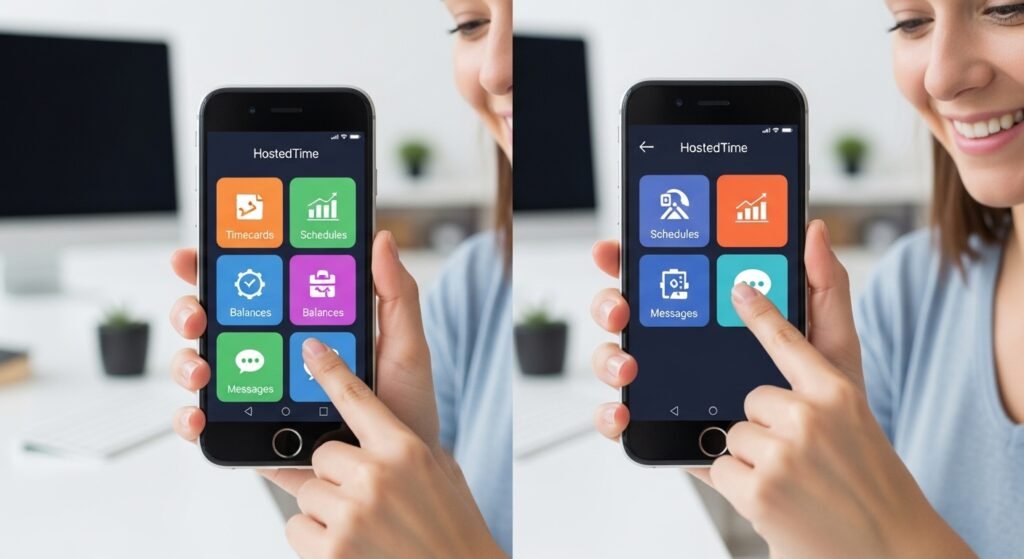
Many people have problems like:
- App will not open
- “Can’t connect to server”
- Login fails
- Crashes or freezes
- Works on website but not app
Do not worry. Most problems are easy to fix. Try these steps in order.
Fix 1: Restart Your Phone (Works for Most Problems)
- Turn off your phone completely.
- Wait 30 seconds.
- Turn it back on.
- Open the app again.
This fixes 50% of issues!
Fix 2: Check Your Internet
- Open a web browser on your phone.
- Go to any site like google.com.
- If it loads slow or not at all, fix your Wi-Fi or data.
- Try switching: If on Wi-Fi, use mobile data. Or opposite.
- Turn airplane mode on for 10 seconds, then off.
Many “can’t connect” errors are from bad internet.
Fix 3: Update the App
- On Android: Open Google Play Store > Search HostedTime > Tap Update if shown.
- On iPhone: Open App Store > Tap your profile picture > Scroll to updates > Update HostedTime.
New versions fix bugs. Users say updates help with connection and login.
Fix 4: Clear Cache or Reinstall (Good for Android and iPhone)
For Android:
- Go to phone Settings > Apps > HostedTime > Storage > Clear Cache.
- If still bad, tap Uninstall, then download again from Play Store.
For iPhone:
- Press and hold app icon > Remove App > Delete App.
- Go to App Store and download again.
This removes old bad data.
Fix 5: Update Your Phone System
Old phone software causes problems.
- Android: Settings > System > System Update > Check for updates.
- iPhone: Settings > General > Software Update.
Install any updates. Then try the app.
Fix 6: Special Problems from Users
- “Can’t connect to server”: This is very common in reviews. Try later – sometimes company server is down for maintenance. Use the website www.hostedtime.com on your phone browser as backup.
- Login says wrong even if correct: Some users say after iOS update it happens. Reinstall app or contact HR.
- App crashes on open: Free up phone space. Delete old photos or apps.
- No notifications: Go to phone Settings > Notifications > HostedTime > Allow.
If nothing works:
- Talk to your company’s HR or manager. They check your account.
- Or visit www.hostedtime.com on computer or phone browser. Log in there.
- The company (Bektek) has support through your employer.
Extra Tips to Use HostedTime Better
- Turn on notifications in phone settings. Get alerts for new messages or schedule changes.
- Check the app every day for updates to your hours or shifts.
- If you see wrong info (like missing hours), tell your manager fast.
- Use the website as backup if app has trouble.
- Keep your phone safe: Do not share login with anyone.
- The app is private. Company sees only work info.
Why This App Is Good (Even With Some Issues)
HostedTime helps thousands of workers. It makes life easy. You control your work info. No more waiting for pay stubs or schedules.
Most problems come from internet, old app version, or wrong login. Follow fixes above and it works great.
If your company uses HostedTime, download it today. Keep it updated. You will love checking your shifts and leave from your phone!
Disclaimer:
This guide is only for information. It is not an ad or a way to make money. We are not responsible if the app does not work, has login problems, or any other issues. Always use the official app from Google Play or App Store. For help, contact your HR or the official HostedTime website.
Explore More
- Perturbation App: Free Download for Android & PC, Movies, and Reddit Guide (USA Edition)
- Go Go Gold App Download & Login for Android & iPhone – Legit, Free, Reviews & MrBeast Edition
- Declutter App: Best Free Tools for Photos, Emails & Android/Mac – 30-Day Guide & Reviews
About the Author