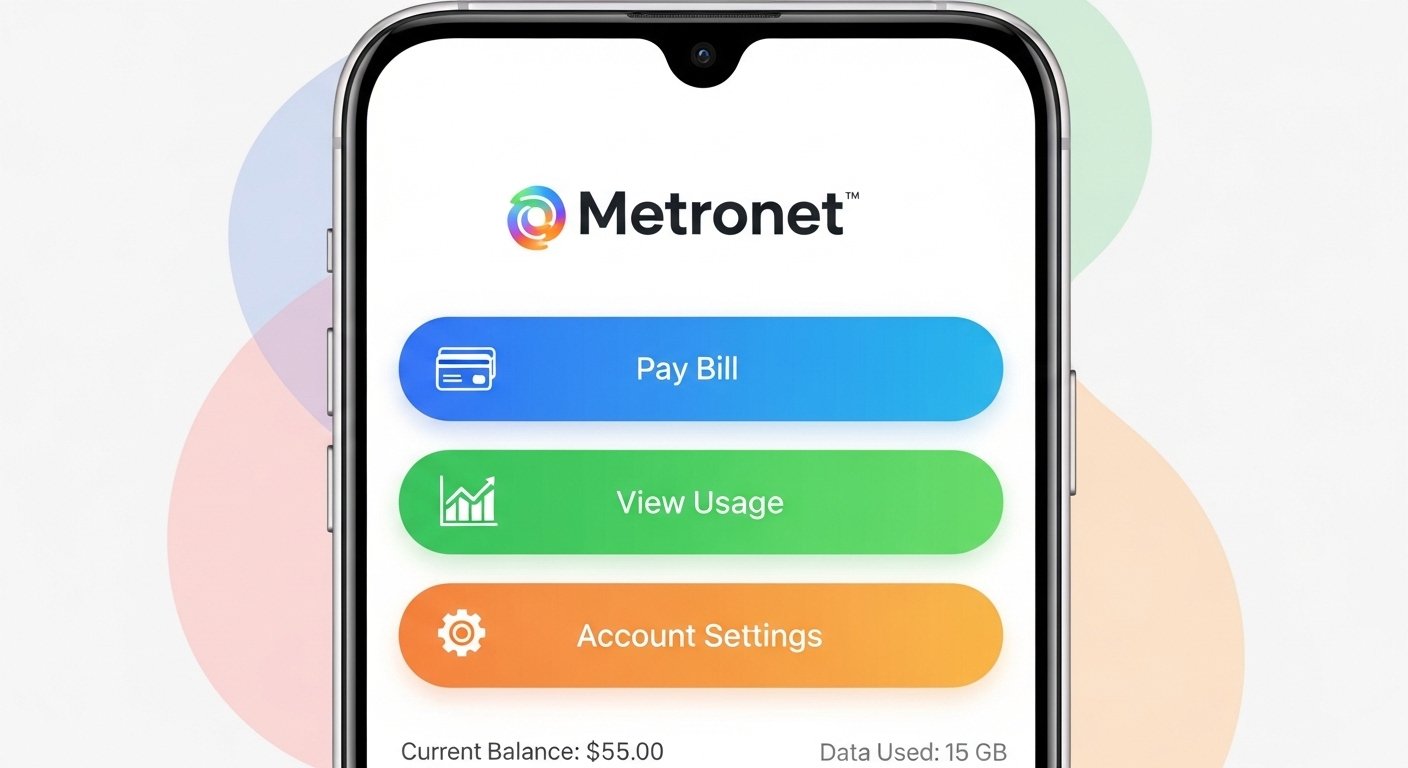
The Metronet App: Download, Login, Pay Bill & Android Setup Guide is a complete, easy-to-follow guide for Metronet customers. Metronet is a popular fiber internet provider in many US areas. They give fast, reliable internet with no data caps and good customer support.
Many people use the Metronet app to handle their account from their phone. The main app for most residential customers is called myMetronet Portal (sometimes just called the Metronet app or myMetronet app). It helps you check your bill, pay online, see your usage, update your info, and more—all from your Android phone or tablet.
This guide uses very simple English. It covers everything step by step so you can use the app with no stress. We base this on official Metronet info from their website (metronet.com) and support pages to make sure it’s correct and safe.
What is the Metronet App (myMetronet Portal)?
The myMetronet Portal app is a free mobile tool for Metronet internet customers. It connects to your account so you can:
- See your current bill and past bills.
- Pay your bill quickly and safely.
- Set up automatic payments (autopay).
- Manage payment methods like bank card or bank account.
- Check your internet plan and services.
- Update your personal details.
- Schedule a technician if needed.
- Pause services for vacation (vacation hold).
- Get support info fast.
It’s not for setting up your router—that usually uses the eero app if you have an eero router from Metronet. The myMetronet Portal app is for account and billing only.
The app is available for Android phones and tablets, and also for iPhone/iPad. It’s secure and easy to use, with a clean design that works well on small screens.
Why Use the Metronet App?
Using the app saves time. You do not need to call customer service or go to the website on a computer every time. Pay your bill in seconds, check if your payment went through, or see your due date—all from anywhere.
Many customers say it’s simple and helpful for busy people. Since Metronet is a growing fiber company (now part of a joint venture with big names like T-Mobile and KKR), they keep improving their tools.
The app is 100% free. No extra cost to download or use it.
How to Download the Metronet App for Android
Follow these easy steps to get the app on your Android device.
- Open the Google Play Store on your phone or tablet. (It’s the colorful triangle icon.)
- In the search bar at the top, type myMetronet Portal or Metronet app.
- Look for the official app. It may show as “myMetroNet Portal” or similar from Metronet. Check the developer name— it should link to metronet.com or be official.
- Avoid fake apps. Only download from trusted results that match Metronet.
- Tap Install. The app is small, so it downloads fast.
- Wait for it to finish. Then tap Open to start.
If you cannot find it in Play Store (some users noted older versions had issues), you can also manage your account fully on the mobile website: go to portal.metronet.com in your phone browser. It works like an app.
Always update the app when Google Play shows a new version. Updates fix bugs and add new features.
How to Create an Account in the Metronet App (First-Time Setup)
If you are a new Metronet customer or never used the portal, set up your login first.
Metronet makes this simple.
- After opening the app, you may see a login screen. Tap Create New Account or Sign Up (if not, go to the website portal.metronet.com first on your phone browser to create it).
- Enter your email address (the one Metronet has on file for your account).
- Fill in your details: name, account number (find it on your Metronet bill or welcome email), phone number, etc.
- Create a strong password. Use letters (big and small), numbers, and symbols. Make it at least 8 characters.
- Agree to the terms and conditions.
- Tap Create Account.
Metronet may send a verification email or code to your email or phone. Check your inbox (or spam folder) and enter the code.
Now your account is ready. You can log in on the app or website anytime.
If you forget your password later, tap Forgot Password on the login screen. They send a reset link to your email.
How to Login to the Metronet App
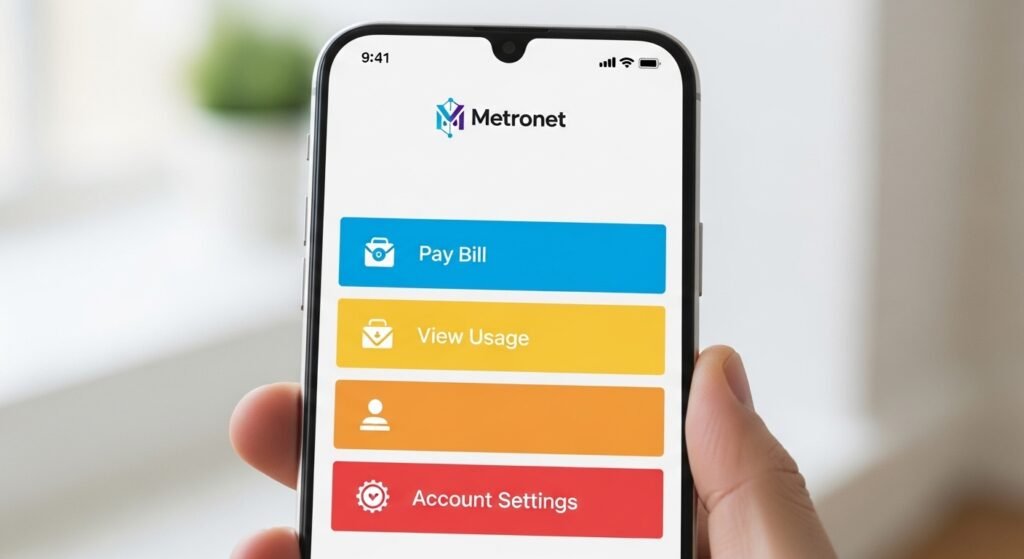
Logging in is quick once set up.
- Open the myMetronet Portal app on your Android device.
- Type your email address (or username if different).
- Enter your password.
- Tap Log In or Sign In.
You stay logged in for easy access next time (unless you log out for security).
If login fails:
- Check if Caps Lock is on.
- Make sure internet is on (use Wi-Fi or mobile data).
- Try the website version: portal.metronet.com.
- Contact Metronet support if needed (chat on their site or call 877-407-3224).
How to Pay Your Bill Using the Metronet App
Paying your bill is one of the best features.
- Log in to the app.
- Go to the Bill Pay section (look for $ Bill Pay or Billing tab).
- See your current bill amount and due date.
- Tap Pay Bill or Make a Payment.
- Choose your payment amount (full bill or partial).
- Select your payment method:
- Credit/debit card.
- Bank account (ACH).
- If you have none saved, add one: enter card number, expiration, CVV, or bank routing/account numbers.
- Review the details.
- Tap Submit or Pay Now.
You get a confirmation right away. Save the receipt or screenshot it.
You can also set up autopay here:
- Go to Manage Payment Methods.
- Choose autopay option.
- Pick date and method.
- Save it.
Autopay avoids late fees and saves time.
For quick pay without login (one-time), use the Quick Pay link on metronet.com.
Android Setup Tips for Best Experience
Your Android phone needs to run well with the app.
- Android version: Most recent apps need Android 8 or higher. Update your phone in Settings > System > System Update.
- Give permissions: When first open, allow access to notifications (for bill reminders) and storage if needed.
- Use on Wi-Fi: Saves mobile data.
- If app crashes: Clear cache (Settings > Apps > myMetronet Portal > Storage > Clear Cache). Or reinstall.
- Battery saver: The app uses little power.
If Metronet gave you an eero router (common for their fiber service), download the separate eero app from Play Store to manage Wi-Fi, guest network, parental controls, etc. Search “eero mobile app”.
Extra Tips and Common Questions
- Is the app safe? Yes, it uses secure login and encryption. Never share your password.
- Can I use it on multiple devices? Yes, log in on phone, tablet, or computer.
- What if I have business service? Some use MetroNet Go app for phone features—check with your plan.
- No internet? Use mobile data or another Wi-Fi to pay.
- Contact help: Use in-app chat, email customer_service@metronet.com, or call support.
- Check availability: If new to Metronet, visit metronet.com to see if service is in your area.
The myMetronet Portal app makes life easier for Metronet users. Download it today, set it up, and handle your internet account in minutes. Enjoy fast fiber internet without worry!
Disclaimer:
This article is just for information. We are not part of or paid by Metronet or the Metronet app. This is not an ad or affiliate post. All names and logos belong to the real owners. App features and info may change. We are not responsible if something goes wrong, like payment or app problems. Always check the official Metronet website or contact their support for correct information.
Explore More
- Tribel App: Download, Review, What It Is, Android Guide & Who Is Behind It
- Non CDL Hot Shot Loads App Free – Easy & Fast Load Tracking
- Futemax App: Futebol ao Vivo, Grátis para iPhone & Android – Baixar e Assistir Times como Flamengo, Palmeiras, Cruzeiro e Real Madrid
About the Author