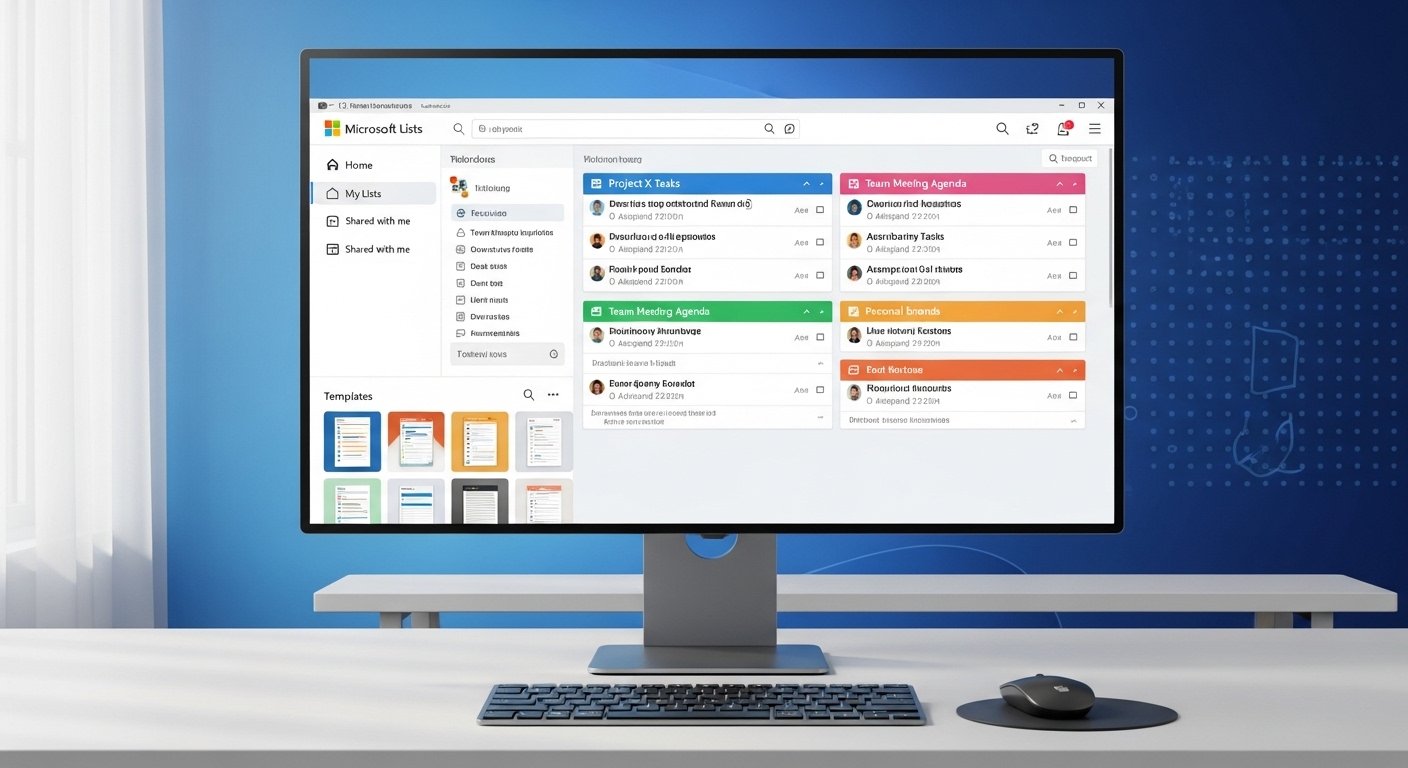
Microsoft Lists is a very useful tool from Microsoft. It helps people track information, organize tasks, and manage work in a simple way. Many people ask: does Microsoft Lists have a desktop app? Yes, it does! But it is not a traditional download like an .exe file from the Microsoft Store. Instead, Microsoft Lists desktop app is a Progressive Web App (PWA). This means you install it from your web browser, and it works like a normal app on your PC.
This makes it easy to use Microsoft Lists on your Windows computer without always opening a browser. You can access your lists faster, and some features work even when you have no internet (offline mode for viewing and basic edits, then sync when online).
In this article, we will explain everything step by step in very easy English. We cover what it is, how to download and install the Microsoft Lists desktop app, how to use it, and tips to get the most from it. This guide follows official Microsoft ways, so it is safe and correct. No misleading information here.
What Is Microsoft Lists?
Microsoft Lists is part of Microsoft 365. It is like a smart list maker. You can create lists for many things, such as:
- Task trackers
- Issue logs
- Event planners
- Asset inventories
- Work requests
It comes with ready-made templates. For example, you can start with an “Issue tracker” or “Employee onboarding” list right away.
Lists live in SharePoint or OneDrive. But the app makes them easy to reach from your desktop. It is great for teams at work or school. You can share lists, add rules (like send email when something changes), and customize views.
Many people search for Microsoft Lists download desktop app because they want quick access. Good news: it is free if you have a Microsoft 365 subscription (work or school account). There is also a preview version for personal Microsoft accounts.
Does Microsoft Lists Have a Desktop App?
Yes, Microsoft Lists desktop app exists. But remember these important points:
- It is not a separate program you download from a website or store like traditional apps.
- It is a PWA. This means your browser (like Microsoft Edge or Google Chrome) turns the web version into a desktop app.
- Benefits: It appears in your Start menu, has its own window, works offline for cached data, and feels faster.
- You can install it on Windows PC (and even Mac in some ways).
Official sources from Microsoft support and experts confirm this is the way. No native .exe installer exists, but the PWA method is official and works well.
Why Use the Microsoft Lists Desktop App?
Here are some good reasons:
- Quick launch from your desktop or taskbar.
- No need to open browser tabs every time.
- Offline support: View and edit lists when no internet, then sync later.
- Better focus: It opens in its own window without browser distractions.
- Same features as the web version: Create lists, add columns, set rules, collaborate.
- Easy updates: Since it is web-based, it always has the latest version.
If you use Microsoft Lists a lot, this desktop version saves time.
Requirements to Install Microsoft Lists Desktop App
Before you start, check these:
- A Microsoft 365 work or school account (most common). Or try the free preview with personal account.
- A modern browser: Microsoft Edge (best), Google Chrome, or Firefox.
- Windows 10 or Windows 11 PC.
- Internet connection for first install and login.
- Access to Lists in your Microsoft 365 (go to office.com and see if Lists is there).
If you do not have Microsoft 365, you can try the preview at lists.live.com.
How to Download and Install Microsoft Lists Desktop App
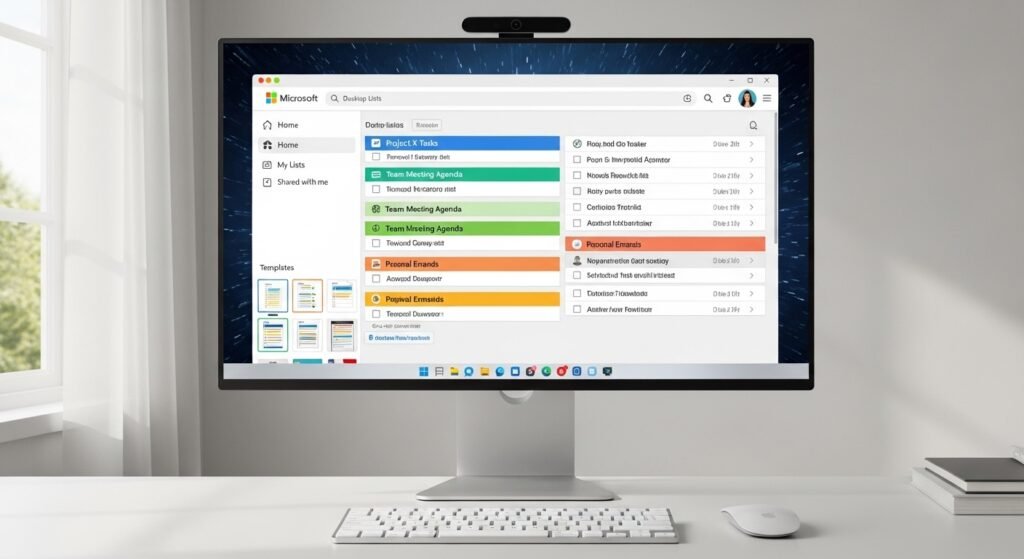
There is no direct “download” button for an installer file. You install it from inside the browser. Here are the easy steps.
Step 1: Open Microsoft Lists in Your Browser
- Go to office.com or microsoft365.com.
- Sign in with your work or school Microsoft account.
- Click the app launcher (grid icon at top left).
- Find and click Lists. (If not seen, search for “Lists”.)
Or go directly to lists.microsoft.com.
Step 2: Find the Install Option
Once Lists opens:
- In Microsoft Edge (recommended):
- Look for a popup that says “New Lists Desktop App” or “Install Microsoft Lists”.
- Click Install.
- If no popup:
- Click the three dots (…) at top right of Edge.
- Go to Apps > Install Microsoft Lists (or “Install this site as an app”).
- In Google Chrome:
- Click the three dots at top right.
- Go to Save and share > Install page as app or look for install icon in address bar (small computer + arrow).
- In other browsers like Firefox: Look for install PWA option in menu.
Step 3: Confirm Installation
- A window will ask to confirm.
- Click Install.
- It may ask where to pin it (taskbar, desktop, Start menu). Choose what you want.
- Wait a few seconds. The app installs.
Step 4: Launch the App
- Find it in Start menu: Search for “Microsoft Lists”.
- Or check desktop/taskbar if you pinned it.
- Open it. Sign in if asked (it remembers your account usually).
That is it! You now have the Microsoft Lists desktop app on your PC.
Troubleshooting Tips
- No install option? Make sure you are in the full Lists app, not a single list page. Refresh the page.
- Popup blocked? Allow popups for office.com.
- Still no? Try in Edge first – it has best support for PWAs.
- For older info online: Some videos from 2021-2022 show similar steps. The method has not changed much.
How to Use Microsoft Lists Desktop App on Your PC
After install, using it is simple.
Opening and Navigating
- Double-click the app icon.
- It opens like a program.
- You see your recent lists, “My lists”, and templates.
Creating a New List
- Click + New list.
- Choose: Blank list, From template, From Excel, etc.
- Give it a name and description.
- Click Create.
Working with Lists
- Add items: Click + New.
- Edit columns: Click gear icon > List settings.
- Views: Switch between grid, gallery, calendar.
- Rules: Set alerts or actions (like notify when due date near).
- Share: Invite people by email.
Offline Use
- Open lists while online first to cache them.
- Then, if internet goes off, you can view and make changes.
- When back online, changes sync automatically.
Customization Tips
- Pin favorite lists to quick access.
- Use dark mode if you like (from settings).
- Integrate with Teams: Add lists as tabs in channels.
The desktop app has all features from the web. It is the same powerful tool, just easier to open.
Benefits of Using Microsoft Lists on Desktop
- Save time every day.
- Better for large screens – see more data.
- Work offline during travel or bad internet.
- Feel like a real Windows app.
- Safe and secure – uses Microsoft login and encryption.
Many users say it makes tracking work much easier.
Common Questions About Microsoft Lists Desktop App
Does Microsoft Lists have a desktop app? Yes, as a PWA installed from browser.
Microsoft Lists download desktop app – where? No separate download. Install from Edge/Chrome as above.
How to install Microsoft Lists desktop app? Follow the steps: Open in browser, use install from menu.
Can I uninstall it? Yes, go to Windows Settings > Apps > Find Microsoft Lists > Uninstall.
Is it available for Mac? Yes, similar PWA install from Chrome or Edge on Mac.
Is it free? Yes with Microsoft 365. Preview for personal use.
Final Thoughts
Microsoft Lists is a great way to stay organized. The desktop app makes it even better by giving quick, focused access on your PC. No need for complex downloads – just a few clicks in your browser.
Try it today. Go to office.com, open Lists, and install the app. You will love how simple it is to track your work, issues, or any information.
If you have a Microsoft 365 account, start now. If not, check the free preview. Stay productive!
Disclaimer:
This article is for information only. We do not own or sell Microsoft Lists. This is not an ad or affiliate post. Always use Microsoft’s official website. We are not responsible for any problems you may have.
Explore More
- RiskProof App – Download & Login Guide for Android & iPhone
- The Best Free Camper Van Design App for Android & iPhone (Easy Layout Planner)
- Gosh App Download for Android & iPhone – Full Setup Guide
About the Author