What Is the ONR App and Why Use It?
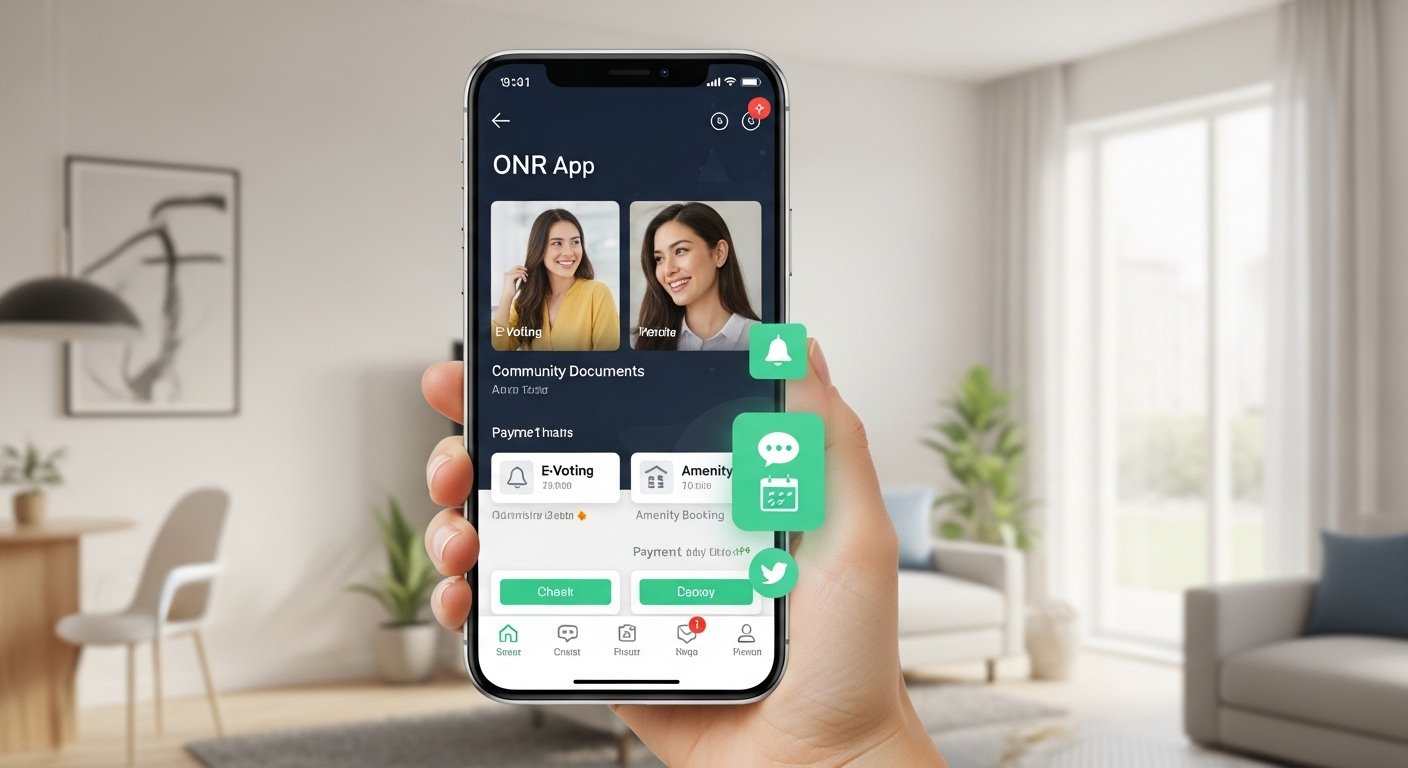
The ONR App comes from ONR Solutions (also called ONR Applications LLC). It is built specially for condo and HOA communities in places like the United States. The app helps residents stay in touch with their building or neighborhood without needing many phone calls or emails.
Here are some main benefits:
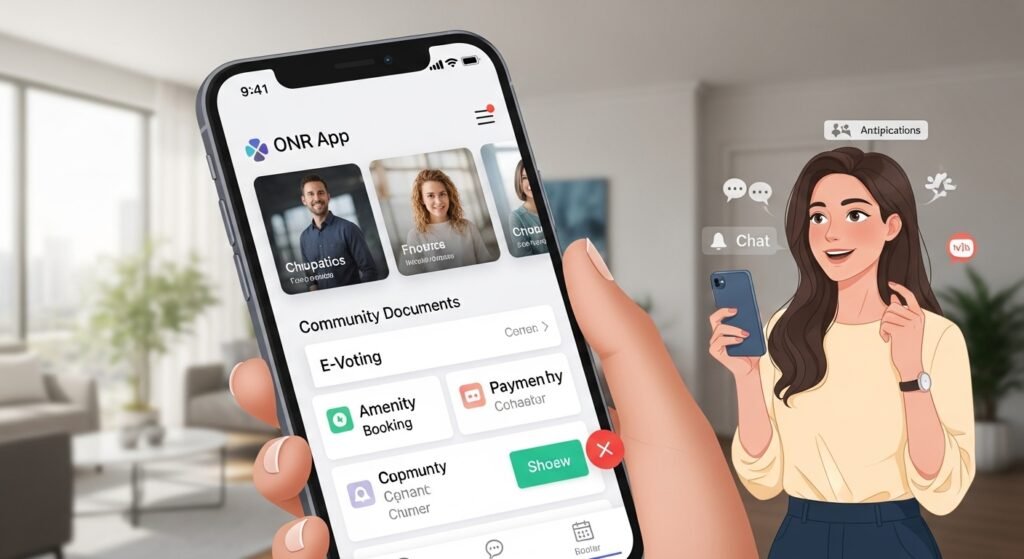
- You get all community documents in one place (rules, budgets, contracts).
- You can vote online for board elections or important changes.
- You can book shared spaces like party rooms, tennis courts, or parking.
- You can report issues (like a broken light) and track them.
- You get fast notifications about news, events, or emergencies.
- You can pay maintenance fees securely.
- You can chat with neighbors or management safely.
- It saves time and makes living in a community more fun and less stressful.
Many users say the app is a “lifesaver” for condo life because it brings everything together. It has good reviews on the App Store and Google Play, with people liking the easy amenity bookings and clear updates.
The app is free to download for residents. Your community management team pays for the service so you can use it without extra cost.
How to Download the ONR App
Before you can log in, you need the app on your phone.
For iPhone or iPad users:
- Open the App Store on your device.
- Search for “ONR” (made by ONR Applications LLC).
- Tap Get or the cloud icon to download.
- It is free.
For Android users:
- Open the Google Play Store.
- Search for “ONR” (by ONR Applications LLC).
- Tap Install.
- It is free.
Tip: Make sure you download the correct one. Look for the app that says it helps with community documents, voting, and management. Avoid other apps with similar names (like the Office of Naval Research app, which is different and for military research).
After download, open the app. You will see a welcome screen ready for login.
ONR App Login – Step-by-Step Guide
Logging in is very easy. Most users get access after their community adds them.
First-Time Login (New Users)
Your management team will send you a “Welcome” email when your account is ready. This email has your login details.
Follow these steps:
- Open the ONR App on your phone.
- On the login screen, type your email address (the one used for your community account).
- Type your password (from the welcome email or the one you set).
- Tap LOGIN or the button that says “Login”.
- You are in! The app will show your community’s main page.
If it is your first time, you may need to accept terms or set up a profile.
Login on Web Browser (Computer or Laptop)
You can also use ONR on a web browser without the app.
- Open any browser like Chrome, Safari, or Edge.
- Go to your community’s special link. It looks like: https://yourcommunityname.onrapp.us/ (ask management for the exact URL if you do not know it).
- Look for RESIDENT LOGIN in the top right corner.
- Click it.
- Enter your email and password.
- Click LOGIN.
Now you can use all features on a bigger screen.
Quick Login After First Time
The app has smart features for faster login:
- On iPhone: Use Face ID or Touch ID if you turn on “Remember Login” in settings (added in recent updates).
- On Android: Use fingerprint or PIN.
- The app keeps you logged in safely until you log out.
This makes daily checks very quick.
What to Do If You Forget Your Password
No worry! Resetting is simple.
- On the login screen in the app or web, tap Forgot password? or Forgot your password.
- Enter your email address.
- Tap Send or the button to request reset.
- Check your email for a message from ONR (it may have a verification code or reset link).
- Follow the instructions: Enter the code or click the link.
- Create a new strong password.
- Go back to login and use the new password.
Tip: Use a password with letters, numbers, and symbols. Do not share it with anyone.
Recent app updates let you reset with an email code, so it is faster now.
Common ONR App Login Problems and Fixes
Sometimes login does not work. Here are easy fixes for the most common issues.
- Wrong email or password: Double-check spelling. Emails are case-sensitive sometimes. Try the reset steps above.
- Account not found: Your management may not have added you yet. Contact them to confirm your email is registered.
- App crashes on login: Update the app to the latest version in App Store or Play Store. Restart your phone.
- No internet: Login needs Wi-Fi or mobile data. Check your connection.
- Old app version: Go to store and update. New versions fix bugs and add easy login like biometrics.
- Two-factor code not coming: Check spam/junk folder in email. Wait a few minutes.
- “Invalid credentials” message: Make sure you use the right community link or app (not another ONR app).
If nothing works, contact support:
- Email: support@onrapp.com
- Or hello@onrapp.com
- Phone: +1 888.362.9711 (for general help)
- Check the knowledge base at knowledge.onrapp.com for more guides.
The team is helpful and answers fast.
Full Access Guide: What You Can Do After Login
After ONR App login, you get full access to many tools. Here is what you can explore.
View Important Documents
- See rules, bylaws, budgets, meeting minutes, contracts.
- Download or read anytime.
- No need to ask management every time.
Vote Electronically (E-Voting)
- Join board elections or votes on big changes.
- Safe and secure from your phone.
- See results fast.
Book Amenities
- Reserve gym, pool, party room, BBQ area.
- Check availability in real time.
- Get reminders.
Report Issues and Service Requests
- Tell about broken things (elevator, lights, leaks).
- Add photos.
- Track status until fixed.
Pay Fees and Bills
- Pay maintenance or special fees securely.
- See payment history.
Stay Connected
- Get push notifications, SMS, or email alerts.
- Use classifieds to sell/buy things.
- Report lost & found.
- Chat with neighbors or staff (some communities have this).
Other Helpful Features
- Visitor management (approve guests).
- Package delivery updates.
- Parking or pet registry (if your community uses it).
- Calendar for events.
- Panic button for emergencies (in some setups).
The app updates often with new features and bug fixes, like better login remember options in 2024-2025 versions.
Tips for Best ONR App Experience
- Turn on notifications so you never miss news.
- Use strong, unique password.
- Update the app regularly.
- Log out if using shared phone.
- Tell management if you change email or phone.
- Explore the menu – it is simple with icons.
- If your community has a staff app or front desk version, it works together for faster help.
Why ONR App Stands Out
Many community apps exist, but ONR is all-in-one. You do not need separate tools for voting, payments, or bookings. It focuses on resident happiness with easy design. Users praise it for making condo life smoother. It uses modern tech like AI help in some parts and keeps data private (developer says no data collected in some privacy notes).
If your community uses ONR, you have one of the best tools for modern living.
Final Words
The ONR App makes community life simple and fun. With easy ONR App login, you get full control over your home matters from anywhere. Download it, log in with your email and password, and enjoy!
If you face any issue, use the support contacts or knowledge base. Your management team can also guide you.
Stay connected and enjoy your community!
Disclaimer:
This article is for information purposes only. It is not promotional and does not include any affiliate links. We are not responsible for any issues with the ONR App, your account, or community access. Always follow your community rules and official instructions. Use the app at your own risk.
Explore More
- CurbSmart App – Easy Parking, Payments & Smart Curb Management
- Fidget App – Free, Sensory, Pop It & Tappy Fidget Apps for Android, Apple Watch & Online
- ATT Shift App Login – Access ATT Shift App Login for Employees (Easy Guide)
About the Author