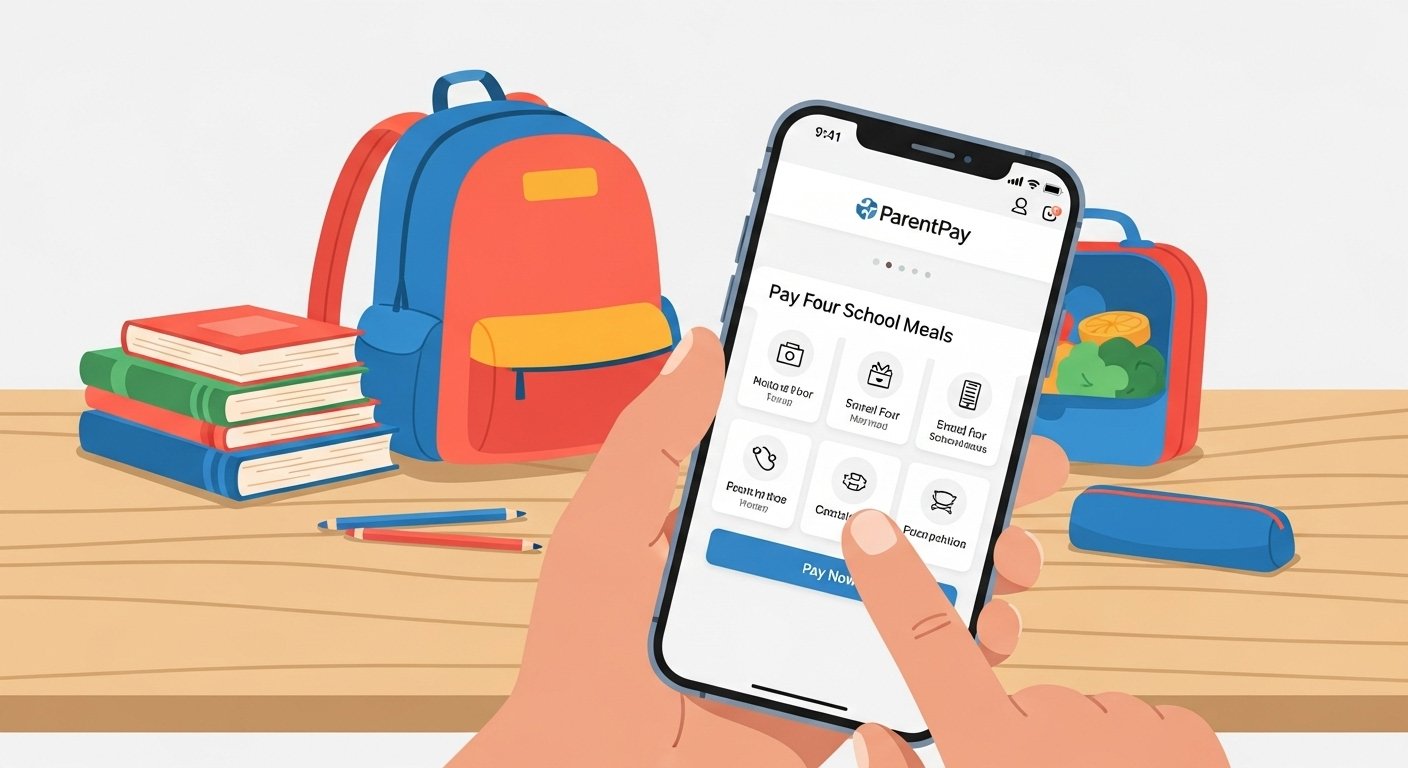
ParentPay is a safe and easy online system that helps parents pay for school things. It is very popular in the UK. Schools use it so parents do not need to send cash or cheques with children.
With ParentPay, you can pay for school meals, trips, after-school clubs, uniforms, books, and more. It is fast, secure, and helps schools save time. More than 11,000 schools and about 4 million parents use ParentPay. It makes school payments simple for everyone.
Important: No Real App to Download
ParentPay does not have an official app in the Google Play Store or Apple App Store. If you see any app named “ParentPay” there, it may be fake. Do not download it. Fake apps can steal your information.
Instead, ParentPay works through a website that feels like an app on your phone. You visit the official site: www.parentpay.com. Many parents add this website to their phone’s home screen. It acts just like a normal app. You open it with one tap.
This is called a Progressive Web App (PWA). It is safe, quick, and does not take extra space on your phone.
Why ParentPay Warns About Fake Apps
Schools and ParentPay often tell parents: “ParentPay has no app in app stores. Always go to www.parentpay.com on your phone or computer.” This stops people from losing money to scams.
How to Start Using ParentPay
Your child’s school gives you the login details. They send a letter, email, or message with your username and a temporary password.
Follow these easy steps:
- Open your phone or computer browser.
- Go to https://www.parentpay.com.
- Click “Login” or “Parents Login”.
- Put in your username and temporary password.
- Make a new strong password (use letters, numbers, and symbols).
- Add your child’s name and school if needed.
- You can add more than one child — even if they go to different schools that use ParentPay.
- Add your payment card (debit or credit). It is saved safely.
- Now you can see and pay for school items.
If you forget your password, click “Forgot Password” and follow the steps. Your school office can also help you.
Make ParentPay Feel Like an App on Your Phone
You do not download anything. Just add the website to your home screen.
On iPhone (iOS):
- Open Safari browser.
- Go to www.parentpay.com and log in.
- Tap the Share button (it looks like a square with an arrow up).
- Scroll and tap “Add to Home Screen”.
- Give it a name like “ParentPay”.
- Tap “Add”.
- Now you see the ParentPay icon on your home screen. Tap it to open fast.
On Android Phone:
- Open Chrome browser.
- Go to www.parentpay.com and log in.
- Tap the three dots menu at the top.
- Choose “Add to home screen” or “Install app”.
- Tap “Add”.
- The icon appears on your home screen.
This way, it works offline for some things (like seeing old payments), but you need internet to pay.
Main Features of ParentPay in 2026
ParentPay has many helpful tools for parents. Here are the most important ones explained simply:
- Safe Payments — Pay online for anything school asks. No cash needed. Use your card or keep money in your ParentPay balance.
- Meal Manager — Check how much money is left for school meals. See what your child can choose. Get info about allergies. Some schools let you pre-order meals.
- School Trips and Events — Book and pay for day trips, visits, or special days. See reminders when payment is due.
- Clubs and Activities — Pay for sports clubs, music lessons, art groups, or after-school care.
- School Shop — Buy uniforms, PE kits, stationery, or books right in ParentPay.
- Donations — Give money to the school easily. If you pay UK tax, use Gift Aid to give more help.
- Parents Evening Booking — Book time to talk with teachers online through SchoolCloud.
- Free School Meals — Check or apply for free meals quickly.
- Messages from School — Get school news, payment reminders, or updates.
- Medical Info — Some schools share safe medical notes about your child.
- Track Everything — See all your payments, balances, and history anytime.
All features are very secure. ParentPay protects your card and personal details with strong safety systems.
How to Make a Payment – Step by Step

It takes only a minute.
- Open ParentPay (from your home screen icon or website).
- Log in.
- See the main page. It shows your child and things to pay.
- Tap the item, like “Lunch Money” or “Zoo Trip”.
- Check the amount and details.
- Choose how to pay: use saved card or your ParentPay balance.
- If you need, add money to your balance first.
- Confirm.
- You get a receipt on screen and email. The school sees it right away.
You can also get reminders so you never forget.
Good Things for Parents
- Very safe — no lost cash.
- Pay any time, day or night.
- See all school costs in one place.
- One login for all your children.
- No more hunting for change for dinner money.
- Easy to use on phone.
Good Things for Schools
Schools get money faster. Less work chasing payments. Safer because no cash in school. Teachers focus on teaching, not money.
Is ParentPay Free for Parents?
Yes, mostly free. Some schools add a tiny fee for card payments, but many pay it for you. Ask your school. For schools, there is a small cost, but it saves them time and money.
Common Questions
Can I use ParentPay outside UK? It is made for UK schools. Some parts may work elsewhere, but best in UK.
What if I have two children in different schools? Add both with one account.
Is my card info safe? Yes. ParentPay uses top security. They do not share details.
What if school does not use ParentPay? Ask them to try it. Many schools switch because parents like it.
Tips to Stay Safe in 2026
- Always type www.parentpay.com yourself. Do not click strange links.
- Never tell anyone your password.
- Make strong password.
- Check your account often.
- If you see fake email or app, tell your school.
- Keep your phone updated.
New Things in 2026
ParentPay keeps getting better. They add easier mobile use, better messages, and more tools for meals and parents. They work with good groups to help children.
Final Words
ParentPay makes paying for school easy and worry-free. Set it up today if your school uses it. It takes little time and helps a lot.
Visit the official site for more help: www.parentpay.com. Talk to your school office if needed.
Disclaimer:
This page is only for information. It is not the official ParentPay website or app. We are not connected to ParentPay and this is not a promotion or affiliate post. All names and logos belong to their owners. Details can change, so always check the official ParentPay website or ask your school. We are not responsible for any problems or losses from using this information.
Explore More
- What Is the Hacoo App? Everything You Need to Know
- The Salon App: Say Goodbye to Appointment Hassles
- FlirtFinder App: Your Ultimate Match & Flirt Companion
About the Author