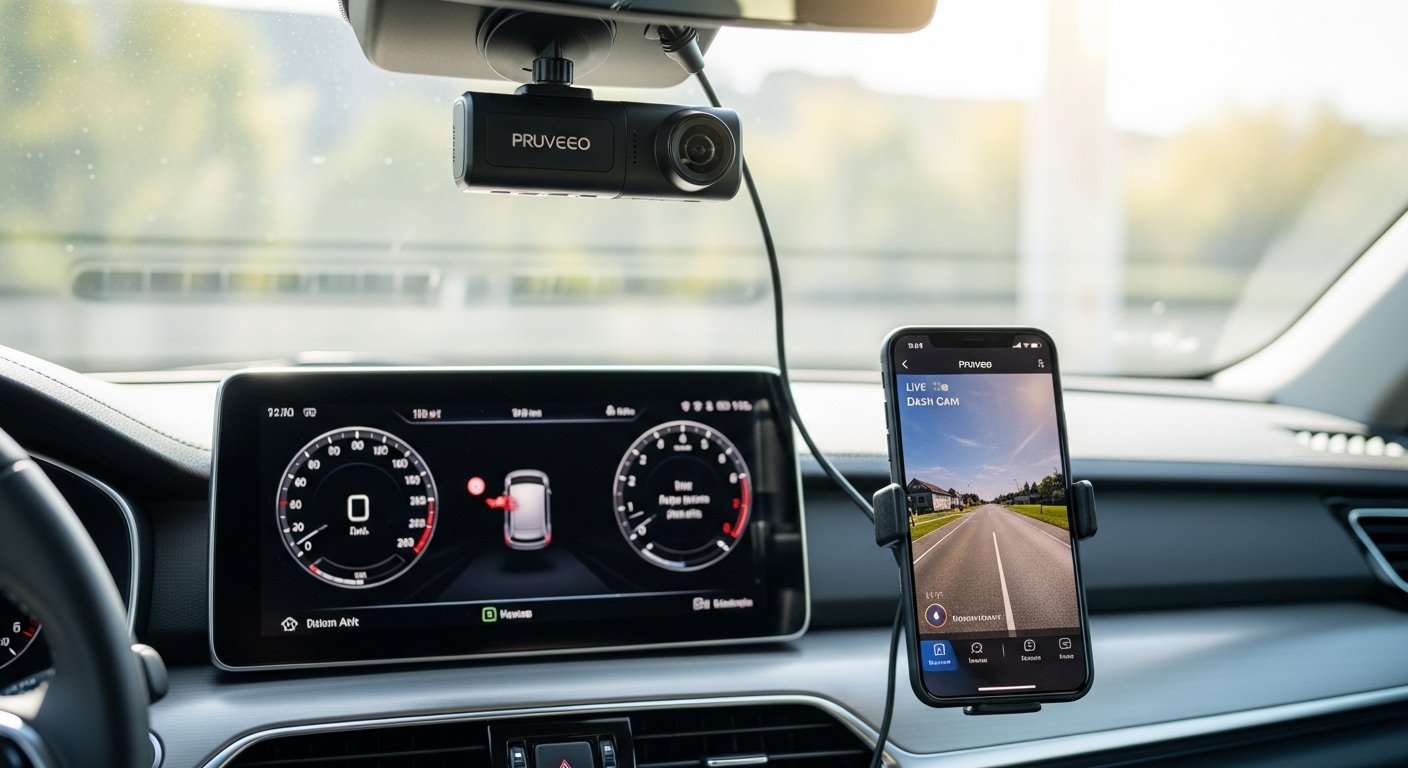
The Pruveeo Dash Cam App – Download for iPhone & Android is a helpful tool for anyone who owns a Pruveeo dash camera. This app makes it easy to control your dash cam right from your phone. You can see live video, watch old recordings, download files, and change settings without touching the camera itself. Many drivers love it because it saves time and gives quick access to important videos, like after an accident or for fun road trip clips.
Pruveeo is a trusted brand in dash cams. The company started in 2008 and has sold products to over one million drivers since 2015. They focus on clear video, strong build quality, and smart features like night vision, GPS, and parking mode. Their dash cams come in models like dual-channel (front and inside), or even 4-channel (front, rear, left, and right) for full 360-degree protection. The app works with many of these models, especially ones with WiFi, such as D30H, D90-4CH, and D904CH-MINI.
In this guide, we explain everything about the Pruveeo dash cam app in simple words. We cover what it does, how to download it for iPhone and Android, step-by-step setup, key features, tips for best use, and answers to common questions. This will help you get the most from your Pruveeo dash cam.
Why Use the Pruveeo Dash Cam App?
Dash cams record everything on the road, but without an app, you need to take out the memory card or connect to a computer to see videos. The Pruveeo app fixes this problem. It connects your phone to the dash cam over WiFi. This lets you do many things fast and easy.
Here are the main reasons drivers choose this app:
- See live video from your dash cam on your phone screen in real time.
- Start or stop recording when you want.
- Watch saved videos and photos right away.
- Download important clips to your phone to share or save.
- Change settings like video quality, loop recording, or motion detection.
- No need to remove the SD card every time.
- Works on both iPhone and Android phones.
This makes life simpler for daily drivers, ride-share workers (like Uber or Careem), truck drivers, or families on long trips. If something happens on the road, you can quickly check and save proof without hassle.
How to Download the Pruveeo Dash Cam App
The app is called GFGCAM (sometimes shown as GFG CAM). It is free and made just for Pruveeo dash cams with WiFi. Do not download other apps with similar names, as they may not work.
For iPhone (iOS):
- Open the App Store on your iPhone.
- In the search bar, type “GFGCAM”.
- Look for the app made for dash cams (it should show Pruveeo or related to car cameras).
- Tap Get or the download button.
- Wait for it to install. It is small and downloads fast.
- Open the app when done.
For Android:
- Open the Google Play Store on your phone.
- Search for “GFGCAM”.
- Find the correct app (check reviews or see if it links to Pruveeo dash cams).
- Tap Install.
- Let it download and install.
- Open the app.
Tip: Some Pruveeo models come with a QR code in the box or manual. Scan that QR code with your phone camera—it will take you straight to the right download page in the App Store or Play Store. This is the safest way to get the real app.
Always download from official stores only. This keeps your phone safe from bad files.
Step-by-Step: How to Connect the App to Your Pruveeo Dash Cam
Connecting is easy and takes just a few minutes. Make sure your dash cam is on and WiFi is ready.
- Turn on your Pruveeo dash cam. It should be powered by your car (when engine is running or in parking mode if hardwired).
- On the dash cam, turn on WiFi. Check your model’s manual—some models have a button, others start WiFi automatically. The screen may show “WiFi ON” or a network name.
- On your phone, go to Settings > WiFi.
- Look for the network name (SSID) from your dash cam. It often looks like “Pruveeo_XXXX” or a number code. Tap to connect.
- Enter the password. The default is usually 12345678. (Check your manual if different.)
- Once connected, open the GFGCAM app.
- In the app, tap Connect or the connect button.
- The app will find your dash cam. You will see a message like “WiFi Connected”.
- Now you can see the live view from your camera(s)!
If it does not connect, try these:
- Make sure you are close to the dash cam (WiFi range is short).
- Turn WiFi off and on again on both devices.
- Restart the dash cam.
- Forget the network on your phone and reconnect.
After first connection, many models remember it for next time.
Key Features of the GFGCAM App
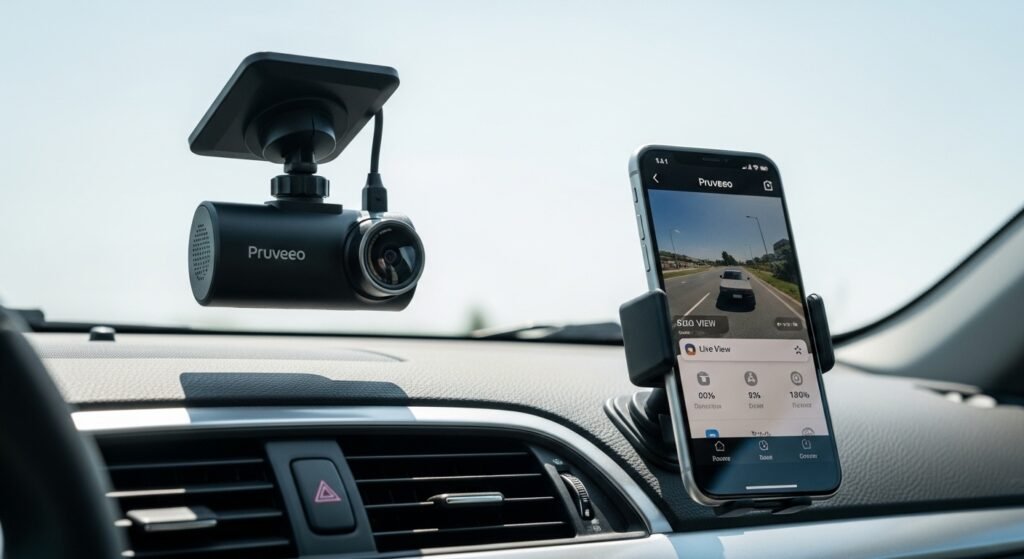
The app is simple but powerful. Here is what you can do once connected:
Live View See what your dash cam sees right now. Great for checking blind spots or testing the camera before a drive. For multi-channel models, you can switch between front, rear, inside, left, or right views.
Record Control Start or stop manual recording. Most dash cams loop record automatically, but you can lock a clip if needed.
Playback and Download Browse saved videos and photos on the SD card. Watch them in the app. Download any file to your phone. This is useful for insurance claims—send the video fast without a computer.
Settings Change things like:
- Video resolution.
- Loop recording time.
- Motion detection for parking mode.
- Time and date.
- GPS settings (if your model has GPS).
- Format the SD card.
File Management Delete old files to free space. Protect important videos so they do not get overwritten.
Share Easily After downloading to your phone, share clips on WhatsApp, email, or social media in seconds.
The app works well for models like the D90-4CH (360-degree view) or dual front-inside cams. It gives full control without complicated menus.
Tips for Best Results with the Pruveeo App
To make the app work smoothly every time:
- Keep your dash cam firmware updated. Check the Pruveeo website (pruveeo.com) for updates.
- Use a good microSD card (up to 512GB or as your model allows). Class 10 or U3 for best speed.
- Connect WiFi only when needed—dash cams use power for WiFi, so turn it off for long parking.
- For parking mode, hardwire your dash cam if possible. The app can help set motion or impact detection.
- Back up important videos often. Download them to your phone or cloud.
- If you have a 4-channel model, the app lets you see all angles—perfect for ride-share or family safety.
- The app is in English and easy to use, even for beginners.
Many users say the app is reliable and helps a lot in real-life situations, like proving who was at fault in a small bump.
Common Questions About the Pruveeo Dash Cam App
Is the app free? Yes, 100% free. No hidden costs.
Does it work on all Pruveeo dash cams? No, only models with built-in WiFi, like D30H, D90-4CH, D904CH-MINI, and some others. Check your model in the manual or on pruveeo.com.
What if I cannot find GFGCAM in the store? Search exactly “GFGCAM”. If still not there, scan the QR code from your Pruveeo box or visit pruveeo.com/pages/app for links.
Is my data safe? The connection is direct WiFi between phone and dash cam—no internet needed for basic use. Videos stay on your SD card until you download.
Can I use the app while driving? Better not—focus on the road. Use it when parked for safety.
What about other playback options? For computers, Pruveeo offers player software like GXPlayer for Mac or Windows versions on their site. But the app is best for phones.
Final Thoughts
The Pruveeo dash cam app (GFGCAM) is a must-have if you own a compatible Pruveeo dash cam. It turns your phone into a remote control and video viewer. Download it today for iPhone or Android, connect in minutes, and enjoy easy access to your road recordings.
With clear video proof from your dash cam, you drive with more peace of mind. Pruveeo builds quality products to protect drivers, and this app makes them even better. If you have a Pruveeo model, get the app now—it will change how you use your dash cam.
Disclaimer:
This article is only for information. It is not an ad or affiliate post. We are not connected to Pruveeo. Use the app and tips at your own risk. Always follow official instructions.
Explore More
- Resuscitation Skills App – HealthStream Login Guide for iPhone & Android
- Go Learn App: What It Is, Download, Login, PC Version & How to Use Docebo Go Learn App
- Sneaky Link App: Free Download, Reviews, iPhone, Instagram, Reddit & Jim Jones Info
About the Author