The Xbox Accessories app is a simple and powerful tool from Microsoft. It helps you make your Xbox controllers, headsets, and other accessories work exactly how you like. Whether you play on Xbox Series X|S, Xbox One, Windows PC, or even some mobile devices, this app lets you customize, update, and fix small issues with your gear.
Many gamers use basic controllers without knowing they can change button settings, adjust stick feel, or update firmware for better performance. This guide explains everything in easy English. We cover what the app does, how to set it up, main features, useful tips, and more. By the end, you will feel confident using it to improve your gaming.
What Is the Xbox Accessories App?
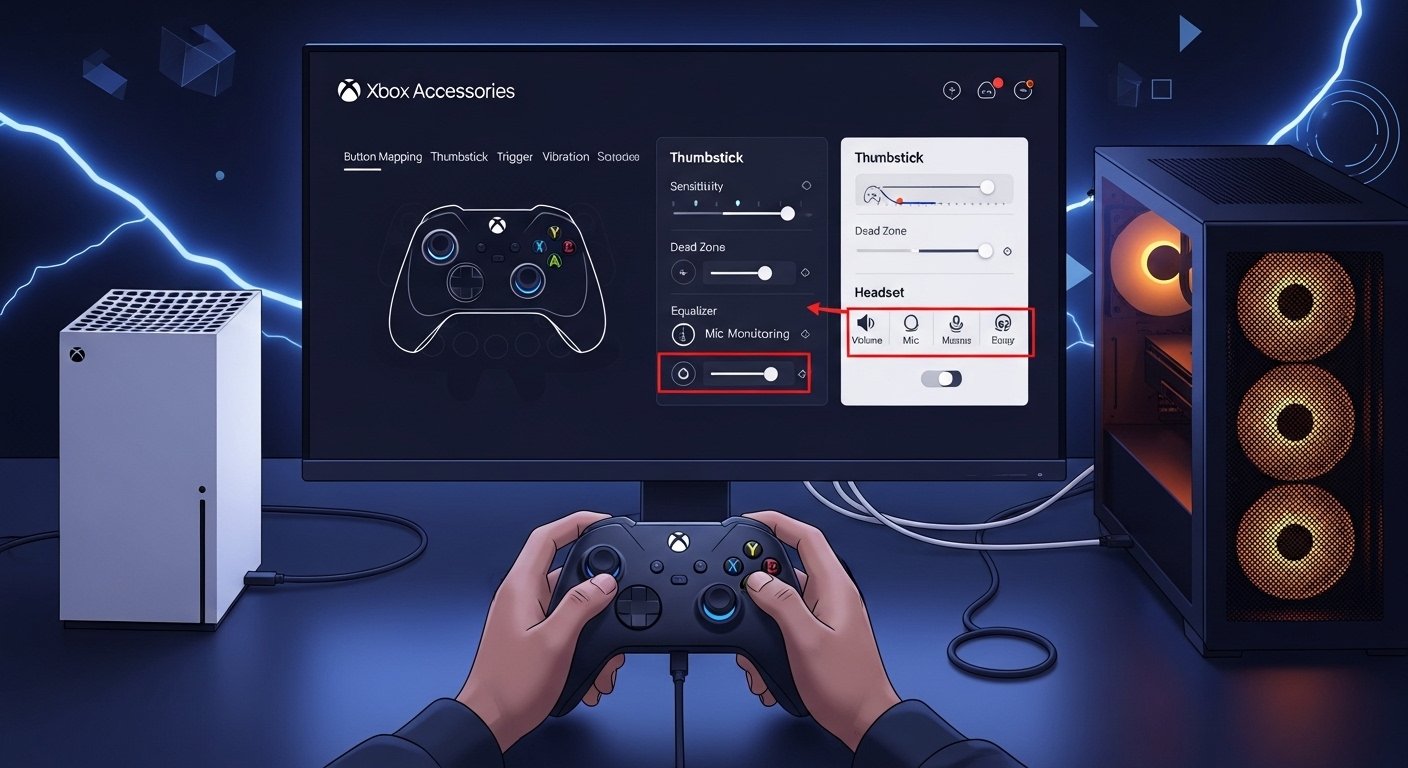
The Xbox Accessories app is a free program made by Microsoft. It works on Xbox consoles and Windows PCs. You use it to:
- Change how buttons and sticks work (called remapping or customizing).
- Adjust sensitivity for thumbsticks and triggers.
- Create and save different setups (profiles) for various games.
- Update your accessory to the latest software.
- Fix small problems like drift or trigger issues with calibration tools.
- Customize audio for supported headsets.
- Assign accessories to your Xbox profile.
It supports many devices, like:
- Xbox Wireless Controller (standard one).
- Xbox Elite Wireless Controller Series 2 (and Core version).
- Xbox Adaptive Controller (for players with disabilities).
- Some Xbox headsets, like Xbox Wireless Headset.
Note: It does not work with old Xbox 360 controllers or non-Xbox devices. Some features need a wired USB connection instead of Bluetooth for full options.
This app makes gaming more fun and personal. For example, if you play fast shooters, you can make triggers quicker. Or if you have hand pain, remap buttons to feel easier.
How to Set Up the Xbox Accessories App
Setting up is quick and easy. You can use it on your Xbox console or Windows PC. Here are the steps.
On Your Xbox Console (Series X|S or One):
- Connect your controller or headset to the console. Use USB for best results, or wireless if supported.
- Press the Xbox button on your controller to open the guide.
- Go to Profile & system > Settings.
- Choose Devices & connections > Accessories.
- The app opens automatically. You see your connected accessories listed.
- Pick the one you want and select Configure.
No download needed on console — it is built-in!
On Windows PC (Windows 10 or 11):
- Open the Microsoft Store on your PC.
- Search for “Xbox Accessories”.
- Download and install the free app.
- Connect your accessory via USB (recommended) or Bluetooth.
- Open the app and sign in with your Microsoft account (same as your Xbox gamertag).
- Your device appears. Click Configure to start.
Tip: Keep your Windows updated for best compatibility. The app works best when your PC is current.
Once set up, you can switch between console and PC easily. Changes save to the accessory itself, so they work across devices.
Main Features of the Xbox Accessories App
The app has many helpful features. Most focus on controllers, but some work for headsets too.
1. Button Mapping and Remapping
You can change what each button does. For example:
- Make the paddles on Elite controllers do jump or reload.
- Swap A and B buttons if it feels better.
- On Adaptive Controller, map any input to any action.
Recent updates added more options, like mapping thumbsticks to mouse movements (great for PC gaming or accessibility).
2. Profiles – Save Different Setups
Create multiple profiles. One for racing games (sensitive sticks), one for shooters (quick triggers), one default.
- Make a new profile.
- Edit settings.
- Name it (like “FPS” or “Racing”).
- Switch profiles fast in the app or on console.
Profiles store on the controller, so no need to open the app every time.
3. Thumbstick and Trigger Customization
For Elite Series 2 and some others:
- Adjust stick sensitivity curves (how fast the stick responds).
- Change dead zones (small area where stick ignores tiny moves).
- Set trigger locks or adjust pull distance.
- Use shift feature: Hold a button (like a paddle) to change what other buttons do temporarily.
4. Calibration Tools
Newer updates (from late 2024 onward) added self-calibration:
- Fix minor thumbstick drift.
- Calibrate triggers if they feel off.
Follow on-screen steps — it guides you to move sticks fully or press triggers. This can extend your controller’s life without buying a new one.
5. Firmware Updates
The app checks for updates. Connect your accessory, and if a new version is ready, install it. Updates fix bugs, add features, and improve battery life or connection.
Always update when asked — it takes just a few minutes.
6. Headset Customization
For supported Xbox headsets:
- Adjust EQ (sound balance, like more bass).
- Set game/chat mix.
- Enable features like Dolby Atmos if available.
7. More Options Menu
Click the “…” (more options) button for extras:
- Assign to a specific Xbox profile.
- Check battery level.
- Reset to factory settings.
Step-by-Step: How to Customize Your Controller
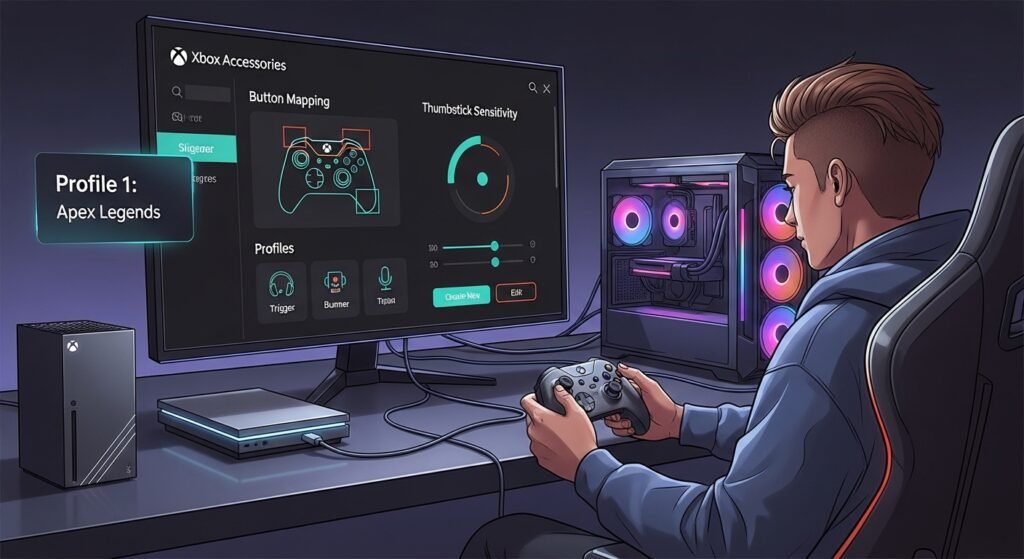
Let’s walk through a simple example for an Xbox Elite Series 2.
- Open the app and connect your controller.
- Select Configure.
- Choose or create a profile.
- Go to button mapping: Drag icons or pick new actions for paddles/buttons.
- Adjust thumbsticks: Slide bars for sensitivity or pick a curve (linear, aggressive).
- Set triggers: Shorten pull for faster shooting.
- Test in the built-in test mode — move sticks and press buttons to see changes live.
- Save the profile.
- Done! Your changes apply right away.
For standard Xbox Wireless Controller, options are simpler — mostly basic remapping and updates.
Useful Tips and Tricks
Here are some easy tips to get more from the app:
- Use wired USB connection first for full features. Bluetooth limits some advanced options.
- Create game-specific profiles. For example, one for Call of Duty (quick triggers), one for Forza (precise sticks).
- If your stick drifts a little, try calibration before buying new parts.
- On PC, the app works great for cloud gaming or Xbox Game Pass titles.
- For accessibility, the Adaptive Controller has extra options like mapping to keyboard or mouse — very helpful.
- Check the app often for updates. Microsoft adds new features, like better mapping in 2024-2025.
- Reset if something goes wrong: Use the more options menu to go back to default.
- Share profiles: Some players export configs online (but be careful with sources).
- Combine with Xbox console settings for audio or display tweaks.
- If using multiple controllers, label profiles clearly to avoid mix-ups.
These tips help you play better and avoid frustration.
Common Problems and Fixes
Sometimes things don’t work perfectly. Here are fixes:
- Accessory not showing? Reconnect USB or restart console/PC.
- Features missing? Update the app and Windows. Use wired connection.
- Drift or lag? Run calibration tool.
- Changes not saving? Make sure you save the profile and assign to your gamertag.
- App crashes? Close and reopen, or reinstall on PC.
Microsoft support pages have more help if needed.
Why the Xbox Accessories App Matters for Gamers
This app turns a good controller into a great one. It gives you control over your setup, making games feel smoother and more fun. Pro gamers use it for tiny edges in competition. Casual players use it for comfort.
With updates in 2024 and 2025, Microsoft keeps improving it — adding calibration, mouse mapping, and more. It shows they care about players.
In short, if you own an Xbox controller or headset, download or open the Xbox Accessories app today. Spend 10 minutes customizing, and your gaming will improve a lot.
Disclaimer:
This article is for information only. It is not a promotion, advertisement, or affiliate content. We do not sell or earn from the Xbox Accessories app. The steps and tips here are based on general use and personal experience. We are not responsible if something goes wrong while using the app or your devices. Always follow official instructions from Microsoft for safety.
Explore More
- What Is the Loop App NHS? Full Guide for Patients
- Temporary Car Insurance App: Quick, Easy Coverage on the Go
- Sky Glass App: Control & Stream Your TV Easily
About the Author