Many people want to make their car smarter without spending a lot of money. The Zlink app helps with that. It is a simple tool that brings Apple CarPlay and Android Auto to older or aftermarket car screens. This article explains everything in very easy English. We use short sentences and clear words so anyone can understand. All information is real and based on what users actually experience in 2026.
What Is the Zlink App?
Zlink is an Android app made specially for car head units. A head unit is the big touchscreen you install in your car instead of the factory radio. These screens run Android just like a tablet.
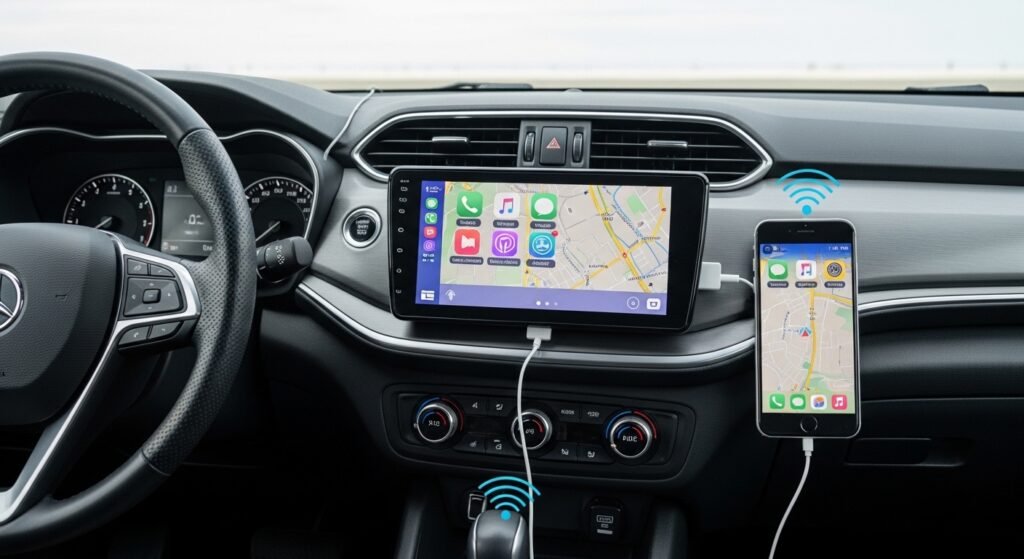
The main purpose of Zlink is to connect your smartphone to this car screen. If you have an iPhone, Zlink gives you Apple CarPlay. If you have an Android phone, it gives you Android Auto. Many cheap or older aftermarket screens do not support CarPlay or Android Auto from the factory. Zlink solves this problem.
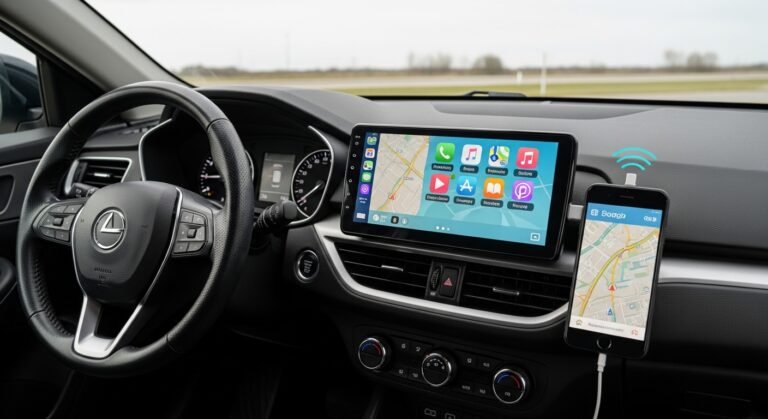
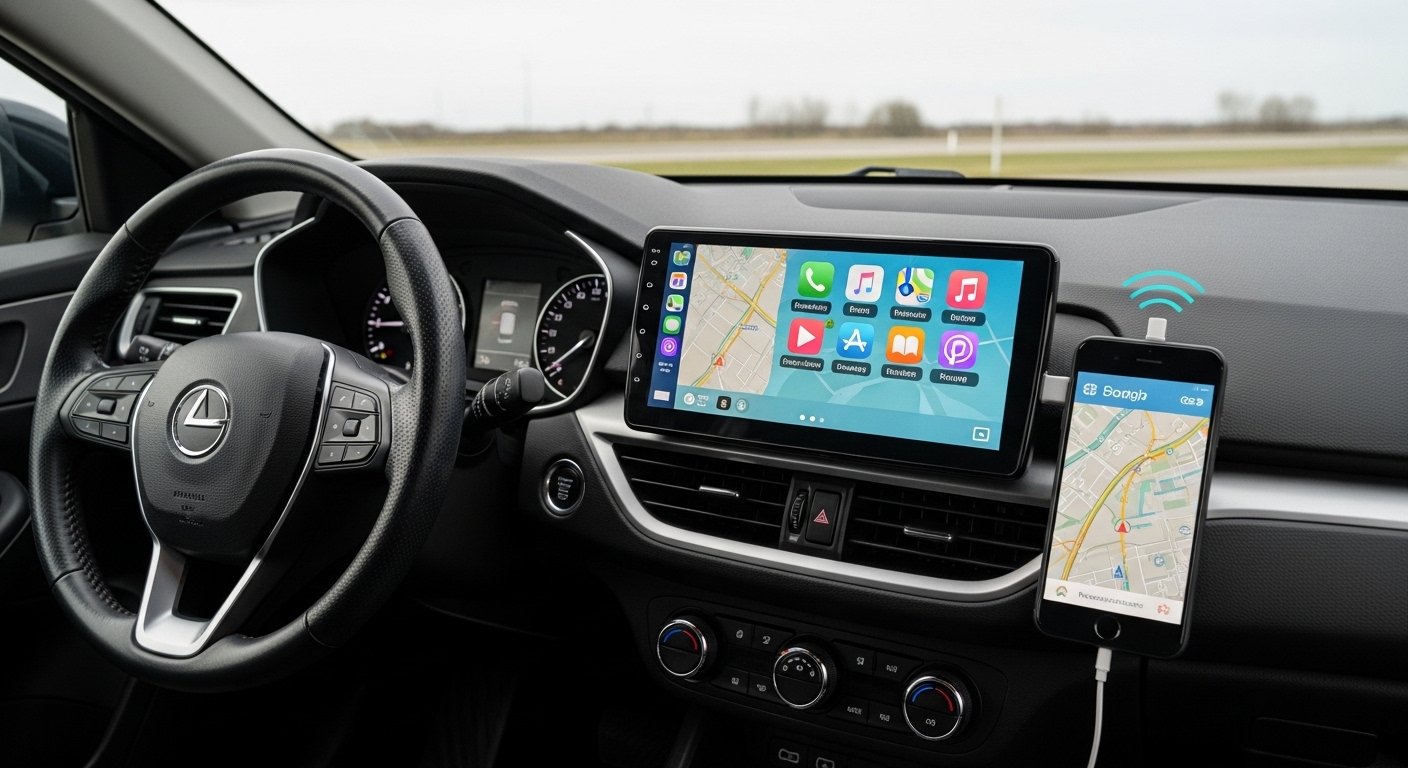
It works like a smart bridge. Your phone thinks the car screen is a real CarPlay or Android Auto display. Because of this, you can see navigation maps, play music, read and send messages, and make calls right on the big car screen. This keeps your eyes on the road and makes driving safer.
Zlink supports both wired and wireless connections. Wired means you plug your phone with a USB cable. Wireless means you connect using Bluetooth and Wi-Fi — no cable needed after the first setup. Wireless is much more convenient for daily use.
This app is very popular among people who upgrade cars like Toyota, Honda, Suzuki, or any vehicle with an aftermarket Android stereo. It is affordable and does not require changing the whole car system. Most head units need Android 5.0 or higher to run Zlink smoothly.
Main Features of Zlink for CarPlay
Zlink works really well with Apple CarPlay. Here are the most important features in simple words.
You get wireless Apple CarPlay in most cases. Your iPhone connects automatically when you start the car. No need to plug in every time. If wireless has any issue, you can always switch to wired mode by using a USB cable.
Once connected, the full CarPlay screen appears on your car display. It looks clean and familiar, just like in brand-new cars. You can use Apple Maps, Google Maps, or Waze for directions. You can play songs from Spotify, Apple Music, or YouTube Music. You can also use WhatsApp to listen to voice messages or make calls hands-free.
Siri works perfectly. You just say “Hey Siri” and ask it to play a song, send a text, set a reminder, or give directions. You do not have to touch the screen at all. This makes driving much safer.
The sound quality is usually very good. Music and phone calls come out clear through your car speakers. Some newer versions of Zlink even support better HD audio.
In some setups, you can also mirror your full phone screen if you want to show something extra. You control everything using the car’s touchscreen, steering wheel buttons, or physical knobs (if your car has them).
For Android phone users, Zlink provides wireless Android Auto with the same benefits — Google Maps, Google Assistant, music apps, and safe voice control.
Most users say these features make long drives more enjoyable and less stressful.
How to Download and Set Up the Zlink App
Zlink is not a normal phone app from Google Play Store. It is built for car head units. Many head units already have Zlink installed when you buy them.
If your head unit does not have Zlink, or if the version is old and not working well, follow these easy steps.
First, check inside your car screen. Go to Settings, then Apps, and look for something named Zlink, ZLINK5, or CarPlay. If you see it, try opening it and look for an update button inside the app.
If you cannot find it or need a fresh copy, go to trusted websites. The official site is zlink5.com. They give safe download links and setup guides. You can also ask your head unit seller or check forums for your brand.
Download the ZLINK APK file only from safe places. Never use unknown websites because bad files can cause problems.
Save the APK file on a USB drive. Plug the USB into your car head unit. Open the file manager or installer on the screen and choose the APK file to install it.
Some head units have internet and a built-in downloader or app store. In that case, you can download and install directly from there.
After installation, open the Zlink app on the car screen. On your phone, make sure Bluetooth and Wi-Fi are turned on.
For iPhone users, select CarPlay inside Zlink. The app will search for your phone and connect. The first time, allow all permissions it asks for.
For Android phone users, it will set up Android Auto in the same way.
To keep it working well, always check for updates. Newer versions (like 5.4 and above in 2026) fix connection problems and make wireless more stable.
If the connection fails the first few times, restart the head unit, forget old Bluetooth devices on your phone, and try again. Most people get it working after one or two tries.
Common Problems and Simple Fixes
Zlink is good, but sometimes small issues happen. Here are the most common ones and easy ways to fix them.
The connection drops sometimes. Make sure your phone’s Wi-Fi and Bluetooth stay on while driving. Keep your phone close to the head unit and away from other devices that can interfere.
No sound comes out. Check the volume on both your phone and the car stereo. Reconnect Zlink and make sure the correct output is selected.
The screen feels slow or lags. This usually happens on very old head units. Update Zlink to the latest version or update your head unit firmware if possible.
Wireless does not work but wired does. Some older versions had limited wireless support for Android Auto. Download the newest Zlink5 to fix this.
After a factory reset, the app is gone. Just download and install the APK again from a trusted source.
Most users say these fixes solve 90% of problems quickly.
Best Alternatives to Zlink
If Zlink does not work perfectly for your setup, or you want something even better, many good alternatives exist.
CarbitLink is one of the most popular choices. It gives stable wireless connections for both CarPlay and Android Auto. The interface looks clean and modern.
Autokit is another strong option. Many people say it connects faster and drops less often than older Zlink versions. Some head units already include it.
TLink and similar apps work almost the same way. They are often pre-installed on certain brands of head units. Check your head unit’s app store for the latest version.
If you already have basic CarPlay working and want more apps like YouTube or Netflix on the car screen, try WheelPal or CarBridge. These are add-on tools that unlock extra features.
For the most reliable option, buy a small hardware adapter. Popular ones are Carlinkit and Ottocast. You plug the adapter into the USB port of your head unit. It adds full wireless CarPlay without depending on any app. These adapters are very stable in 2026 and have almost no bugs.
Other apps like InCar also exist. They sometimes add useful extras such as speed display or fuel tracking.
To choose the best one, visit forums for your head unit brand (Dasaita, Xtrons, Joying, Phoenix, etc.). Real users share which app or adapter works best for their exact model.
If nothing software-based works well, some people upgrade to a new head unit that has native built-in CarPlay and Android Auto from the start.
Final Thoughts
Zlink is a smart and cheap way to bring modern phone features into your car. Wireless CarPlay is the biggest advantage — no more cables every single day. It makes navigation, music, and calls easy and safe.
Download only from trusted sources like zlink5.com. Keep the app updated. Test both wired and wireless modes to see what works best for you.
If you face too many issues, one of the alternatives will surely work. Options like CarbitLink, Autokit, or a hardware dongle give you more choices.
Always drive carefully. Use voice commands as much as possible. Keep your attention on the road.
With Zlink or one of its alternatives, your drives can become much more comfortable and enjoyable.
Disclaimer:
This article is for information only. It is not a promotion or an affiliate post. We do not sell or get paid for Zlink or any other app mentioned. We try to give correct and safe advice, but we cannot promise everything will work for every car or phone. Use apps, downloads, and accessories at your own risk. Always follow safety rules and keep your focus on driving.
Explore More
- Carefree App – Download Carefree Portal & Carefree Go App Easily
- Construction Manager App – Best Construction Project, FieldWire Cost & Expense Manager
- Drone Detection App – Free Drone Detection Radar App for Android
About the Author