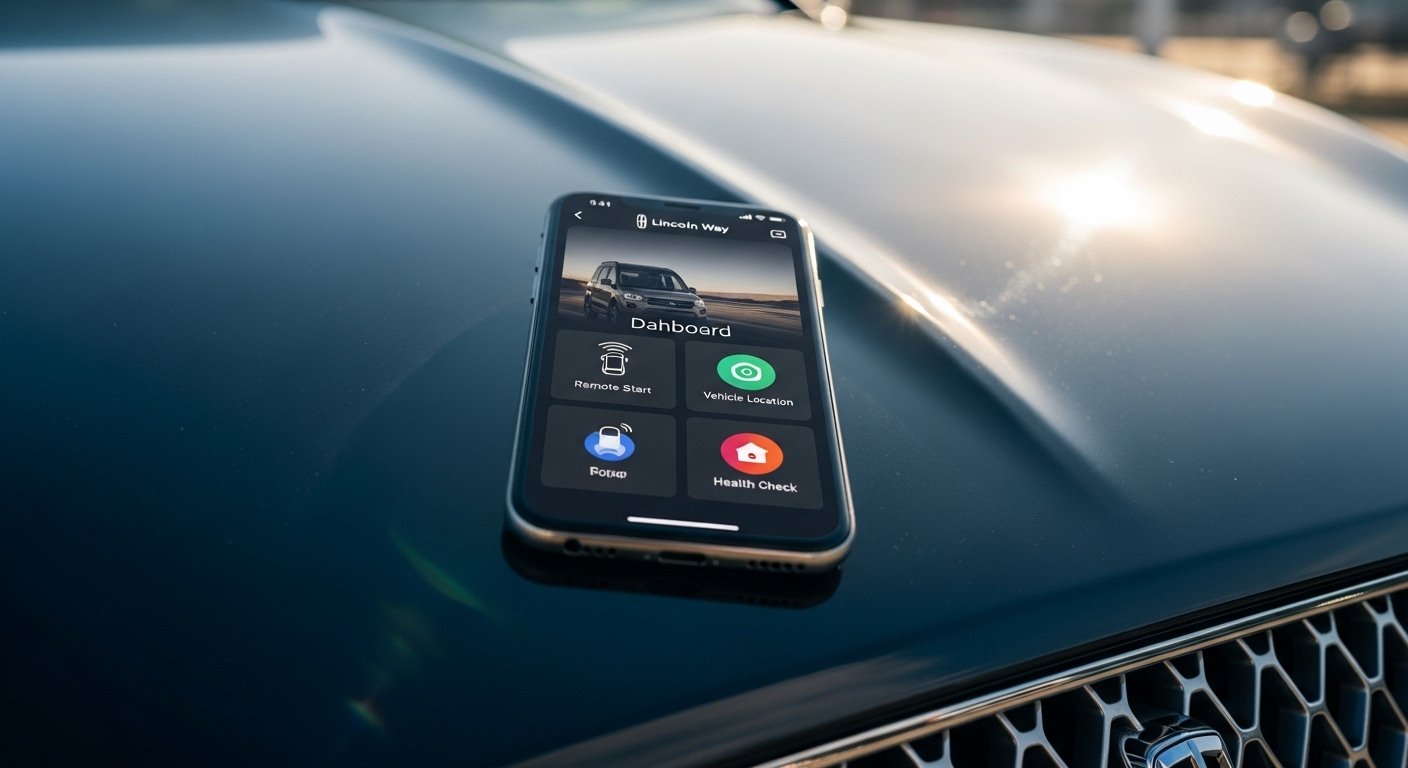
The Lincoln Way app (now often called the Lincoln app) is a helpful tool for Lincoln car owners. It lets you control and check your vehicle from your phone. This makes driving more easy and fun. Many people use it every day for simple things like starting the car from far away or finding where the car is parked.
This guide explains everything in simple words. We cover how to get the app, its main features, how to log in, remote start, vehicle location, common problems, and fixes. All information comes from official Lincoln sources and real user help to make sure it is correct and up-to-date.
What Is the Lincoln Way App?
The Lincoln Way app connects your smartphone to your Lincoln vehicle. It uses the car’s built-in modem (called Lincoln Connect) to send information. You can do many things without being inside the car.
Is the Lincoln Way app free? Yes, the app is completely free to download and use. There is no cost for the basic app or most features like remote start, lock/unlock, or vehicle checks. Some extra services (like special roadside help) might have fees, but the app itself and core remote features cost nothing. You only pay for your phone’s data if you use it away from Wi-Fi.
The app works on most new Lincoln models with Lincoln Connect. It is great for people who want more comfort and safety.
How to Download the Lincoln Way App
Getting the app is very easy. Follow these steps:
- Open your phone’s app store.
- For iPhone: Go to the App Store.
- For Android: Go to Google Play Store.
- Search for “Lincoln” or “Lincoln Way” (it may show as “Lincoln” now).
- Tap the official app from Lincoln Motor Company.
- Tap Download or Install. It is free.
- Wait for it to finish. The app icon looks clean and modern with the Lincoln logo.
Lincoln Way app download is quick. It takes less than a minute on good internet. Make sure your phone has space and is updated.
The app is safe and official. Always download from the real stores to avoid fake versions.
How to Set Up and Login to the Lincoln Way App
After download, set it up right away.
- Open the app.
- If you have an account, tap Login. Use your email and password.
- If new, tap Create Account. Put in your name, email, phone number, and make a strong password.
- Verify your email or phone if asked.
- Add your car: Tap Add Vehicle. Scan the VIN (17-digit code) with your camera. You find the VIN on the driver’s door or dashboard. Or type it in.
- Follow steps to activate. Turn on Bluetooth and location on your phone.
- The app connects to your car. This may take a few minutes.
Lincoln Way app login is secure. Use a good password and turn on two-step verification if offered.
Once set up, the app shows your car dashboard. It looks modern and easy to use.
Main Features of the Lincoln Way App
The app has many useful parts. Here are the top ones:
- Remote Start: Start your engine from far away to warm or cool the car.
- Lock and Unlock: Lock or unlock doors with one tap.
- Vehicle Location: See where your car is parked on a map.
- Vehicle Health Checks: Look at fuel level, tire pressure, oil life, and alerts.
- Schedule Start: Set the car to start at a certain time, like every morning.
- Phone as a Key: Use your phone to lock, unlock, and start without the key fob (on supported models).
- Roadside Assistance: Call for help if needed.
- Service Scheduling: Book maintenance or use Pickup & Delivery.
- Rewards and Account Management: Check Lincoln Access Rewards and account info.
The app is modern. It loads fast and has a clean look. You get one-tap access to things you use most.
Lincoln Way App Vehicle Location Feature
One of the best parts is Lincoln Way app vehicle location. It helps you find your car in big parking lots or if someone moves it.
How to use it:
- Open the app and log in.
- Go to the Vehicle tab or dashboard.
- Tap Vehicle Location or the map icon.
- It shows your car’s spot on Google Maps or your phone map.
- You see the last known location if the car is off.
This uses GPS from the car’s modem. It works when the car has power and connection. Turn on location sharing in settings for best results.
Note: The app does not track in real-time like a spy tool. It shows parked location. Lincoln says they do not track or disable cars for privacy.
How to Use Remote Start in the Lincoln Way App

Lincoln Way app remote start is very popular. It starts the engine to heat or cool the car before you get in.
Steps to use:
- Open the app.
- Go to your vehicle dashboard.
- Find the Start toggle or button.
- Slide or tap to start. Hold if needed.
- The app shows it is starting. Lights flash, and engine runs for 15 minutes (or set time).
- To stop early, tap stop in the app.
You can also schedule starts. Go to settings and set times.
Make sure:
- Remote start is on in car settings (check instrument cluster).
- Hood and trunk are closed.
- No check engine light.
- Car not in deep sleep mode.
This feature needs good cell signal.
How to Connect the Lincoln Way App to Your Car
How to connect Lincoln Way app to car is simple after adding the vehicle.
- In the app, add vehicle with VIN.
- In your car, go to settings on the screen.
- Turn on connectivity or Lincoln Connect.
- Confirm the connection when asked.
- Bluetooth and location on phone help for Phone as a Key.
If issues, restart phone and car, or check modem activation at dealer.
Common Technical Issues and Troubleshooting
Sometimes the app has problems. Here are fixes for common ones.
Lincoln Way app not working or not responding:
- Update the app in store.
- Restart your phone.
- Check internet (Wi-Fi or data).
- Log out and log back in.
- Clear app cache (on Android).
Lincoln Way app not responding on Apple Watch:
- The app has Apple Watch support.
- Update Watch OS and app.
- Make sure phone app works first.
- Reinstall companion app on watch.
- Some older watches may not work well.
Lincoln Way app crashing or not loading:
- Check phone compatibility.
- Update phone OS.
- Free up phone space.
- Turn off VPN if using.
Remote start not working:
- Check if enabled in car.
- No check engine light.
- Good signal.
- Not in deep sleep (drive car sometimes).
Other issues:
- For connection problems, do a master reset in car SYNC system (Settings > System > Reset > Factory Reset). This clears old data but may need setup again.
- Lincoln Way app master reset often means resetting the car’s system or removing/re-adding vehicle in app.
If nothing works, contact Lincoln support at 1-800-521-4140 or use live chat in app. Or visit a dealer.
The app gets updates often to fix bugs. In 2025-2026, it became faster and cleaner.
Final Thoughts
The Lincoln Way app makes owning a Lincoln better. It gives control, safety, and peace of mind. Features like remote start, vehicle location, and health checks save time and add luxury.
Download it today if you have a compatible Lincoln. Set it up, and enjoy the modern convenience.
Disclaimer:
This article is only for information. It is not an ad and not a paid post. We are not responsible if the app has problems or does not work. Always follow official Lincoln instructions.
Explore More
- Pregnancy Test Checker App Free Download (iOS) – How to Use, Accuracy & Review 2026
- OpsAnalitica App Download for Android – Latest OpsAnalitica App APK
- What Is the Best Drone Detector App? Top Apps for Android, iPhone & Police Use (2026 Guide)
About the Author