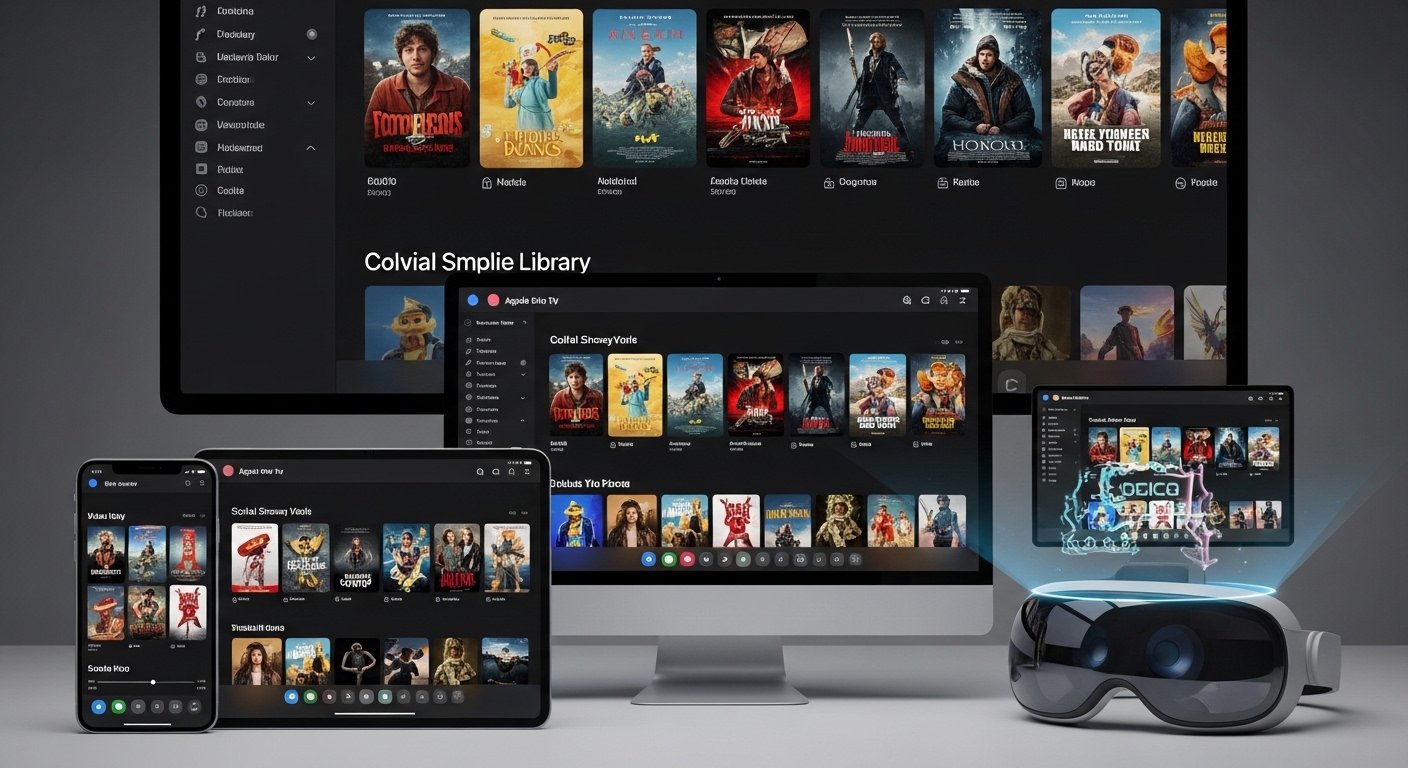
Welcome to the complete guide for the Infusion App in 2026! If you love watching movies, TV shows, or home videos on your Apple devices, this app can change everything. Many call it the best video player for iPhone, iPad, Apple TV, Mac, and Apple Vision Pro.
The app’s real name is Infuse, but people often type “Infusion App” by mistake. It plays almost every video file you have – no need to change formats. In 2026, Infuse is better than ever with new updates for smooth playback, great looks, and smart features.
This guide explains what the app does, its top features, how to use it step by step, tips for best results, and why it is a top choice now.
What Is the Infusion App?
Infuse is a powerful video player app made for Apple users. Firecore developers created it. The goal is simple: let you watch any video file easily and beautifully on your devices.
You can use it for:
- Movies and TV shows you download or rip from discs.
- Home videos from your phone or camera.
- Files from your computer, NAS drive, or cloud storage.
Unlike normal players, Infuse does not need you to convert files to special formats. It plays MKV, MP4, AVI, ISO, and many more right away. This saves time and keeps quality high.
In 2026, Infuse works great with iOS 26 (or later), tvOS updates, and visionOS for Apple Vision Pro. It syncs your library across devices so you start a movie on your phone and continue on Apple TV.
The free version lets you try it. A Pro upgrade unlocks everything – no ads, better features, and full support.
Why Choose Infusion App in 2026?
Many video apps exist, but Infuse stands out. Here is why people love it more in 2026:
- Beautiful Design — The app looks modern and clean. It shows big posters, clear text, and easy menus. It feels like a real movie library.
- Plays Everything — Supports almost all formats: 4K, HDR, Dolby Vision, Dolby Atmos sound, subtitles in many languages.
- No Conversion Needed — Save space and time. Just add files, and play.
- Syncs Everywhere — Use Trakt or Plex to track what you watch. Watch on one device, pick up on another.
- AirPlay and Streaming — Send to TV easily. Connect to cloud services like Google Drive, Dropbox, OneDrive, or your home server.
- Regular Updates — Developers add new things often. In 2026, Vision Pro version lets you watch in huge virtual screens with 3D and immersive views.
- Safe and Private — Your files stay on your devices or chosen storage. No forced cloud upload.
Users say it is the “must-have” app for Apple TV. Many reviews call it better than built-in players or other apps.
Key Features of Infusion App in 2026
Infuse has many strong features. Here are the most important ones explained simply.
1. Wide Format Support Infuse plays rare formats like MKV with chapters, ISO disc images, DVD folders, and old AVI files. It handles 4K UHD, HDR10+, Dolby Vision, and high-frame-rate videos smoothly.
2. Gorgeous Library View The app finds posters, descriptions, actors, and trailers automatically. Your movies look like Netflix, but with your own files. Sort by genre, year, rating, or watched status.
3. Smart Playback Controls
- Easy seek bar with preview thumbnails.
- Change speed (0.5x to 2x).
- Volume boost for quiet videos.
- Quick subtitle and audio track switch.
- Gesture controls on phone/iPad: swipe for brightness, volume, or seek.
4. Subtitle Magic Downloads subtitles automatically from sites like OpenSubtitles. Supports embedded subs, side-loaded, or custom. Change font, size, color, and position easily.
5. Multi-Device Sync Connect to Trakt.tv to mark watched episodes. Sync progress across iPhone, iPad, Apple TV, Mac. Continue watching without searching.
6. Streaming from Anywhere Add files from:
- Computer via SMB, NFS, FTP.
- Cloud: Dropbox, Google Drive, OneDrive, Box.
- Media servers: Plex, Emby, Jellyfin.
- UPnP/DLNA devices.
7. Apple Vision Pro Support In 2026, the Vision Pro app is amazing. Watch in giant virtual theater. Soon, full 3D video and immersive environments come.
8. Pro Features Free version is good, but Pro gives:
- No ads or limits.
- Folder sharing and custom art.
- Advanced library tools.
- Priority support.
Pro costs a one-time fee or subscription – worth it for heavy users.
How to Download and Set Up Infusion App

Getting started is easy. Follow these steps.
Step 1: Download the App
- On iPhone or iPad: Open App Store, search “Infuse”, download from Firecore.
- On Apple TV: Go to App Store on TV, search Infuse.
- On Mac: App Store or direct from Firecore site.
- On Vision Pro: Search in visionOS App Store.
It is free to start.
Step 2: Open and Choose Language Launch Infuse. Pick your language. It supports English and many others.
Step 3: Add Your Videos
- Tap “+” or “Add Files”.
- Choose source: Files app, computer share, cloud drive.
- For home network: Enter server details (like NAS IP).
- Infuse scans and adds posters automatically.
Step 4: Organize Your Library Wait for scan. Infuse groups movies and shows. Edit if needed: change title, add custom poster.
Step 5: Upgrade to Pro (Optional) If you like it, buy Pro in app settings. Unlock all features.
Step 6: Start Watching Tap a video. Enjoy smooth playback!
Step-by-Step: How to Use Infusion App Daily
Here is how to do common things.
Watching a Movie
- Open library.
- Find movie.
- Tap play.
- Use remote or screen gestures.
- Pause, skip chapters, change audio.
Adding Subtitles
- During play, tap screen.
- Go to subtitle icon.
- Choose download or pick file.
- Adjust style in settings.
Sync Watching Progress
- Go to settings.
- Connect Trakt account.
- Log in.
- Progress syncs automatically.
Streaming from Computer
- On computer, share folder via SMB.
- In Infuse, add share with computer IP and login.
- Access files live.
On Apple TV Use Siri Remote. Swipe for controls. Big screen looks stunning.
Tips for Best Experience
- Use wired network for 4K to avoid buffering.
- Turn on “Match Frame Rate” in Apple settings for smooth video.
- Backup library data in settings.
- Check updates often – new versions add fixes.
Pros and Cons of Infusion App
Pros
- Plays any file.
- Looks amazing.
- Great on all Apple devices.
- Regular improvements.
- Good community support.
Cons
- Pro version costs money for full use.
- Best for Apple users only (no Android or Windows native).
- Needs good setup for network shares.
Is Infusion App Right for You in 2026?
If you have Apple devices and watch local videos often, yes! It is perfect for movie lovers who hate converting files or bad playback.
For streaming services like Netflix, use their apps. But for your collection, Infuse is king.
In 2026, with more 4K/HDR content and Vision Pro, Infuse grows stronger.
Final Thoughts
Infuse (Infusion App) makes watching videos fun and easy. Its features, speed, and beauty set it apart. Download it today, add your files, and enjoy.
If you have questions, check the app settings or Firecore website. Happy watching!
Disclaimer:
This article is for information only. It is not a promotion or affiliate content. We do not get paid if you download or buy anything. The information here may change over time. Use the app at your own risk. We are not responsible for any problems or losses.
Explore More
- Baseline App Manager: Login Guide & Easy Access Tips
- Vending Machine Locator App: Find Nearby Machines Easily
- Stackin App Review 2026: What Is the Stackin App, Is It Legit & How to Download
About the Author