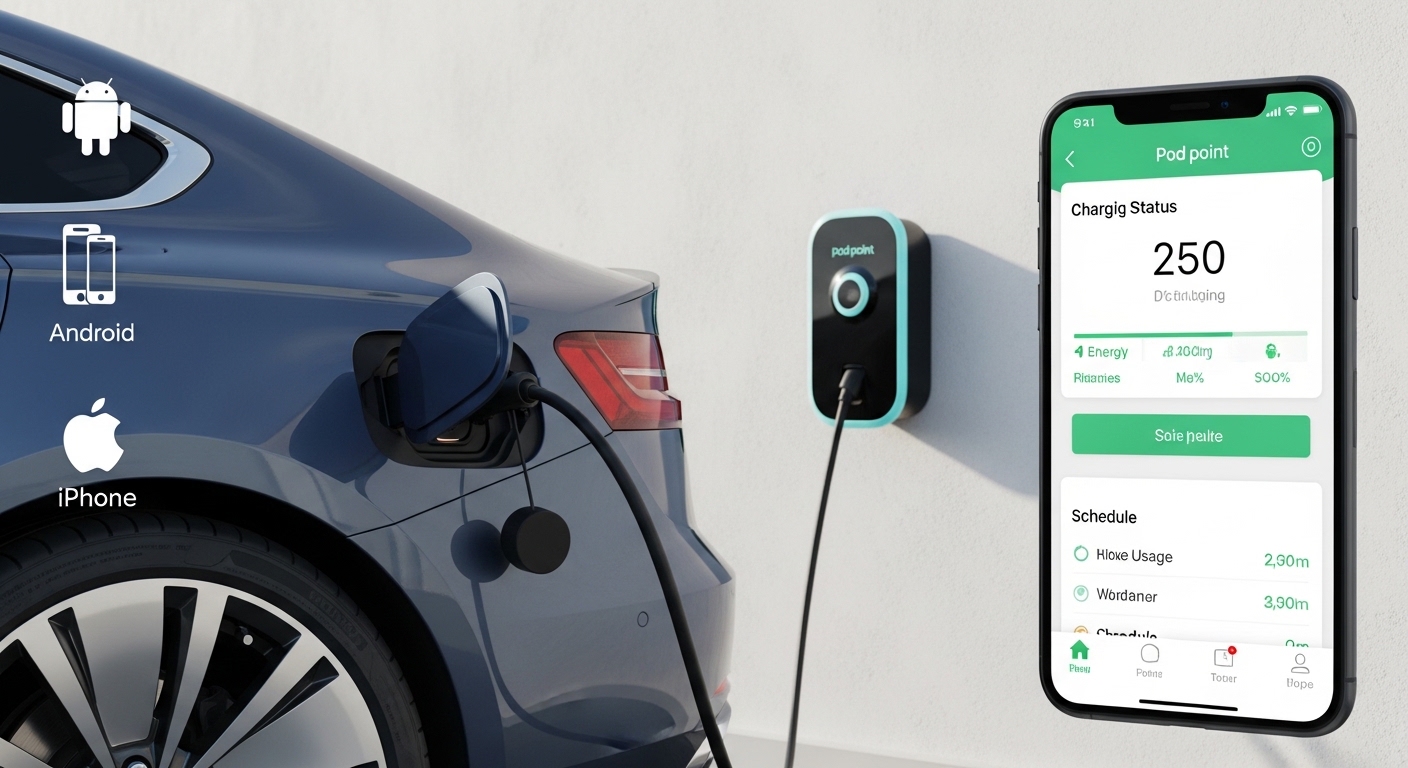
Electric cars are becoming more popular every year because they are kind and clean for the environment. Many people use a special app to make charging their car easier and smarter. The Pod Point app helps drivers manage charging at home, at work, or on public chargers. This guide explains everything in a simple way so you can feel confident using it in 2026 on your Android phone or iPhone. You will learn how to set it up, check your charge history, enjoy its benefits, fix common problems, and even how to get money back if needed.
Many new and experienced electric vehicle owners turn to the Pod Point app because it brings all charging needs into one place. After that, daily charging feels less stressful and more organized. This means you can focus on your drive instead of worrying about details.
Why the Pod Point App Matters for Electric Car Drivers
The Pod Point app works like a helpful friend for your electric car. It lets you find chargers, start charging sessions, and track how much energy you use. In 2026, the app has grown even better with smoother updates for both Android and iPhone users.
For example, imagine you finish work and need to charge before heading home. You open the app, see nearby chargers, and pay easily. This saves time and helps you avoid running out of power. Also, the app connects your home charger if you have one, so you can schedule charging when electricity costs less. Over time, these small choices add up to real savings on your bills. That is why so many people rely on the Pod Point app every day.
Next, let us look at how to get started with the app on your phone.
How to Download and Set Up the Pod Point App on Android and iPhone
Getting the Pod Point app is simple for both Android and iPhone users. First, open the Google Play Store on your Android phone or the App Store on your iPhone. Then search for “Pod Point”. Choose the official app and tap the install button. The app works well on most modern phones because the company keeps it updated.
After the app finishes downloading, open it. You will see an option to create a new account or log in if you already have one. Creating an account takes just a few minutes. You need to enter your name, email address, and a strong password. Use the same email you used when you bought your home charger if you have one. This step connects everything nicely.
Once your account is ready, the app may ask for your car details, such as the model. Adding your car helps the app give better advice about charging. In addition, you can add a payment card for public charging. The app also supports Apple Pay and Google Pay, which makes payments quick and safe.
After that, if you own a Pod Point home charger, you can pair it with the app. Go to the “At Home” section at the bottom of the screen. Tap the plus icon and scan the barcode on your charger or type the number manually. This pairing unlocks smart features like scheduling. Because the setup is straightforward, even beginners finish it without trouble.
Now that your app is ready, you can start using it for daily charging needs.
How to Use the Pod Point App for Charging Your Electric Vehicle
Using the Pod Point app feels natural once you try it a few times. For public charging, open the map inside the app. It shows nearby Pod Point chargers with clear details like speed and price. Pick the one you want, drive there, and plug in your car.
Next, the app may ask you to confirm the charge on your phone. Select the correct socket if there are two. After you confirm, charging begins. This confirmation step keeps things secure and prevents mistakes. For rapid chargers, you sometimes need credit in your account. You can top up easily in the Account section by choosing an amount and paying with your card.
At home with a paired charger, things become even easier. Plug in your car, and the app shows the status right away. You can start charging immediately or set a schedule. Many people schedule charging for nighttime when electricity is cheaper. For example, you tell the app what time you need your car ready in the morning. The app then charges during low-cost hours. This simple habit can lower your monthly electricity bill.
Another useful part is managing your home charger status. The app shows if your charger is connected, charging, or waiting. You can also switch between different modes if you have solar power at home. Over time, these controls help you use energy wisely and feel more in control of your costs.
Checking Charge History in the Pod Point App
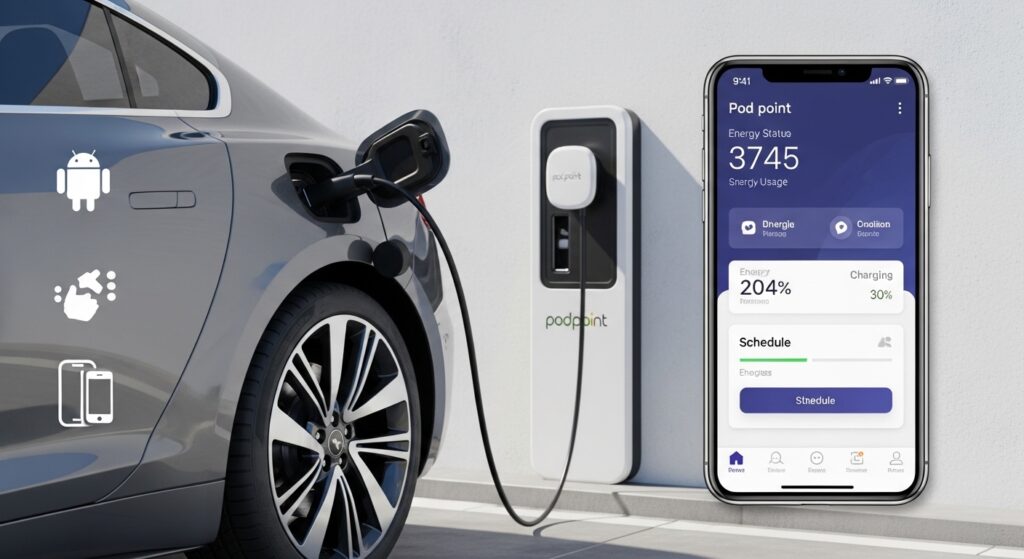
Keeping track of your charging is important for understanding your habits and costs. The Pod Point app makes this easy through its Stats section. Tap the Stats icon at the bottom menu. You will see your charging activity shown in weekly, monthly, or even yearly views.
Just toggle the button at the top right to change the time period. Scroll down to see each individual charging session with details like energy used and cost. This clear breakdown helps you remember where and when you charged. For instance, you might notice you charge more on weekends because of longer drives.
If you need a detailed report for work or taxes, the app lets you export your data. Go to the Stats tab, tap the export icon, pick your date range, and add mileage if you want. After that, a spreadsheet arrives in your email. Many drivers use this feature to show business charging costs. Because the history updates every time you unplug, the information always stays fresh and accurate.
Sometimes users say the Pod Point app is not showing charge history. If this happens, first check your internet connection. Then make sure the app has permission to refresh data. Updating the app to the latest version often fixes small display issues.
Pod Point App Benefits and Specific Features
The Pod Point app offers several benefits that make life with an electric car more enjoyable. One big advantage is convenience. Everything stays in one app, so you do not need separate tools for home and public charging. In addition, smart scheduling helps you save money by using cheaper electricity times.
Another benefit is clear tracking. You can see exactly how much energy comes from the grid or from solar if you have panels. This knowledge encourages better habits over time. The app also supports expense reporting, which is helpful for people who drive for work. You can select sessions and send them to your fleet manager if your company uses Pod Point services.
For public charging at places like Tesco, some users connect their Clubcard to collect points while charging. The map feature shows real-time availability, so you avoid driving to a broken or busy charger. These small benefits add up and make daily driving smoother.
In 2026, the app continues to improve with better speed and new options for smart energy use. Because of these updates, both new Android users and long-time iPhone owners find the experience reliable and helpful.
Common Troubleshooting When the Pod Point App Is Not Working
Even good apps can have small problems sometimes. If your Pod Point app is not working, stay calm and try these simple steps in order.
First, check your phone’s internet connection. Turn Wi-Fi or mobile data off for ten seconds, then turn it back on. This often refreshes the app. Next, close the app completely and open it again. On Android, you can clear the cache from phone settings if needed. On iPhone, try restarting your device.
If the Pod Point app is not working on iPhone specifically, make sure you have the newest iOS version and update the app from the App Store. Some users also turn off VPN temporarily because it can block connections. After that, log out and log back into your account.
Another common issue is the Pod Point app not showing home charger. This usually happens when the charger loses its Wi-Fi connection. Check the LED light on your charger for clues. If it shows certain colors, you may need to reconnect Wi-Fi through the app. Make sure your home Wi-Fi uses the 2.4GHz band because the charger works best with that. Power off the charger for thirty seconds to reset it, then pair again.
When the Pod Point app is not showing charge history or certain chargers, try updating the app first. Also, confirm your account email matches any work or business settings if you use shared chargers. These small fixes solve most problems quickly. Because the app receives regular updates, issues usually get better with time.
If nothing works, the app has a support section where you can contact the team directly. They respond to help you get back on track.
How to Withdraw Money or Get Money Back from the Pod Point App
Sometimes you have leftover credit in your Pod Point account and want to get it back. The app does not have a direct withdraw button for small balances. Instead, you need to contact Pod Point customer support.
Go to the support or help section inside the app or visit their official help page. Explain that you want to withdraw your remaining balance. Provide your account details and the reason. The team will guide you through the process. Many users successfully get their money back this way after reaching out.
To avoid having extra credit in the future, only top up what you plan to use soon. Start with small amounts until you learn your charging patterns. This careful approach prevents leftover money and keeps things simple.
If you feel a charge was added by mistake, mention that clearly when you contact support. They can review and help with refunds where possible. Always keep records of your transactions for easier conversations.
FAQ About the Pod Point App
Here are answers to some common questions people ask about the Pod Point app.
How do I download the Pod Point app for Android or iPhone?
Open your phone’s app store, search for Pod Point, and install the official app. It works on most Android and iPhone devices from recent years.
Why is my Pod Point app not showing charge history?
Try refreshing your connection, updating the app, or logging out and back in. The history usually appears after a successful sync.
Can I use the Pod Point app to schedule home charging?
Yes. In the At Home section, set your ready time and let the app charge during cheaper hours. This helps save money on electricity.
What should I do if the Pod Point app is not working?
Restart your phone, check internet, update the app, and try logging in again. Most issues clear up with these steps.
How can I see my home charger in the Pod Point app?
Pair the charger by scanning its barcode in the At Home tab. Make sure it stays connected to Wi-Fi for the status to show correctly.
Is there a way to get money back from unused credit in the Pod Point app?
Contact customer support through the app or their help site. They can assist with withdrawing your balance.
Does the Pod Point app work well for both public and home charging?
Yes. It handles finding public chargers, paying, and managing your home charger all in one place.
Conclusion
The Pod Point app serves as a useful tool for anyone who drives an electric car. It helps with setup on Android and iPhone, shows clear charge history, offers practical benefits like scheduling and tracking, and includes ways to handle troubleshooting. When issues arise, simple steps often bring quick solutions. For leftover credit, reaching out to support provides a path to withdraw money or get it back.
By learning these features step by step, you can make charging smoother and more affordable. Take time to explore the app at your own pace. Small changes, like smart scheduling, bring real improvements over weeks and months.
Stay curious about new updates because the world of electric driving keeps getting better. With tools like the Pod Point app, enjoying your electric car becomes easier every day. Drive safely and charge wisely.
Disclaimer:
This article provides general information based on publicly available details about the Pod Point app as of 2026. Features, steps, and processes may change over time. Always check the latest version of the app and official Pod Point resources for the most accurate instructions. This guide is for educational purposes only and does not replace official support or advice. Contact Pod Point directly for account-specific help, refunds, or technical issues.
Explore More
- Shein App Download 2026: Free APK, iPhone, Android, UK, PC & Mac Versions with Discounts
- Big Brother App 2026: Big Brother App Download, Free iPhone Guide & Why There Is No Official Big Brother App
- More 4 App Download Guide 2026: Free Install for Android, iPad, Windows, LG TV, Samsung TV, PS4 & Sky Fixes
About the Author