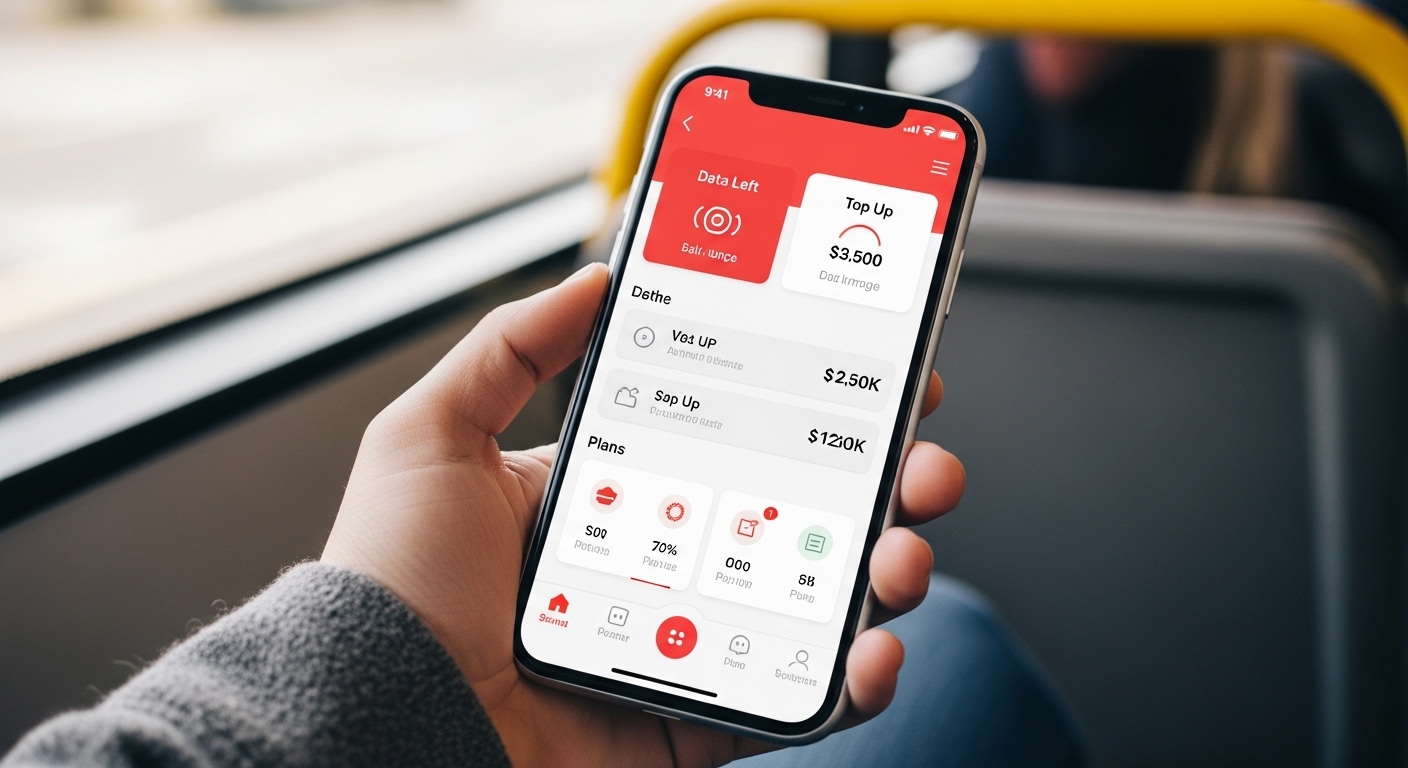
Hey friend, imagine you can check your phone plan and fix things right from your pocket. That is what the giffgaff app does for you. In 2026, this official tool makes life so much easier for anyone with a giffgaff number. You can see how much data you have left, buy new plans, add credit, and even connect to free WiFi spots. Many people love it because it saves time and helps you stay in control while you are out and about.
This full guide will walk you through everything step by step. We will cover how to get the app, set it up, use all the main parts, and fix small problems. Whether you have an Android phone, iPhone, Samsung, or Huawei, you will find clear help here. Let us start together and make your giffgaff experience simple and fun.
What is the Giffgaff App and Why Use It?
The giffgaff app is the official mobile tool that lets you manage your giffgaff account from your phone. It feels like having a little helper in your hand. You can quickly check your balance, see your data use, buy plans called Goodybags, and top up credit. Many folks say it is faster than using the website because everything is right there on your screen.
One big reason to use it is that it saves you time in real life. For example, if you are on a bus and notice your data is low, you can buy more in just a few taps. The app has grown better over the years. Now it has smoother screens, easy ways to handle more than one account, and quick links to special offers. People often search for “my giffgaff app” because it feels personal and friendly.
Another nice thing is that it works well on many phones. You can use it on Android, iPhone, Samsung, and Huawei devices. It even helps with fun extras like WiFi Extra. That means you can connect to thousands of free WiFi spots across the UK without using your mobile data. Over time, this helps you save money and stay connected more easily. That is why so many giffgaff members call it a must-have tool.
Giffgaff App Download and Installation Guide
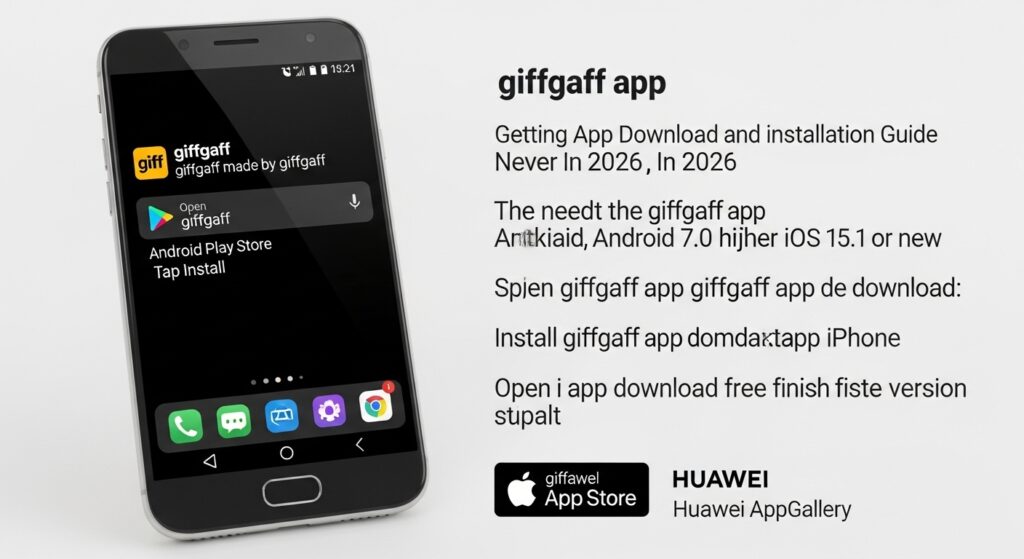
Getting the giffgaff app download is safe and free when you use official stores. Never download from strange websites because fake apps can cause trouble. In 2026, the app needs simple things like Android 7.0 or higher and iOS 15.1 or newer. Most phones today already meet these needs.
Download giffgaff app for android: Open the Google Play Store on your phone. Type “giffgaff” in the search bar. Choose the official one made by giffgaff and tap Install. It is quick and free.
For giffgaff app iphone, go to the App Store. Search for giffgaff and download it. Samsung phones work the same way through the Play Store or Galaxy Store. Huawei users can find it in the Huawei AppGallery. The giffgaff app download free version is always the best choice from these trusted places.
Install giffgaff app steps are the same on most devices. After download, open the app and let it finish setting up. Make sure you have a good internet connection during install. This helps everything go smoothly. If your phone is older, check the system needs first so you do not run into problems. Always stick to official stores for safety.
How to Install and Set Up the Giffgaff App for the First Time
After you finish the download, setting up the app feels exciting. Open it and give it the small permissions it asks for, like access to your phone settings for notifications. These help the app show you important updates about your balance and plans. The first launch guides you gently.
For people who want to use it on a computer, there is no giffgaff app windows version. Just open your web browser and go to the giffgaff website. It works almost the same. On Samsung or other Android phones, the steps stay simple.
Sometimes small issues pop up during setup. If the app will not open, try restarting your phone. Make sure your software is up to date too. Most first-time users finish setup in under five minutes and feel ready to explore.
How to Log In and Create an Account in the Giffgaff App
Logging into my giffgaff app is easy. Open the app and type your member name or phone number. Then add your password. Many people now turn on two-step check for extra safety. This sends a code to your phone or email so only you can get in.
If you forget your password, tap the “forgot” link. The app will help you make a new one. For forgotten member name, use your phone number linked to the account. New users can create an account right inside the app by following the clear steps on screen.
You can also add several accounts. This is great for families. Just tap the plus sign in the top corner and log in to the extra one. Switch between them anytime without logging out. This feature makes life simpler for many people.
Navigating the Giffgaff App Interface
When you first look at the app in 2026, it feels clean and friendly. The home screen shows your main info at the top, like remaining data and credit. At the bottom, you will see tabs that take you to different places. One tab shows your account details, another lets you see plans, and one opens settings.
The dashboard gives a quick picture of your usage. Menus are simple to understand. Tap around gently at first to learn where everything lives. Soon you will move through the app like a pro. This layout helps new users feel comfortable right away.
Checking Your Balance, Data Usage, and Plan Details
Checking your balance is one of the most popular things people do in the app. On the home screen, you see how many minutes, texts, and data you have left. It also shows when your plan ends. Real-time updates mean you always know the latest numbers.
You can look deeper into usage breakdowns. See which apps used the most data this month. If your plan is ending soon, the app lets you start a new one early. This stops any surprise gaps in service. Many users say this feature helps them use their phone wisely.
Buying Plans, Topping Up Credit, and Managing Recurring Payments
Buying a new Goodybag feels quick and fun. Go to the plans section, pick what you need, and pay with a saved card or PayPal. You can also add credit for extra calls or data. The app shows special promotions that sometimes give you more value.
Setting up recurring payments means your plan renews automatically. This keeps you connected without thinking about it every month. Redeem vouchers easily too by typing the code in the right spot. These tools give you full control over your spending.
Giffgaff App Settings and Customization
The settings area lets you make the app your own. Turn on notifications so you get friendly reminders about low balance or new offers. You can also choose dark mode if you like a softer screen at night. Security options let you manage passwords and two-step checks.
For families or people with more than one line, settings help handle multiple accounts neatly. Adjust preferences for how the app looks and feels. Small changes like these make daily use more pleasant over time.
Advanced Features: WiFi Extra, eSIM, and More
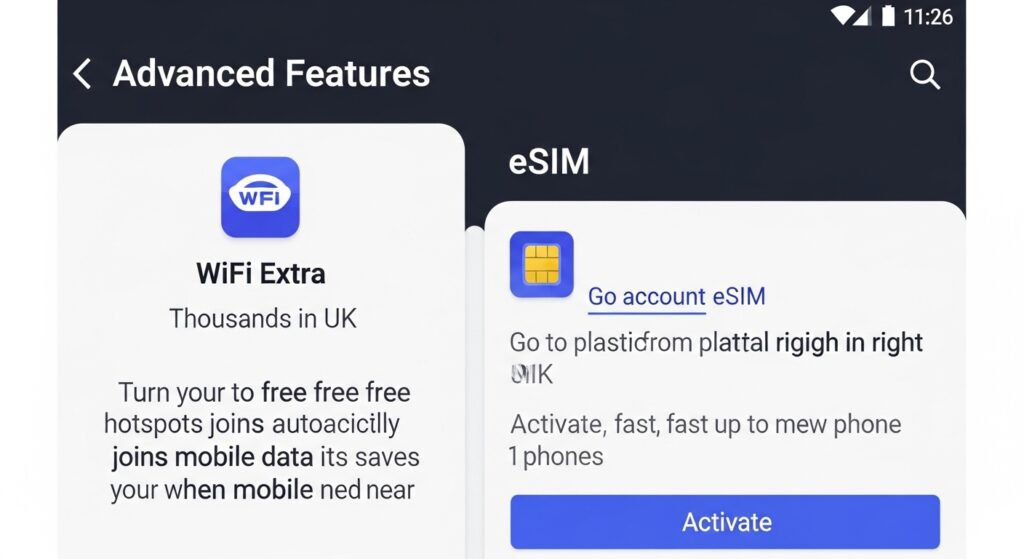
WiFi Extra is a special tool inside the app. It connects you to thousands of free hotspots in the UK. Just turn it on and your phone joins them automatically when they are near. This saves your mobile data for when you really need it.
eSIM is another modern feature. You can switch from a plastic SIM to a digital one right in the app. Go to account, then SIM, and follow the steps to activate. It works fast and is great for new phones. Other 2026 updates include easier community access and hidden tips that pop up to help you discover more.
Troubleshooting Common Giffgaff App Issues
Sometimes the app acts up, and that is okay. If you wonder “is the giffgaff app down”, first check the network status on their website. Many problems come from your phone’s internet or old app version.
Login failures often fix with a password reset or by clearing the app cache. If data will not load, close the app and open it again. For crashes, try restarting your phone or reinstalling. These quick fixes solve most troubles for users.
Keeping the Giffgaff App Updated and Secure
Always keep the app fresh. On Android or iPhone, go to your store and check for updates. Turn on auto-updates so you never miss new features. Use strong passwords and be careful with public WiFi.
Good security habits protect your account. If problems continue after an update, reach out to giffgaff help. Regular care keeps the app running smoothly on both Android and iOS.
FAQ
Can I use the giffgaff app on a tablet?
Yes, many tablets work if they meet the system needs. Just download from the right store.
How do I turn off notifications in the app?
Go to settings and find the notification part. Toggle what you do not want.
Does the app work without mobile data?
It needs internet, so use WiFi when your data is low.
Can children use the giffgaff app?
Parents can add family accounts and set limits through the main account.
What if I change phones?
Download the app on the new phone and log in with the same details. Your info moves over easily.
Is there a way to see past bills in the app?
Yes, check the account history section for old details.
How do I delete an old account from the app?
Go to the accounts tab and remove it carefully.
Will the app use a lot of my phone battery?
It is light, but closing it when not needed helps save power.
Conclusion and Final Tips
You now know how to use the giffgaff app from start to finish. It puts all the power in your hands so you can manage your phone life with confidence. Use it often to check balances, grab good deals, and stay connected without stress. Small habits like keeping it updated bring the best results.
Download or update the app today and see how simple it feels. Try one new feature each week. You will soon wonder how you lived without it. Share your own stories in the comments below. We would love to hear what works best for you. Happy connecting, friend!
Disclaimer
This article shares general steps based on how the giffgaff app usually works in 2026. Screens and options may change a little over time. Always check the official giffgaff help pages or app for the latest details. We are not part of giffgaff and do not speak for them. Use this guide as a friendly starting point and reach out to giffgaff support if you need extra help. Stay safe and enjoy your phone!
Explore More
- Frasers Plus App: Earn Points, Vouchers & Exclusive Deals
- ROBYOC Review 2026: Is It Actually Worth Buying? (Honest Truth)
- What is Ronenia? The Shocking Truth Behind the Viral Myster
About the Author