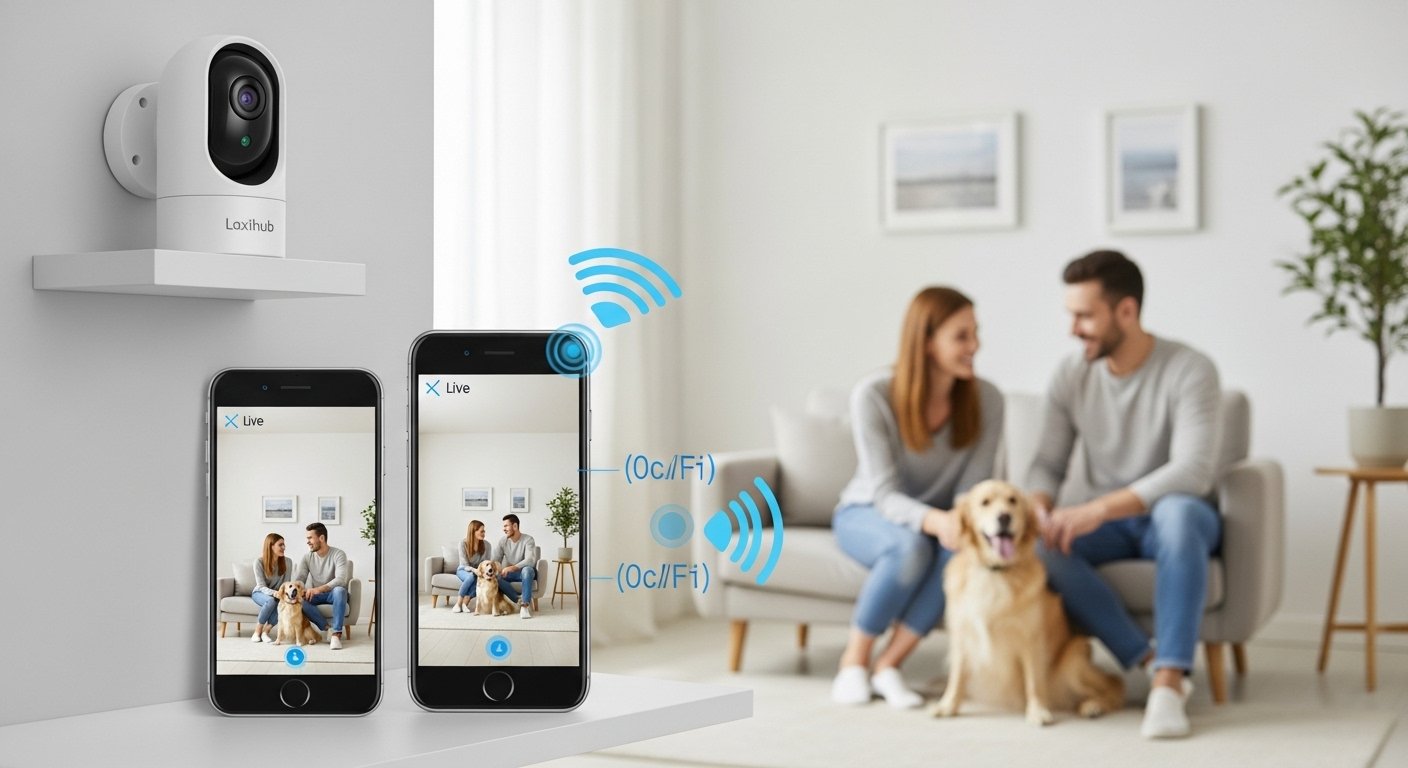
In today’s world, keeping your home, family, or pets safe is very important. Many people use smart security cameras because they are easy to use and give peace of mind. The Laxihub camera app is a popular choice for this. It works with Laxihub security cameras (also linked to the Arenti brand) to let you watch live video, get alerts, and control your cameras from anywhere.
This guide explains everything about the Laxihub camera app for Android and the Laxihub camera app for iPhone. We cover what the app does, how to set it up step by step, its best features, and tips to use it well. The app is simple, works on both Android phones and iPhones, and helps you monitor your home easily.
What Is the Laxihub Camera App?
The Laxihub camera app is a smart surveillance tool made for Laxihub security cameras. It is actually called the Arenti app in most app stores, but it supports all Laxihub cameras (like M1, P2, O1, W2, and more). You download it once, and it works with your Laxihub devices.
The app gives you 24-hour protection for your home. It has a clean design that is easy to understand, even if you are new to smart cameras. It uses a good network system for low delay video and safe connection. This means you see clear live video fast, without much waiting.
The app is free to download and use basic features. Some extra options, like more cloud storage, may need a paid plan, but many things work without paying.
It supports both Android and iOS devices. This makes it great for families where some use Android phones and others use iPhones.
Why Choose the Laxihub Camera App?
Many users like this app because it is user-friendly and reliable. Here are some reasons people pick it:
- Easy setup in just a few minutes.
- Clear video quality, from 1080P to higher in some models.
- Works with indoor and outdoor Laxihub cameras.
- Good for baby monitoring, pet watching, or home security.
- Supports sharing with family so more than one person can watch.
- Works with voice helpers like Amazon Alexa and Google Assistant in many models.
Reviews often say the app is one of the best for affordable cameras. It sends quick alerts and has low lag for live view.
How to Download the Laxihub Camera App
First, get the app on your phone.
For Android (Laxihub camera app for Android):
- Open the Google Play Store on your Android phone.
- In the search bar, type “Arenti” (this is the official app name for Laxihub cameras).
- Look for the app called “Arenti” by the right developer (it has a clean icon and good ratings, around 4.5 stars).
- Tap “Install” and wait for it to download.
- Open the app after installation.
For iPhone (Laxihub camera app for iPhone):
- Open the App Store on your iPhone.
- Search for “Arenti”.
- Find the “Arenti” app (it supports Laxihub devices).
- Tap “Get” or the download button.
- It may ask for your Apple ID password or Face ID.
- Once downloaded, open the app.
Tip: Always download from the official store to stay safe. Avoid third-party sites.
Step-by-Step Setup Guide for Laxihub Camera App

Setting up is very easy. Most users finish in 5-10 minutes. Follow these steps carefully.
Before you start:
- Make sure your Laxihub camera is powered on (plug it in or charge battery models).
- Have your home WiFi ready (note: most Laxihub cameras work only on 2.4GHz WiFi, not 5GHz. Check your router settings).
- Keep your phone close to the camera during setup.
Step 1: Open the App and Create an Account
- Launch the Arenti app.
- If new, tap “Sign Up” or “Register”.
- Enter your email and make a strong password.
- Verify your email if asked (check your inbox).
- Log in with your new account.
Step 2: Add Your Laxihub Camera
- On the app home screen, tap the “+” icon (usually at the top right).
- The app shows options like “Add Device” or camera models.
- Choose your model (like IN1 for M1 indoor, or scan the QR code on the camera box/manual if available).
- Follow the on-screen guide.
Step 3: Connect the Camera to WiFi
- The app asks you to connect to the camera’s setup WiFi (it sounds like “SmartLife-XXXX” or similar).
- Go to your phone’s WiFi settings.
- Connect to the camera’s temporary WiFi network (password is often in the manual or “12345678”).
- Go back to the app.
- Enter your home WiFi name (SSID) and password.
- The camera connects (it may take 30-60 seconds; you hear a voice prompt like “Connecting” or “WiFi connected”).
Step 4: Scan QR Code or Pair
- The app shows a QR code on your phone screen.
- Point your phone at the camera lens to scan it (or the camera shows a code).
- Wait for pairing. The app says “Device added” when done.
Step 5: Finish and Test
- Name your camera (like “Living Room” or “Baby Room”).
- Set location or other basics.
- Go to live view to see video.
- Test two-way audio by talking – you should hear from the camera.
If it fails:
- Reset the camera (press reset button 5-10 seconds until voice says reset).
- Make sure phone and camera are close to router.
- Use 2.4GHz WiFi only.
- Update app and try again.
Many users say setup is simple, even for beginners.
Key Features of the Laxihub Camera App
The app has many useful features. Here are the main ones:
Live View and Real-Time Monitoring
Watch live video anytime from anywhere with internet. The app uses good tech for low delay and clear picture. You can see in HD or higher, depending on your camera model.
Motion Detection and Alerts
The camera detects movement and sends push notifications to your phone. Some models use AI to detect humans, pets, or packages only (less false alerts from wind or shadows). You get alerts fast so you can check what is happening.
Two-Way Audio
Talk through the app, and people (or pets) near the camera hear you. Great for saying hello to family, scaring away strangers, or calming a baby.
Night Vision
Most Laxihub cameras have infrared or full-color night vision. You see clearly even in dark rooms or outdoors at night.
Pan and Tilt Control (for some models)
Indoor pan-tilt cameras let you move the view left-right (up to 340° or 355°) and up-down. Control from app to see different angles.
Cloud and Local Storage
Save videos to cloud (paid plans for more days) or use microSD card in the camera for local recording (no monthly fee). Playback old videos easily in the app.
Multi-User Sharing
Share access with family. They download the app, you invite them, and they see live view and alerts too. Good for parents or roommates.
Voice Assistant Support
Many Laxihub models work with Alexa and Google Assistant. Say “Show living room camera” on your smart display.
Other Helpful Features
- Customize detection zones (ignore some areas).
- Set schedules for alerts.
- Privacy mode to turn off camera.
- Multi-camera view if you have more than one.
The app is clean and easy to use. Menus are simple, so you find things fast.
Tips for Best Use of Laxihub Camera App
To get the most from your app:
- Place camera where WiFi is strong.
- Update the app often for new features and fixes.
- Use strong passwords for account and WiFi.
- For outdoor cameras, check weatherproof rating.
- Test alerts after setup.
- If battery model, charge fully first.
- For baby or pet monitor, use two-way talk often.
If problems come:
- Video not loading: Check internet on both ends.
- No sound: Allow microphone permission.
- Alerts late: Check phone settings for notifications.
Is the Laxihub Camera App Safe and Reliable?
Yes, the app uses secure connections for video and data. It has good reviews for privacy and reliability. Millions use Arenti/Laxihub products. Always keep app updated for security.
Final Thoughts
The Laxihub camera app (via Arenti) is a great choice for easy home security on Android or iPhone. Setup is quick, features are useful, and it gives real peace of mind. Whether you watch your baby, check on pets, or secure your home, this app makes it simple.
Download it today, follow the steps, and enjoy your smart camera system. Stay safe!
Disclaimer:
This article is for information only. It is not a promotion or affiliate post. We do not sell or earn money from Laxihub or Arenti. The steps and tips are based on general use. Always follow official instructions from the app or camera company. We are not responsible for any issues, damages, or losses while using the app or camera. Use it at your own risk.
Explore More
- TrueCoach App – Download, Review, Cost & Complete Guide for Clients
- Buzz App – Connect, Chat & Stay Updated Easily
- Kure App – Track, Manage & Improve Your Health Easily
About the Author