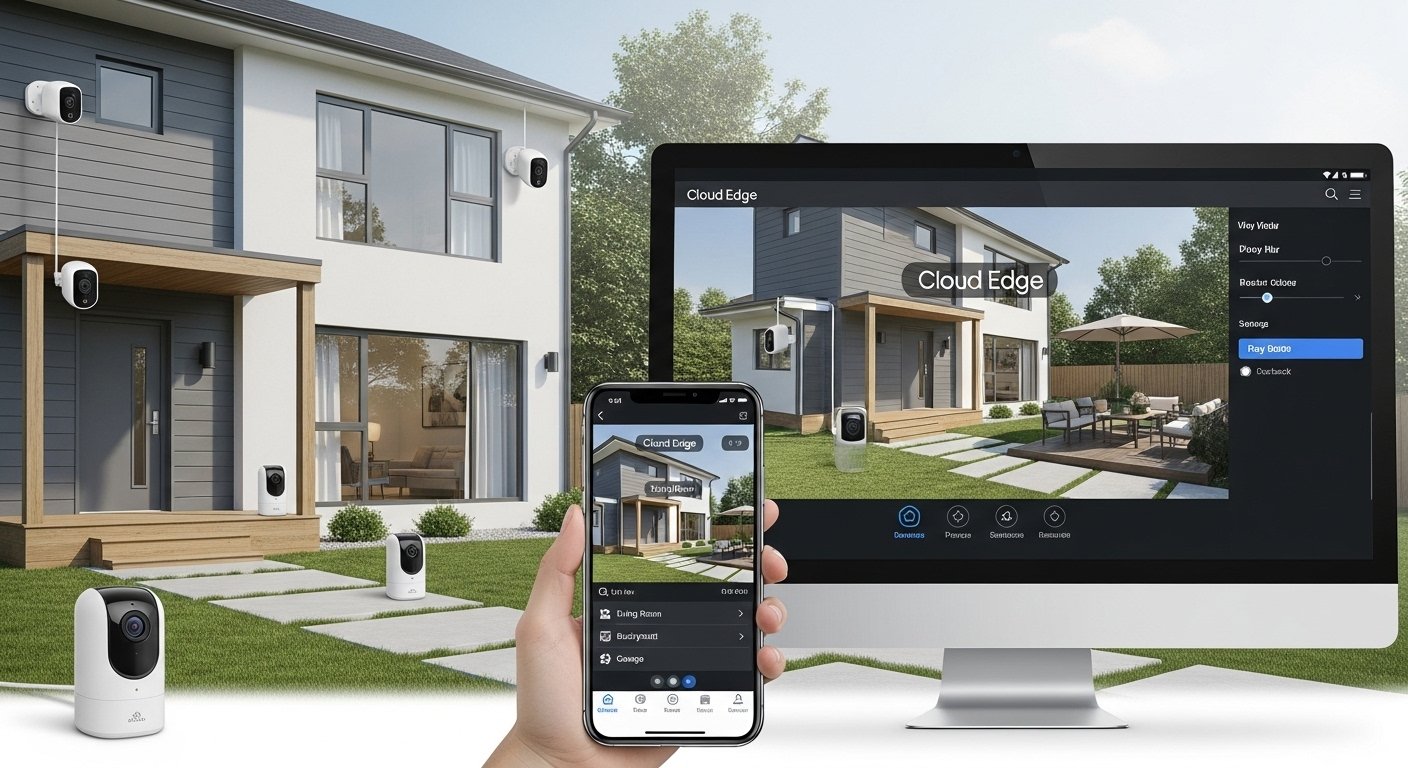
Many people search for the Cloud Edge App when they buy home security cameras or doorbells. This app helps you watch your cameras from your phone. But you may want to know if you can use it on a PC. You also ask: What is it? And is it free? This article explains everything in simple, easy English. We use facts from official sources, app stores, and real user feedback. No tricks or wrong info here.
What Is Cloud Edge App?
Cloud Edge App (also called CloudEdge) is a mobile app for home security. It works with WiFi cameras, battery cameras, doorbells, and other smart devices. The company behind it is Hangzhou Meari Technology Co., Ltd. (also known as Meari Tech). They started in 2017 and make IoT video products.
The app lets you see live video from your cameras anytime. You need internet on your phone. It is made for families and small businesses. You can watch your home, office, shop, or villa from far away.
Here are the main things it does:
- Live view: See real-time video in high quality (often 2K or HD).
- Motion detection: The camera spots movement and sends a push alert to your phone.
- Two-way talk: Speak through the app to people at the camera (good for doorbells).
- Night vision: See clearly in the dark.
- Playback: Watch old videos if you save them.
- Alerts: Get messages when something moves.
- Share: Let family see the camera too.
Many brands use this app. You see it with cameras sold on Amazon, from brands like Techage, ieGeek, or others. It is not the same as “cloud edge computing” (that is a tech term for fast data processing). This is just the name of the app for security cameras.
The app is on the Apple App Store and Google Play Store. It has good ratings (around 4.3 out of 5 from many users). People like the clear video and easy setup. Some say it is better than other apps with too many ads.
Is Cloud Edge App Free?
Yes, the Cloud Edge App is free to download and use. You pay nothing to get it on your phone.
Basic features are free:
- Live viewing
- Motion alerts
- Two-way audio
- Some recording if your camera has an SD card
But some extra things cost money:
- Cloud storage: To save videos in the cloud (not on your camera’s SD card), you need a paid plan. Prices change, but it is a subscription (like monthly or yearly).
- Some advanced alerts or longer storage need payment.
Many users do not pay at all. They use an SD card in the camera for local storage. This keeps everything free after you buy the camera. No mandatory monthly fee for basic use. Some reviews say this is a big plus—no forced subscriptions like some other brands.
The app has in-app purchases for cloud features. But the core app and most daily use are free.
Cloud Edge App Download for PC
The official Cloud Edge App is only for mobile phones (Android and iOS). There is no official PC version from the company. No Windows or Mac software directly from them.
But many people want to see their cameras on a bigger PC screen. Here are safe ways to do it:
- Use on Windows 11 or New Macs Directly New Windows 11 computers let you install Android apps from the Amazon Appstore or other ways. Some M1/M2 Mac computers can run iOS apps. Check your system settings. If it works, search for “CloudEdge” in the store and install it. This is the easiest if your PC supports it.
- Use an Android Emulator (Most Popular Way) An emulator makes your PC act like an Android phone. You can run the mobile app on it. Popular free emulators:
- BlueStacks: Easy to use, many people recommend it for this app.
- GameLoop or others.
- Download the emulator from its official site (like bluestacks.com).
- Install it on your PC.
- Open the emulator and go to Google Play Store.
- Search for “CloudEdge”.
- Download and install it.
- Log in with your account.
- Third-Party Software for Live View If your camera supports ONVIF (a standard for cameras), use free PC programs like:
- iSpy (open source).
- VLC Media Player.
The company says on their site: “CloudEdge does not support computer software, but you can use CloudEdge camera through third-party software.”
No official PC download link exists. Avoid fake sites that promise “Cloud Edge App for PC .exe”. They may have viruses. Stick to emulators or official ways.
How to Set Up Cloud Edge App (Easy Steps)

- Buy a compatible camera (check it uses CloudEdge).
- Download the app:
- On Android: Google Play Store → search “CloudEdge”.
- On iPhone: App Store → search “CloudEdge”.
- Make an account (use email or phone).
- Add your camera:
- Plug in or power on the camera.
- Press the reset button if needed.
- In app, click “+” to add device.
- Follow steps (scan QR code or connect to WiFi).
- For PC: Use emulator as above.
Setup takes 5-10 minutes. Use 2.4GHz WiFi (not 5GHz) for best connection.
Key Features of Cloud Edge App
- High-quality video: Many cameras give 2K or 1080p.
- Motion tracking: Some cameras follow movement.
- Color night vision: See colors at night on some models.
- Siren and lights: Scare away people with alarm.
- Battery or solar: Many cameras run without wires.
- Multi-camera view: See many cameras at once.
- Share with family: Give access to others.
Users like the push notifications—they come fast when motion happens.
Pros and Cons (From Real Users)
Pros:
- Free basic use.
- Easy setup.
- Clear video and alerts.
- Works with many cheap cameras.
- No forced ads in basic use.
Cons:
- Cloud storage costs extra.
- Some users say playback can be slow.
- App updates sometimes have bugs.
- No official PC app.
- Older reports of security issues (company fixed some, keep app updated).
In 2025, there was a security note from CISA about old versions. But no big hacks reported now. Always update the app.
Is Cloud Edge App Safe and Legit?
Yes, it is legit. The company is real (Meari Tech). Millions download it. App stores have it. Many positive reviews say it works well for home security.
Some users complain about features moving to paid. But most say it is good value. Sites like ScamAdviser say related domains are safe.
To stay safe:
- Download only from App Store or Google Play.
- Use strong passwords.
- Update app and camera firmware.
- Do not share account with unknown people.
Final Thoughts
Cloud Edge App is a free, simple app for watching home security cameras. It is great for live view, alerts, and basic recording. You can use it on PC with an emulator like BlueStacks. No official PC download, but workarounds are easy.
If you have a camera that uses this app, it is a solid choice. Many people use it daily without paying extra. It helps keep your home safe without complex setup.
For cloud edge app for pc, cloud edge app download, or to know what is cloud edge app—this covers it all. If you need help with setup, check YouTube tutorials or the app’s help section.
Disclaimer
This article is only for information. We are not part of CloudEdge or its company. This is not a promotion or affiliate article. We do not get money if you download or use the app. Always get the app from the official stores. Features or prices can change anytime. You are responsible for how you use the app and any other software.
Explore More
- VSL Trade App Download & Login – Official VSL Trade App Guide
- Social Central App – Facebook, Android & iPhone App Download
- Syns Calculator App – Slimming World Syns Tracker & Free Download
About the Author