Vevox is a popular tool that helps make meetings, classes, and presentations more fun and interactive. It lets presenters ask questions, run polls, do quizzes, and get answers from people in real time. Participants can join easily from their phones, tablets, or computers without much trouble. Many teachers, trainers, and companies use Vevox because it is simple, works well online or in person, and has high ratings from users.
People often search for ways to get started with Vevox. This guide explains everything in easy English: how to download the Vevox app, how to do Vevox app login, where to find it in the app store, how to get Vevox app for Android, and even how to use it on PC. We cover all steps clearly so anyone can follow along.
What is Vevox and Why People Love It
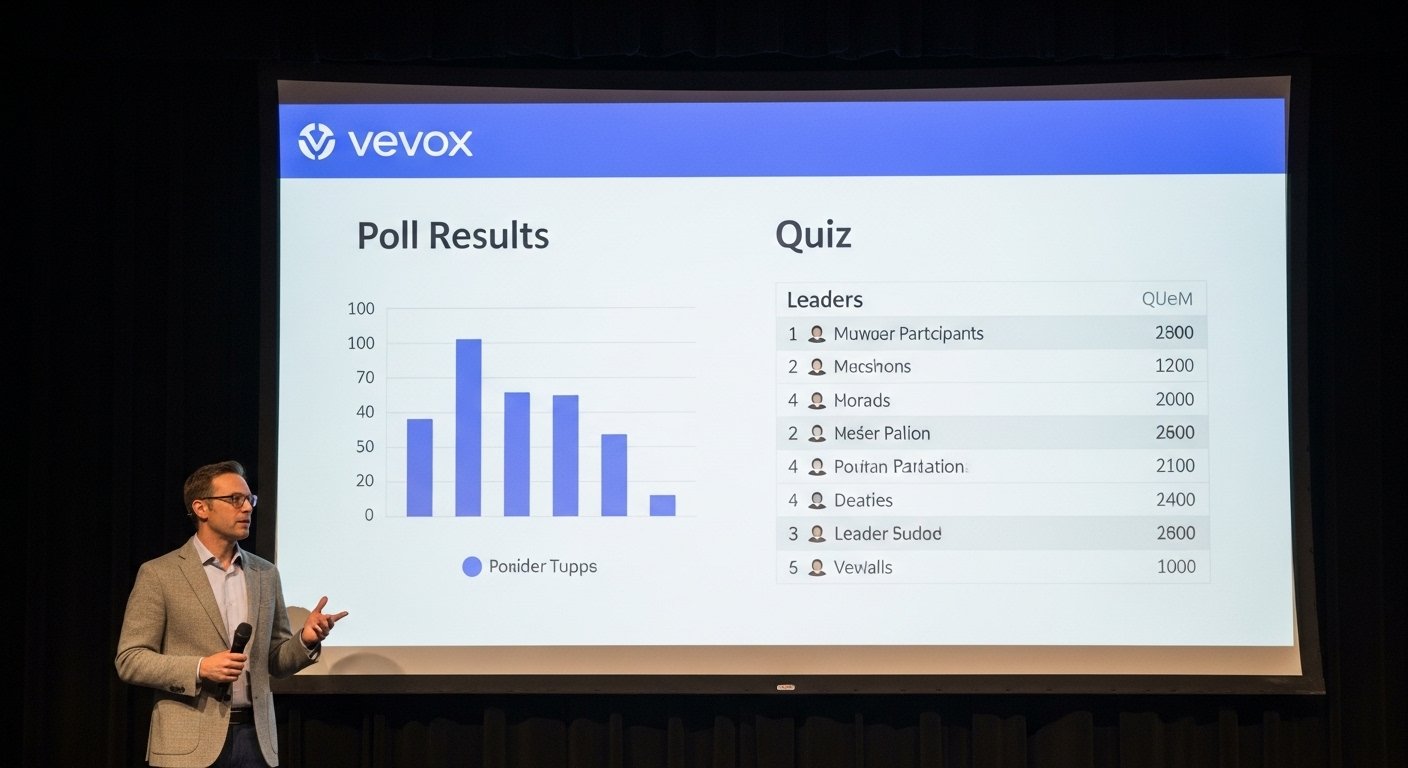
Vevox is an audience engagement platform. It helps keep everyone involved during sessions. Presenters create polls, quizzes, word clouds, or Q&A sessions. Participants answer on their own devices. Results show up live, which makes discussions exciting.
Some key benefits include:
- It works on any device with a web browser – no big downloads needed for participants most of the time.
- Anonymous options let people share honest answers without fear.
- AI features help create quizzes fast.
- It connects with tools like PowerPoint, Microsoft Teams, and Zoom.
- High user ratings (around 4.8/5 on many sites) show it is trusted by schools and businesses.
Vevox started as a way to make classes better. Now it helps in workplaces too for training and meetings. Thousands of users around the world rely on it.
How to Sign Up for Vevox (First Step Before Login)
Before you can use Vevox fully, you need an account if you want to create sessions. Participants do not always need an account – they can join with a code or link.
To sign up:
- Go to the official website: www.vevox.com.
- Look for the “Sign up for FREE” button. It is easy to spot on the home page.
- Click it and fill in your email, name, and other basic details.
- It takes about two minutes. No credit card is needed for the free plan.
- After signing up, check your email for a confirmation link if asked.
- Once done, you can log in and start making your first poll or quiz.
The free plan lets you try most features. Paid plans give more options for bigger groups or extra tools.
Vevox App Login – Step-by-Step for Presenters and Participants
Logging in is simple. There are two types: for people who create sessions (presenters) and for people who join (participants).
For Presenters (People Running the Session):
- Open your web browser and go to www.vevox.com.
- Click “Login” at the top.
- Enter the email you used to sign up.
- Type your password.
- If you use single sign-on (like through your school or work), it may log you in automatically.
- You will see your dashboard where you can create new sessions.
If you forget your password, click “Forgot password” and follow the email steps.
For Participants (People Joining a Session):
Participants often do not need to log in with an account.
- The presenter shares a Session ID (a number) or a direct link.
- Go to vevox.app in any browser on your phone, tablet, or computer.
- Type the Session ID or click the link.
- Or scan the QR code shown on the presenter’s screen.
- You join right away and can answer questions.
No download or login is needed for basic joining. This makes it very easy for students or meeting attendees.
Vevox App Download – For Android and iOS

Vevox works mostly through the web, but there are mobile options.
Vevox App for Android:
Many people search for “Vevox app for Android” or “Vevox app download.”
- Open the Google Play Store on your Android phone or tablet.
- Search for “Vevox”.
- Look for the official app from the trusted developer (check reviews and details to make sure it matches the polling tool).
- Tap “Install”.
- Once installed, open it.
- Use it to join sessions by entering the Session ID or link.
The app makes joining faster on phones. It supports live polls, Q&A, and seeing results in real time.
Vevox App Store (for iPhone and iPad):
For Apple users:
- Open the App Store.
- Search for “Vevox”.
- Find the app and tap “Get” to download.
- Open the app after install.
- Join sessions the same way – with ID or link.
Both Android and iOS apps are free. They update often to add new features like better real-time results or quiz timers.
Note: Some older or different apps might have the same name but are not the official polling Vevox. Always check the description for “polling”, “Q&A”, “quizzes” and the official website link.
Download Vevox App for PC (Windows and Mac)
People often ask “download Vevox app for PC”. Vevox does not have a separate desktop program to install like traditional software. It runs in your browser or through integrations.
Using Vevox on PC – Easy Ways:
- Web Version (Best for Most Users):
- Open Chrome, Edge, Firefox, or Safari.
- Go to www.vevox.com for presenters or vevox.app for participants.
- Log in or join as normal.
- It works fully on Windows and Mac.
- PowerPoint Add-in (Great for Presentations):
- If you use PowerPoint on PC, download the official Vevox add-in.
- Go to Microsoft AppSource or search “Vevox PowerPoint add-in”.
- Click to add it to your Office 365 PowerPoint.
- It works on Windows (Office version 2208 or newer) and Mac (16.64 or newer).
- Once added, you can create and run polls right inside your slides.
- No extra download outside PowerPoint needed.
- As a Web App on Desktop:
- Some tools let you turn websites into desktop apps (like WebCatalog).
- But the browser way is enough and safe.
Vevox is fully compatible with Mac and Windows. No issues reported.
Tips to Use Vevox Better
Here are some simple tips:
- For presenters: Try the AI quiz maker. Just type a topic and level, and it creates questions for you.
- For better engagement: Use anonymous Q&A so everyone feels safe to ask.
- In classes: Run word clouds to see what students think quickly.
- In meetings: Get instant feedback with polls.
- Check results live and share them after the session.
- Integrate with Teams or Zoom for hybrid sessions.
Vevox keeps updating. Recent changes include better AI tools, team quizzes, and more poll types.
Common Questions About Vevox
Do participants need to download anything? No, most times they just use vevox.app in the browser.
Is Vevox free? Yes, basic use is free. Free accounts let you run sessions with limits. Paid plans for more participants or features.
Is it safe? Yes, Vevox follows good privacy rules. Data is secure, and anonymous options help.
Can I use it offline? No, it needs internet for real-time interaction.
What if I have problems? Visit help.vevox.com for guides. Or contact support through the website.
Why Choose Vevox Over Others
Vevox stands out because it is easy, highly rated, and works everywhere. Users say it makes sessions “unmissable”. It has strong support, regular updates, and features like AI that save time.
If you teach, train, or run meetings, try Vevox. Start with the free sign-up today.
This guide covers all main searches like vevox app login, vevox app download, vevox app store, download vevox app for pc, and vevox app for android. Follow these steps and you will be using it in minutes.
Disclaimer:
This article is just for information. We are not the owner of the Vevox app. This is not an ad and we do not earn money if you use the app. App details may change, so always check the official Vevox website or app store. We try to give correct information, but we cannot promise everything is always correct. Use the app at your own risk.
Explore More
- Love Holiday App: Discounts, Features & How to Fix Common Issues When It’s Not Working
- Lockbox App – Secure, Easy, and Smart Storage for Your Valuables
- The Bridleways App – Best App for Footpaths and Bridleways in the UK
About the Author