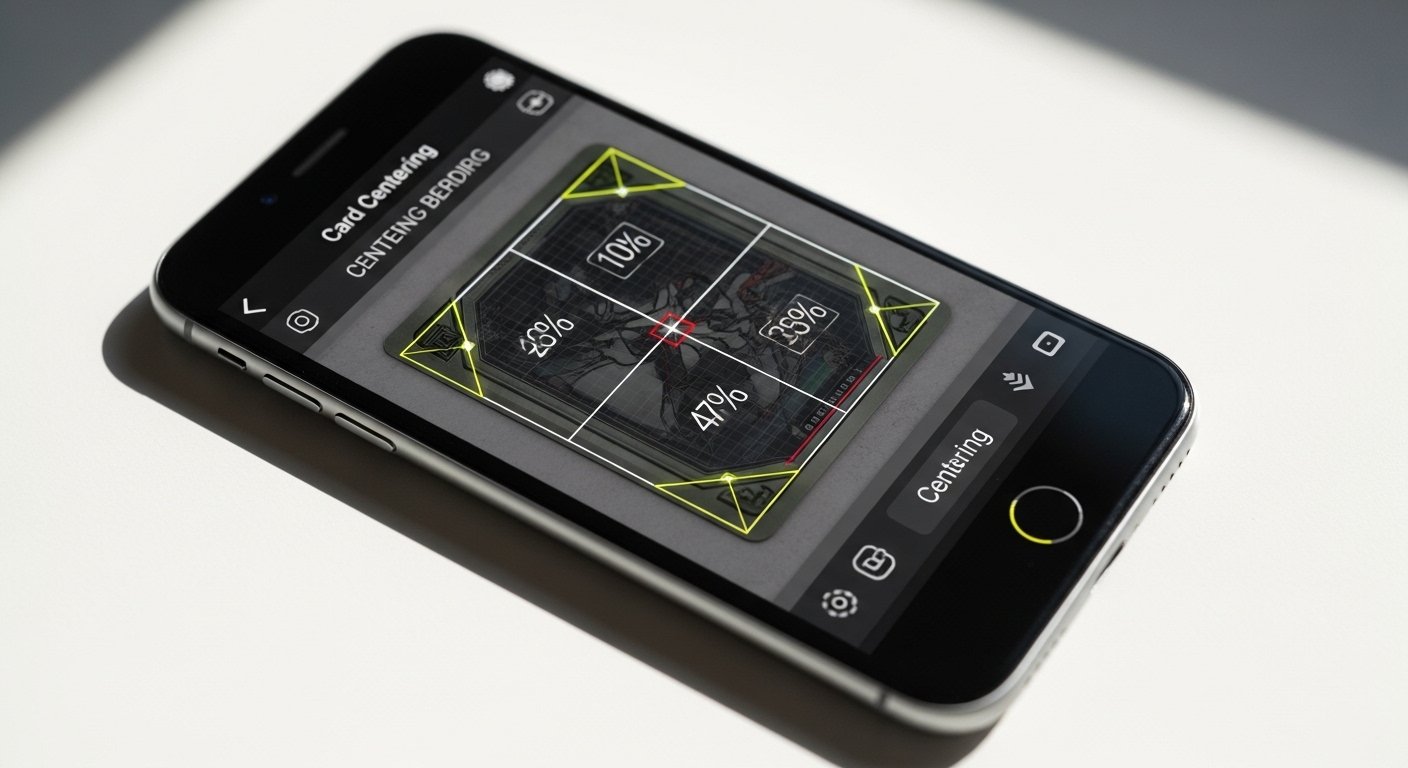
If you collect Pokémon cards, sports cards like baseball or basketball, or other trading cards, you know how important centering is. Centering means how well the picture sits in the middle of the card. Bad centering can lower your grade when you send cards to PSA, BGS, SGC, or other companies. A good card centering app for Android helps you check this at home before you spend money on grading.
In this guide, we explain everything in simple steps. You will learn what centering is, why it matters for PSA and other graders, which Android apps and tools work best, and how to use them for Pokémon cards, sports cards, and more. By the end, you can check your cards quickly and decide if they are ready for grading.
What Is Card Centering and Why Does It Matter?
Centering shows the balance of borders around your card’s picture. We measure it in percentages for left/right and top/bottom. For example:
- 50/50 means perfect centering — equal borders on both sides.
- 55/45 means slightly off — one side has 55% of the border space, the other 45%.
- 60/40 or worse can hurt your grade a lot.
Grading companies look at both the front and back of the card. Centering is one of the four big factors in grading (along with corners, edges, and surface). Even if your card looks perfect in other ways, poor centering can drop it from a Gem Mint 10 to a 9 or lower.
PSA updated its rules in early 2025. Now, for a Gem Mint 10 on the front, you need 55/45 or better. The back allows up to 75/25. BGS is stricter — it wants close to 50/50 on both sides for a 10. SGC and others fall in between. A card centering app helps you see if your card meets these rules before you pay for submission.
Many collectors use apps to save time and money. You avoid sending cards that will get low grades because of centering. This is very useful for valuable Pokémon cards (like Charizard or Pikachu holos), rare sports rookies, or high-end trading cards.
Best Card Centering Apps and Tools for Android
There are not many full Android apps made only for card centering, but good options exist. Some are dedicated apps in the Google Play Store, others are websites that work great on your Android phone browser, and some use AI to help.
Popular choices in 2026 include:
- Card Centering Calculator (or similar named apps like Card Centering Tool / Grader AI) — These are available on Google Play. They let you scan or upload a photo and get centering percentages fast.
- Online tools like Edge Grading’s centering calculator — Free, mobile-friendly, works in Chrome or any browser on Android. Upload a photo and adjust lines for accuracy.
- PriceCharting or SportsCardsPro centering tools — Simple upload tools that give quick estimates.
- AI grading apps like Hobby Scan, CardGrader.AI, or similar — These go beyond centering and check other things, but centering is a key part.
For Android users, start with a Play Store search for “card centering calculator” or “card grader AI”. Many are free to try, with optional paid upgrades for more features like auto-detection or grade predictions.
These tools work for Pokémon, sports cards (baseball, basketball, football), and other trading cards like Magic, Yu-Gi-Oh!, or One Piece.
How to Take the Best Photo for a Card Centering App
Good results start with a good photo. Follow these easy steps:
- Put your card on a plain background — white, black, or a solid color works best. No patterns.
- Take the card out of its sleeve or top loader if possible. If not, make sure it’s flat and no glare.
- Hold your Android phone directly above the card — keep it straight, not tilted.
- Use good light — natural daylight or bright room light. Avoid shadows or flash if it causes glare.
- Turn on your phone’s grid lines in camera settings for straight shots.
- Fill the screen with the card — zoom in a bit but keep all borders visible.
- Take the photo of the front and back separately.
A straight, clear photo gives the app the best chance to measure correctly.
Step-by-Step: How to Use a Card Centering App on Android
Let’s use a typical Android app like Card Centering Tool or a similar one from the Play Store as an example. The steps are almost the same for most tools.
Step 1: Download and Open the App
Go to Google Play Store. Search “card centering app” or “card centering calculator Android”. Download a well-rated one (look for 4+ stars and recent updates).
Open the app. Some ask for camera permission — allow it.
Step 2: Scan or Upload Your Card
Most apps give two choices:
- Live scan: Point your camera at the card. The app detects borders automatically.
- Upload photo: Choose a picture from your gallery.
For best results, use live scan if your phone camera is good. Hold steady until it locks on.
Step 3: Adjust the Guides if Needed
The app shows lines or boxes over your card photo. These mark the borders and image area.
- Drag corners or lines to fit exactly if auto-detection is off a bit.
- Zoom in for precision — many apps have a zoom tool.
- Measure left/right first, then top/bottom.
The app calculates percentages right away, like 52/48 left/right and 60/40 top/bottom.
Step 4: Check Grade Predictions
Good apps show possible grades from PSA, BGS, SGC, and others based on centering alone.
For example:
- If centering is 50/50 front and back → High chance for PSA 10 or BGS 9.5-10.
- If 58/42 front → Maybe PSA 9 max, even if other parts are perfect.
Remember: This is just an estimate. Real graders look at the physical card.
Step 5: Check the Back Side
Flip the card and repeat. Back centering matters too — some graders are strict on backs.
Step 6: Save or Share Results
Many apps let you save the report or share it. Useful if you want to ask friends or show in collector groups.
Tips for Pokémon Cards with Centering Apps

Pokémon cards have special art borders. Modern sets (Sword & Shield onward) have thinner borders, so even small off-centering shows more.
- For vintage Pokémon (Base Set to early 2000s): Borders are thicker, so 60/40 might still look okay.
- For modern: Aim for 55/45 or better for PSA 10 hopes.
- Scan holos carefully — shine can trick auto-detection. Use non-flash light.
- Popular for Charizard, Mewtwo, or chase cards — check centering before buying raw.
How to Use for PSA Grading Preparation
PSA is the most popular grader. Their current standards (2025-2026):
- Front: 55/45 or better for Gem Mint 10.
- Back: 75/25 or better.
Use the app to test many cards. Only send the best ones to PSA. This saves you $20-50 per card in fees if centering is bad.
Many collectors run cards through 2-3 tools (app + online like Edge Grading) for double-check.
Sports Cards and Trading Cards: Special Tips
Sports cards (like NBA rookies or MLB stars) often have logos or text near edges. Apps handle them well.
- Football and basketball cards: Check for name/position centering.
- Vintage sports: Thicker borders, more forgiving.
- Trading card games (non-Pokémon): Same steps work.
If your card has a thick black border (some older sports), apps may need manual adjustment.
Common Mistakes to Avoid
- Crooked photo → Wrong measurements.
- Glare or shadow → App can’t see borders clearly.
- Measuring in sleeve → Lines get confused.
- Trusting one app 100% → Always cross-check.
- Thinking app = official grade → No, it’s a helper tool only.
Extra Benefits of Using a Card Centering App
- Save money on bad submissions.
- Learn what good centering looks like.
- Help decide sell vs grade.
- Fun for collection tracking.
Final Thoughts
A card centering app for Android makes checking Pokémon, PSA prep, sports, and trading cards simple and fast. Start with a good photo, use a reliable app or mobile site, adjust carefully, and compare results. You will get better at spotting winners in your collection.
These tools are not perfect, but they are much better than eye-guessing. Try one today — your next big card might thank you!
Disclaimer:
This article is only for information. It is not official advice. We are not connected with Professional Sports Authenticator (PSA), Beckett Grading Services (BGS), or Sportscard Guaranty Corporation (SGC). This is not a promotional or affiliate article. We do not get paid to mention any app or tool. Card centering apps only give estimates. Your real grade may be different. We are not responsible for any loss or decisions you make.
Explore More
- Arcbatwork App 2026: Login, Features & Easy User Guide
- Tuambia App Descargar Gratis – Tuambia App Login & Download Guide 2026
- FrontPay App Download & Reviews (2026) – Is FrontPay App Safe?
About the Author