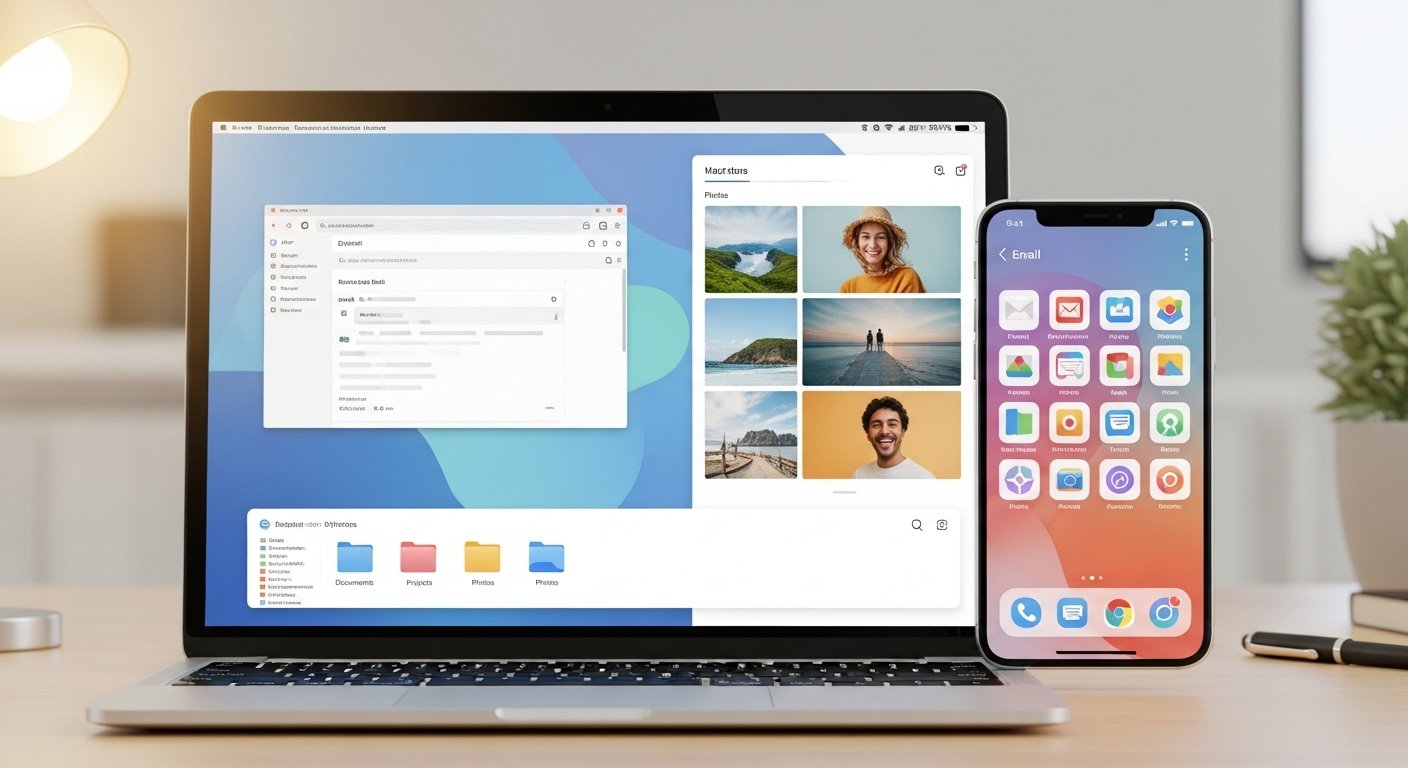
Do you feel stressed when you open your phone or computer? Your gallery has thousands of photos. Your email inbox is full of old messages. Your device feels slow. This is digital clutter. It happens to everyone.
A good declutter app or tool helps you clean photos, emails, and files easily. The best part? Many great tools are free or have strong free features. This article uses very simple English. It helps beginners. We cover the top free options in 2026. We give honest reviews based on real use, ease, and safety. We also share a simple 30-day plan to declutter step by step.
Start today. Small changes make a big difference. Your phone and computer will run faster. You will find things quickly. You will feel calmer.
What Is a Declutter App?
A declutter app is a simple tool. It removes junk from your digital life. It finds and deletes:
- Duplicate photos
- Blurry or bad pictures
- Old emails
- Unwanted newsletters
- Junk files that take space
Some apps work on Android phones. Some work on Mac computers. Some work in your web browser for emails.
Why use one?
- Free up storage space
- Make your device faster
- Reduce stress from mess
- Save time searching
Many people search for “declutter app free” or “best photo declutter app”. We focus on safe, popular, and truly helpful free tools.
Best Free Tools for Cleaning Photos
Photos take the most space. You take many pics, screenshots, and selfies. Duplicates and blurry ones add up fast.
Here are the top free tools in 2026.
Google Photos – Best for most people (Android, iPhone, Mac via web) Google Photos is free. It comes on many Android phones. You can use it on Mac too.
- It finds duplicate photos and similar ones.
- It has a tool to “free up space” after backup.
- You search easily – type “dog” and see all dog photos.
- Free storage: 15GB shared with Gmail (or unlimited compressed photos).
Review: Super easy. Many users say it saves hours. It is safe. Google does not sell your photos. Great for beginners on any device.
Apple Photos – Best if you use Mac or iPhone This is built-in on Apple devices. No extra download.
- It finds duplicate photos and lets you merge them.
- “Optimize Storage” keeps small versions on your device and full ones in iCloud.
- Easy to delete old photos by date or type (like screenshots).
Review: Clean and simple. Works offline. No ads. Perfect for Apple users.
Slidebox or Similar Swipe Apps – Fun and fast (Android and iOS) Slidebox lets you swipe photos like Tinder. Left to delete, right to keep.
- Good for duplicates, screenshots, and blurry pics.
- Free version has ads (premium removes them).
- Open-source options like Photo Swooper are completely free and private.
Review: People love it because it feels like a game. You clean thousands of photos quickly. Very fast for quick sessions.
Other good free helpers:
- Files by Google (on Android) finds junk photos and duplicates.
- Built-in gallery on Android often has a clean tool.
For Mac, use Apple Photos or built-in Storage Management (go to Apple menu > About This Mac > Storage).
Best Free Tools for Cleaning Emails

A full inbox with 10,000+ emails is stressful. You miss important messages. Free tools help unsubscribe and delete bulk.
Cleanfox – Very easy and free Cleanfox works with Gmail, Outlook, and more.
- It finds newsletters and promotions.
- Swipe to delete or unsubscribe.
- Shows how much space you save.
Review: Beginners love it. One click cleans a lot. It is free forever. Good privacy rules.
Clean Email – Powerful with good free features This web tool works for many email accounts.
- Groups emails by sender or type.
- Bulk delete old messages.
- Unsubscribe fast.
- Free version cleans a lot (premium for more).
Review: Many call it the best overall. Fast and safe. Great for big cleanups.
Built-in Gmail Tools – Completely free Gmail has unsubscribe links at the top of emails.
- Use search like “older_than:1y” to find old emails.
- Make filters to auto-delete promotions.
Review: No extra app needed. Powerful if you use Gmail.
Other options:
- Edison Mail (free app) blocks spam and unsubscribes.
- Unroll.Me (free basic) rolls up subscriptions into one email.
Stick to trusted tools. Avoid ones that sell your data without clear info.
Best Free Declutter Tools for Android Phones
Android has great built-in help.
- Google Photos and Files by Google – Free. Clean photos, junk files, cache. “Free up space” button is magic.
- Swipe cleaners like Slidebox – Fun for photos.
- CCleaner free version – Clears old files safely.
Review: Android users say these free up gigabytes easily. No need to pay.
Best Free Declutter Tools for Mac Computers
Mac has strong built-in tools.
- Apple Photos – For photo duplicates.
- Storage Management – Go to Apple menu > About This Mac > Storage. See big files and delete.
- OnyX – Free utility for cache cleaning and maintenance.
- CCleaner free version – Good for junk files.
Review: Built-in tools are safe and easy. Use them first. They keep your Mac fast.
For advanced users, free scans from tools like CleanMyMac show what takes space (pay only if you want full clean).
Easy 30-Day Declutter Guide
Do not try to clean everything at once. Do a little each day. This 30-day plan takes 10-20 minutes daily. Use the free tools above.
Week 1: Clean Photos (Days 1-7) Day 1-2: Back up photos to Google Photos or iCloud. Day 3-4: Find and delete duplicates (use Google Photos or Apple Photos). Day 5-6: Delete screenshots, blurry pics, and old memes (swipe with Slidebox or scroll by date). Day 7: Look at photos from last year – keep only favorites.
Goal: Free 20-50% photo space.
Week 2: Clean Emails (Days 8-14) Day 8-9: Use Cleanfox or Unroll.Me to unsubscribe from newsletters. Day 10-11: Delete old emails (search “before:2025” in Gmail or use Clean Email bulk delete). Day 12-13: Set rules/filters for spam and promotions. Day 14: Try to get inbox under 100 emails.
Goal: Empty junk folders. Feel lighter.
Week 3: Clean Files and Apps (Days 15-21) Day 15-16: Check storage on Android/Mac – delete unused apps. Day 17-18: Clear cache and junk (Files by Google or Mac Storage tool). Day 19-20: Organize downloads folder into good folders. Day 21: Delete old documents or videos you do not need.
Goal: Free extra gigabytes.
Week 4: Keep It Clean (Days 22-30) Day 22-25: Quick daily check – delete new junk fast. Day 26-28: Set a weekly reminder on your phone calendar. Day 29: Back up important photos and files. Day 30: Check your storage. Celebrate your clean device!
Tips to win:
- Do one small task per day.
- Take before and after photos of storage.
- Ask a friend to join for fun.
- If you miss a day, just continue the next.
This plan is easy to follow. Change days if needed.
Final Words
Digital clutter is normal. But you can fix it with free tools. Start with Google Photos for pictures. Try Cleanfox or Clean Email for inbox. Use built-in tools on Android and Mac.
Follow the 30-day guide. In one month, your devices feel new. You save time and stress.
Many people say they feel peaceful after declutter. You can too. Pick one tool now. Start small. You got this!
Disclaimer:
This article is for information only. We are not promoting or selling any app. We do not get paid if you use any tool mentioned here. The apps are described based on general use and reviews. We are not responsible if an app stops working, changes features, or causes any problem. Always check apps carefully before using. Use them at your own risk.
Explore More
- Lip Reading App: Free Download, Best Android & iPhone App Using Advanced Video Technology
- Overlander App: Free Android, iOverlander, Camping & Garmin Guide – En Español
- Best Boondocking App 2026: RV, Android, USA & Canada Guide Including Walmart Spots
About the Author