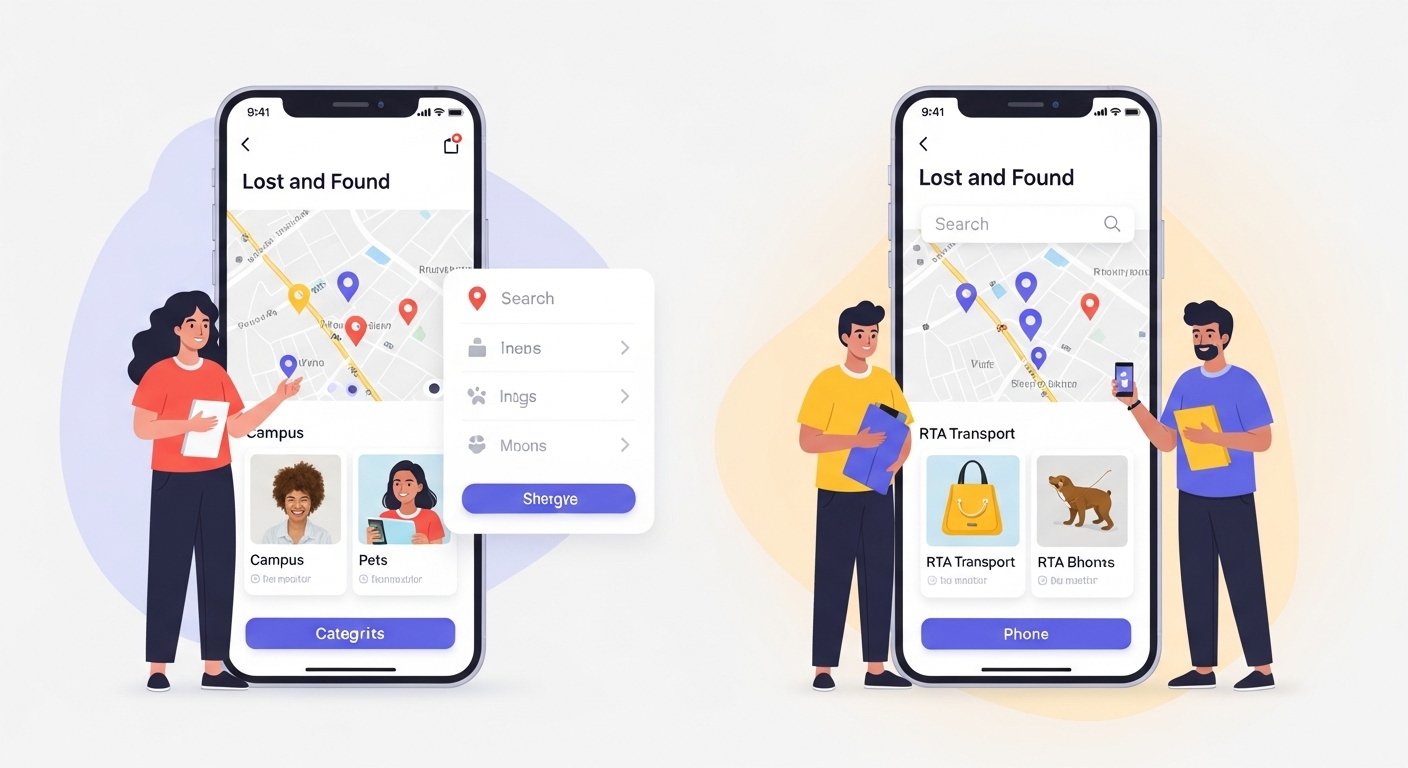
A lost and found app helps people find things they lost or return things they found. It is very useful in busy places like schools, cities, or for pets. In this guide, we talk about how to make a good lost and found app UI (user interface). We look at different types: campus lost and found app, pet lost and found app, RTA lost and found app (like transport in Dubai), and Gotcha lost and found app for pets.
This guide is perfect if you are a student doing a project, a designer, or someone who wants to build an app. We explain everything in simple steps so it is easy to follow.
Why Build a Lost and Found App Today?
People lose things every day — phones, wallets, keys, bags, or even pets. In old times, people used notice boards or Facebook groups. But these are slow and messy.
A good mobile app makes it fast and easy. Users can report lost items in seconds, add photos, and search by location or type. The app sends notifications when a match happens.
Many apps now use maps, photos, and simple forms. This helps people get things back quickly and reduces stress.
In 2025 and 2026, good apps have clean designs, fast loading, and work on all phones. They follow rules like Material Design (for Android) or simple iOS styles.
Key Features Every Lost and Found App Needs
A strong lost and found app project starts with good features. Here are the most important ones:
- User sign-up and login (with email, phone, or Google/Apple).
- Report lost item: Add photo, description, category (like phone, bag, pet), location, date.
- Report found item: Same as above, but for things you found.
- Search and filter: By keyword, category, location, date, color.
- Map view: Show items on a map (using Google Maps or similar).
- Claim item: User contacts finder or owner safely.
- Notifications: Push alerts for matches.
- Chat or contact: Safe way to talk without sharing phone numbers at first.
- Admin panel: For schools or transport to check reports.
For special types, add more:
- Campus: Add building names or campus zones.
- Pet: Add breed, color, microchip number, vet info.
- RTA (transport): Add trip details like bus number, time, route.
- Gotcha style: QR code scan for fast pet info.
Best Practices for Lost and Found App UI Design
The lost and found app UI must be simple and calm. People use it when they are stressed, so no confusing buttons.
Use these rules for great design:
- Clean and minimal look: White or light background, soft colors. Use blue for trust, orange for actions like “Report”.
- Big buttons: Easy to tap on mobile.
- Good photos: Allow users to upload clear pictures. Show them big in lists.
- Easy forms: Few fields at start. Use dropdowns for categories.
- Dark mode: Many users like it.
- Fast loading: Compress photos.
- Safe and private: Hide personal info until needed.
From real examples:
- Many use Material Design with rounded buttons.
- Colors: Neutral (white, grey) + accent color (orange or green).
- Fonts: Clear like Roboto or Inter, big size for important text.
Home screen often shows recent lost items or big buttons: “I Lost Something” and “I Found Something”.
Campus Lost and Found App: Special Guide

A campus lost and found app is very popular for students. Many universities have this problem — items lost in classes, library, or cafeteria.
Key ideas for campus UI:
- Location picker: Choose building, floor, room from list or map.
- Categories: ID card, laptop, books, earphones.
- Student verification: Use school email.
- News feed: Show new lost/found posts at top.
- Claim process: Student shows proof like photo or description match.
Example flow:
- Open app → See dashboard with today’s lost items.
- Tap “Report Lost” → Fill form with photo and campus spot.
- Search → Filter by “Library” or “Cafeteria”.
- Match → Chat with finder.
This type of app helps reduce lost paperwork and makes campus life better.
Pet Lost and Found App: How to Make It Special
Pets are family. A pet lost and found app needs extra care.
Good UI features:
- Pet profile: Photo (many angles), name, breed, age, color, special marks.
- Last seen location: Use GPS or address.
- QR code option: Like Gotcha lost and found app — put QR on collar. Finder scans and sees owner info fast.
- Alerts: Send to nearby users or vets.
- Community: Share to social media or local groups.
Design tips:
- Cute icons: Paw prints, hearts.
- Bright but calm colors: Soft greens, blues.
- Big pet photos: They are the main thing.
- Emergency button: For fast report.
In apps like Gotcha, scan QR → see pet details and contact owner directly. No need to type much.
This makes reunion faster and saves pets.
RTA Lost and Found App: For Transport Systems
RTA lost and found app is for taxis, buses, metro (like in Dubai).
Features needed:
- Trip details: Date, time, route, vehicle number.
- Where lost: Seat number or area in bus/metro.
- Photo upload.
- Track status: Pending, found, returned.
UI ideas:
- Link to official transport app.
- Simple form: Journey info first.
- Feedback section: Like in RTA apps, go to “Lost & Found” in menu.
- Status updates via SMS or app notification.
In Dubai RTA, users report via app or call. Good UI has quick access to form.
This helps thousands in big cities get items back fast.
Gotcha Lost and Found App Style: QR Code Magic
Gotcha lost and found app is smart for pets. It uses QR codes on tags.
How it works:
- Buy tag with QR.
- Scan to make profile: Pet photo, owner contacts.
- Lost pet → Finder scans QR → Gets owner info instantly.
- No app install needed for finder sometimes.
UI in app:
- Profile maker: Easy steps.
- Scan button big.
- Safe sharing: Owner approves contact.
This is fast and no-stress. Many pet owners love it.
Step-by-Step Project Guide to Build Your App
Want to make your own lost and found app project? Follow these easy steps.
- Plan First Decide type: Campus, pet, RTA, or all-in-one. List features and users (students, pet owners, drivers).
- Design UI Use Figma or Adobe XD (free). Make wireframes: Home, report, search, profile. Choose colors: Light background, accent for buttons. Test on phone view.
- Choose Tools Mobile: Flutter (for Android + iOS) or React Native. Backend: Firebase (easy, free for start) or Node.js. Database: Store items, users, photos. Maps: Google Maps API.
- Build Core Pages
- Login/Signup.
- Home with big buttons.
- Report form (lost/found).
- List view with cards (photo + title + location).
- Detail page for each item.
- Add Smart Things Filters and search. Notifications with Firebase. Location services.
- Test It Ask friends to try. Fix bugs. Check on different phones.
- Launch Put on Google Play and App Store. Share in campus groups or pet communities.
Many students build this as final project. It looks good on resume.
Tips to Make Your App Stand Out
- Add AI: Suggest matches by photo or description.
- Safe claims: Ask proof before sharing info.
- Multi-language: For big cities.
- Offline mode: See saved searches.
- Follow trends: Rounded corners, glass effect, personal colors.
Keep UI simple — users want speed, not fancy things.
Common Mistakes to Avoid
- Too many steps to report.
- No photos allowed.
- Bad search — hard to find items.
- No privacy — share phone too early.
- Slow app.
Fix these, and your app will be loved.
Final Thoughts
A good lost and found app changes lives. It brings back lost phones, wallets, pets, and more. With clean lost and found app UI, easy features, and right focus (campus, pet, RTA, Gotcha), your project can be the best.
Start small: Make basic version first. Then add more. Use free tools like Figma for design and Firebase for code.
If you follow this guide, your app will be user-friendly, helpful, and modern. Good luck with your lost and found app project!
Disclaimer:
This article is for information only. It is not a promotion, ad, or affiliate content. We do not earn money if you use or download any app mentioned. Always check apps and tools carefully before using. We are not responsible for any issues, losses, or problems that may happen from using them.
Explore More
- Brighton SEO App: Boost Your Website Rankings Fast and Easy
- Metronet App: Download, Login, Pay Bill & Android Setup Guide
- Tribel App: Download, Review, What It Is, Android Guide & Who Is Behind It
About the Author