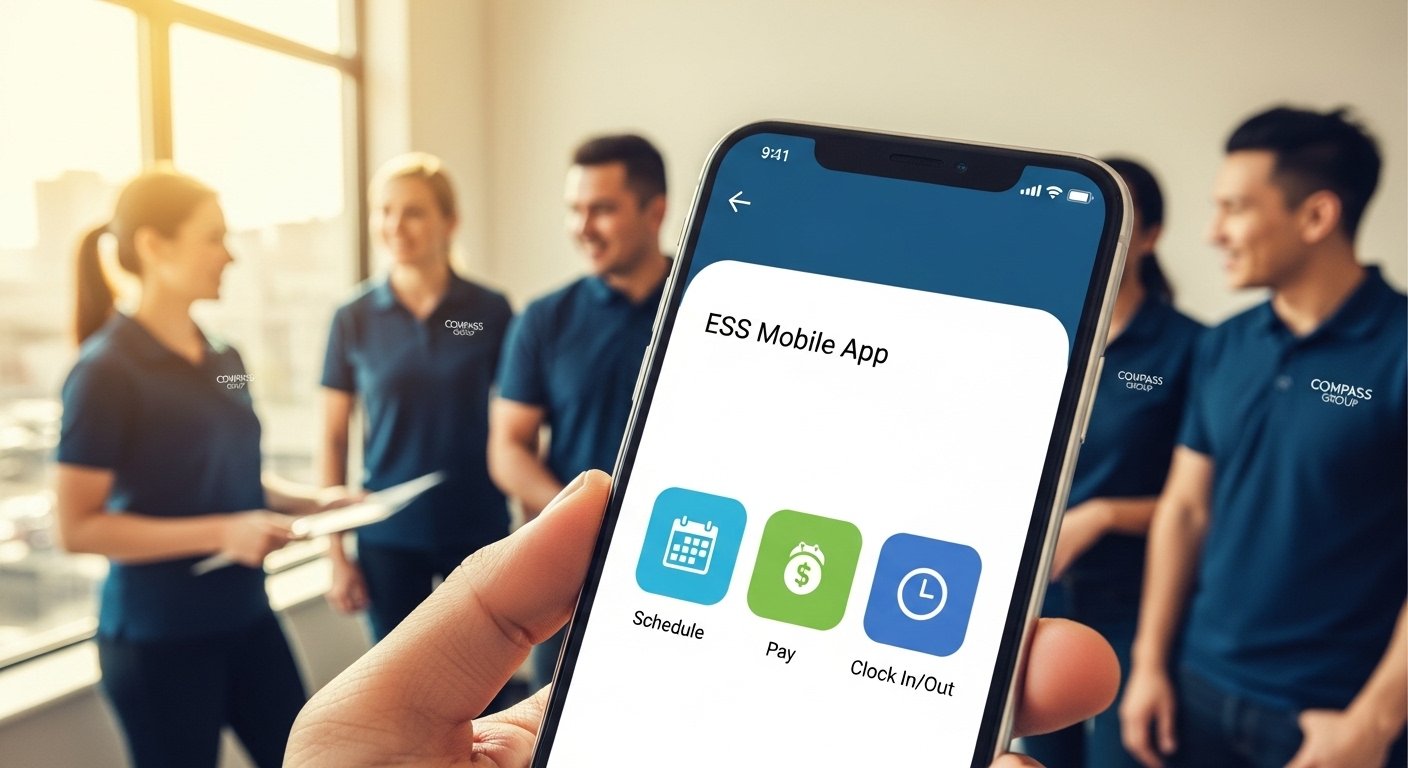
The ESS Mobile App is a very helpful app for people who work at Compass Group. Compass Group is a huge company. It makes food and gives support services in many places. You find them in schools, hospitals, offices, big events, and more.
Workers at Compass Group use this app on their phones. It helps you see and manage your work information easily. You do not need to go to a computer every time. The app is free for everyone. It works perfectly on Android phones and iPhones.
This guide explains everything in simple steps. We talk about what the app does, how to download it, how to log in, how to fix problems (like when location does not show up), and how to use it fully for your Compass Group job. Read slowly. Follow each part. You will understand everything.
What Exactly Is the ESS Mobile App?
The ESS Mobile App is made for employees. ESS means Employee Self-Service. It connects to your Compass Group work account. Many Compass Group workers use a system from a company called Attendance on Demand. The app works with that system.
When you open the app after login, you see your own work details. It is like having a small office in your pocket.
Here are the main things you can do with the app:
- Look at your work schedule. See when your next shift starts. See if there are any changes.
- Check your pay information. See how much money you earned. Look at old paychecks too.
- Clock in and clock out. Start your work time and end it right from the phone. This is good if you do not want to use the machine at work.
- Ask for time off. Request a vacation day or sick day. See how many days you have left.
- Get company messages. The app can send you alerts about important news or shift changes.
- Sometimes enter extra things like tips (if your job has tips) or mileage if you drive for work.
The app keeps your information safe. No one else can see it. It uses a password and sometimes extra checks. Many workers say this app makes their day easier. They check schedules at home or during a break. They do not wait until they get to work.
Some parts of Compass Group use a different app called Compass Time. It does almost the same things — clock in/out, see timesheets, request time off. Ask your manager or HR which app your team uses. But most use ESS Mobile with Attendance on Demand.
Why Should You Use This App?
Think about your busy day. You wake up. You want to know your shift time. Or you finish work and want to see your pay. With the app, you open your phone and see it in seconds.
It saves time. No need to call HR for small questions. No need to find a computer. Everything is fast and private.
The app is free. No money to pay. Download once and use forever. It helps new workers learn their job rules. It helps old workers stay on top of everything.
If you travel between different work places (like different schools or hospitals), the app helps track your time correctly.
Step-by-Step: Download the ESS Mobile App for Android (Free)
Downloading is simple. It takes only a few minutes.
- Take your Android phone or tablet.
- Find and open the Google Play Store app. It has a colorful triangle icon.
- At the top, there is a search box. Tap it.
- Type these words: “ESS Mobile”.
- Press search. Look for the app named ESS Mobile by Attendance on Demand, Inc. This is the real and safe one.
- Tap on that app.
- You see pictures and details. Tap the big green button that says Install.
- It is free. No card needed.
- Your phone downloads it. Wait 1 or 2 minutes.
- When finished, tap Open. Or find the new icon on your home screen.
If you do not see the app, try searching “ESS Mobile Attendance on Demand”. That finds it faster.
Always download from Google Play Store. It checks for viruses. Do not download from other websites.
Your phone should have some free space (about 50 MB is enough). It works better if your Android is not too old. If the app asks to update your phone, do it.
Step-by-Step: Download the ESS Mobile App for iPhone (Free)
For iPhone, it is easy too.
- Open your iPhone.
- Find the App Store app. It has a blue “A” icon.
- Tap the search icon at the bottom (looks like a magnifying glass).
- Type “ESS Mobile” and search.
- Find ESS Mobile by Attendance on Demand, Inc..
- Tap Get. It is free.
- Your phone may ask for Face ID, Touch ID, or your Apple password. Do that.
- It downloads quickly.
- When done, tap Open. Or the icon appears on your home screen.
The app works on iPhone and iPad. If there is an update button, tap it. Updates make the app faster and fix small problems.
If your team uses Compass Time, search for that in App Store. It is also free and by Compass Group USA.
How to Log In to the ESS Mobile App – Easy Steps

You installed the app. Now open it.
- The app opens to a login screen. It looks clean and simple.
- In the first box, type your username or employee ID.
- For Compass Group, this is often your 8-digit personnel number. It includes zeros at the start if needed. Look on your paycheck stub. Or ask your manager or HR.
- In the second box, type your password.
- Tap the Login or Sign In button.
If this is your first time:
- The app may ask you to set up or agree to rules.
- Allow notifications if you want alerts on your phone.
If you forgot your password:
- Tap Forgot Password? or similar words.
- Enter your employee ID or email.
- The system sends a code to your email or phone.
- Use that code to make a new password.
If login still does not work:
- Check if you typed correctly (no extra spaces).
- Try the website first: go to ess.compassassociate.com on your phone browser to reset password.
- Call HR or your manager. They know your exact ID.
After login, the app shows your dashboard. You see your name, schedule, and options.
Why Location Does Not Pop Up – And Full Fixes
Many workers ask this question: Why won’t location pop up on ESS mobile app? Or why does it say “out of range”?
The app uses your phone’s location (GPS) to know you are at work when you clock in or out. This stops wrong time records. It is a good safety rule.
If location does not work or no pop-up shows:
First – Turn on location for your whole phone
- Android: Go to phone Settings. Tap Location. Turn it on. Choose “High accuracy” (uses GPS + Wi-Fi + data).
- iPhone: Go to Settings. Tap Privacy & Security. Tap Location Services. Turn it on.
Second – Give permission to the ESS app
- Android: Settings > Apps > ESS Mobile > Permissions > Location. Choose “Allow all the time” or “Allow while using the app”.
- iPhone: Settings > ESS Mobile > Location. Choose “Always” or “While Using the App”. Turn on “Precise Location”.
More fixes if still not working
- Restart your phone (turn off and on).
- Make sure internet is good (Wi-Fi or mobile data on).
- Go outside or near a window. GPS needs clear sky sometimes.
- Update the app: Open Play Store or App Store, search ESS Mobile, tap Update if shown.
- Clear old data: On Android – Settings > Apps > ESS Mobile > Storage > Clear Cache (not Clear Data yet).
- Worst case: Delete the app and install again from store.
Sometimes the problem is from the company side. Not every work place allows phone clock-in. Or the “geofence” (work area boundary) is wrong. If fixes do not help:
- Talk to your manager.
- Call HR.
- Or call Compass Group support number (ask your team for the right number, like help desk lines).
Some workers say they stand right at the time clock but get “out of range”. This needs company fix. Be patient. They usually solve it fast.
Full Compass Group Access with the App
After login, you have full access to your Compass Group associate account.
You can see:
- Your full schedule for the week or month.
- Any open shifts you can pick up (in some teams).
- Detailed pay history — gross pay, taxes, deductions.
- Benefits like health plan or retirement info.
- Time-off requests — see status if approved or not.
The app sends push notifications. Turn them on. You get messages like “Your shift changed” or “Payday tomorrow”.
It connects to the main website like ess.compassassociate.com or compassconnect.com. Same login works.
This is perfect for Compass Group jobs. Many workers do food prep, serving, cleaning, or events. They move a lot. The app lets them check everything from phone — no waiting.
Other Common Problems and How to Fix Them
Sometimes the app has small issues. Here are easy fixes:
- App will not open or loads slow: Check internet. Restart app (close fully, open again). Restart phone.
- Login keeps failing: Wrong password? Reset it. Caps lock on? Turn off.
- No schedule or pay shows: Your account may need update. Ask HR.
- App crashes: Update phone software. Free space on phone. Update app.
- Notifications not coming: Go to phone Settings > Notifications > ESS Mobile > Allow.
Keep the app updated always. New versions fix bugs and add good features.
If big problem, contact support:
- Your manager knows best.
- HR at Compass Group.
- Sometimes there is a helpline like 1-877-311-4747 for benefits or payroll questions.
Extra Tips to Use the App Like a Pro
- Turn on notifications right away. Never miss a change.
- Make a strong password. Mix letters, numbers. Change it every few months.
- Log out if you lend your phone to someone.
- Save your employee ID somewhere safe (not in phone notes if not locked).
- If you change phone, download app again and log in same way.
- Read app updates notes sometimes. They tell what is new.
The ESS Mobile App is free, safe, and very useful for Compass Group workers. Download it today from Google Play Store or App Store. Set up login. Fix location if needed. Start using full access.
If you are new or confused, ask your manager. They help. Many thousands of associates use this app every day. It makes work simple and less stress.
Enjoy your app!
Disclaimer:
This article is only for information. We are not connected to Compass Group or the ESS Mobile App. We do not sell, promote, or get money from the app. We are not responsible if the app does not work, or if you have problems using it. Always follow official instructions from Compass Group or the app itself.
Explore More
- MFF App: Download, Features, Reviews & How to Use in 2026
- Eyebrow App: Free Download, Fill, Remove & Perfect Brows | Anastasia, Wavy, Thin & No Eyebrow Options
- The Crazy Balls App Review 2026 – Is Crazy Balls App Legit?
About the Author