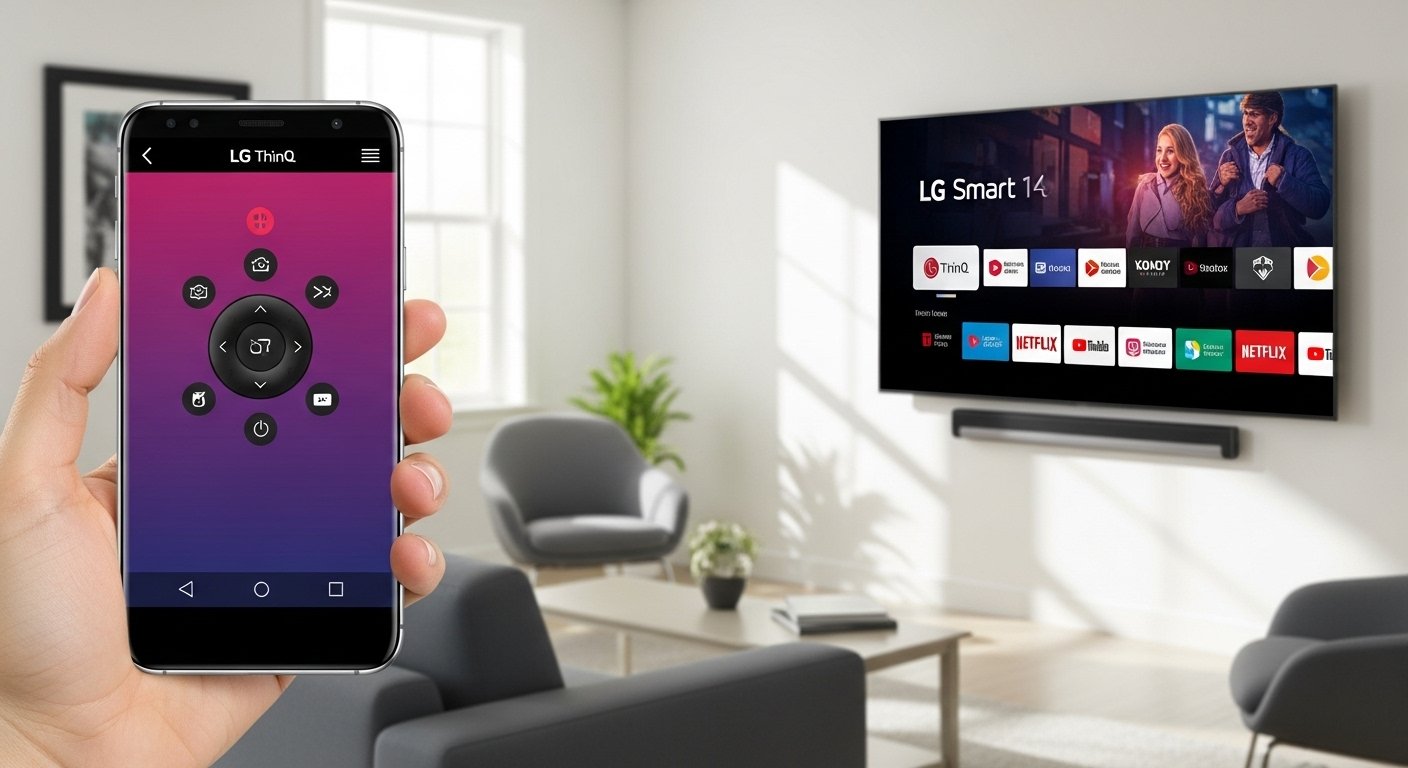
The official app for controlling your LG Smart TV from your phone is the LG ThinQ app. LG replaced the old LG TV Plus (or LG TV Remote) app with ThinQ. It works on both Android and iOS phones. This app lets you use your smartphone as a full remote for your LG Smart TV. It is easy, free, and gives many helpful features.
This article explains everything in simple English. You will learn what the app is, why it is good, how to get it, how to set it up, how to use it, extra tips, common problems with fixes, and more. By the end, you can control your TV from your phone without any trouble.
What Is the LG ThinQ App?
The LG ThinQ app is a smart home app made by LG. It controls many LG devices like TVs, washing machines, refrigerators, air conditioners, and more. For LG Smart TVs, it acts as a remote control from your phone.
You do not need to buy a new remote if you lose yours or if the batteries die. Just open the app on your phone, connect to your TV, and start controlling it. The app works over Wi-Fi, so your phone and TV must be on the same home network.
LG made this app to make life easier. Many people use it every day because it is simple and does more than a normal remote.
Why Use the LG ThinQ App to Control Your LG Smart TV?
There are many good reasons to use this app instead of or along with your physical remote.
First, it is always with you. Your phone is in your pocket or hand most of the time. No need to search for the remote under the couch.
Second, the app has a virtual keyboard. Typing on your TV with the remote is slow. With the app, you can use your phone’s keyboard to search fast for movies, shows, or apps.
Third, you can use your phone’s screen as a touchpad like the LG Magic Remote. Move your finger on the phone to move the pointer on the TV screen. This makes it easy to click on things.
Fourth, the app shows all channels, inputs, and settings clearly. You can change volume, turn the TV on or off, switch channels, open Netflix, YouTube, Disney+, or other apps with one tap.
Fifth, it works as a second remote. If many people watch TV together, one can use the physical remote and another can use the phone app.
Sixth, you can control your TV from another room if the Wi-Fi is strong. For example, turn off the TV from the kitchen without going back to the living room.
Many users say the app saves time and makes watching TV more fun.
How to Download the LG ThinQ App
Downloading the app is very easy.
For Android phones:
- Open the Google Play Store.
- Search for “LG ThinQ”.
- Look for the app made by LG Electronics Inc. It has the LG logo.
- Tap “Install”.
- Wait for it to download and install.
For iPhone or iPad:
- Open the App Store.
- Search for “LG ThinQ”.
- Find the one by LG Electronics.
- Tap “Get” or the download button.
- It may ask for your Apple ID password or Face ID.
The app is free. It does not cost anything to download or use.
After download, open the app. You may need to make an LG account or sign in. This is quick. Use your email and make a password. LG uses this account to connect all your devices safely.
Step-by-Step Setup: Connect Your Phone to Your LG Smart TV
Now, let’s connect the app to your TV. Follow these steps carefully.
- Make sure your LG Smart TV is on and connected to Wi-Fi. Go to TV settings > Network > Wi-Fi to check.
- Make sure your phone is on the same Wi-Fi network as the TV. This is very important. They must be on the same home Wi-Fi.
- Open the LG ThinQ app on your phone.
- The app will ask you to add a device. Tap “Add Device” or the + sign.
- Choose “TV” from the list of devices.
- The app will search for your TV on the network. It may take a few seconds.
- When it finds your TV, tap on it.
- A code or message will appear on your TV screen. Look at the TV.
- On your phone, enter the code shown on the TV (if asked). Or just tap “Connect” or “Allow”.
- Wait a moment. The app will say “Connected” or show your TV name.
That is it! Your phone is now linked to the TV.
If it does not find the TV:
- Check Wi-Fi again.
- Restart both TV and phone.
- Make sure TV is on webOS (most LG Smart TVs from 2014 or later use webOS).
- Update your TV software if needed (go to Settings > Support > Software Update on TV).
How to Use the LG ThinQ App as a Remote
Once connected, the app shows a remote control screen.
The main screen looks like a TV remote. You see buttons for:
- Power on/off
- Volume up/down
- Channel up/down
- Mute
- Home button (goes to main menu)
- Back button
- Input/source button (to switch HDMI, etc.)
There is also a touchpad area. Put your finger on it and move like a mouse. The pointer appears on the TV. Tap to click.
For typing, tap the keyboard icon. Your phone keyboard opens. Type what you want, like a movie name in Netflix.
Voice control: Some versions let you use voice if your phone has Google Assistant or similar. But most control is by touch.
You can launch apps fast. Tap the app icons shown in the app, like Prime Video, YouTube, or LG Channels.
Change picture settings, sound modes, or screen mode from the app menu.
The app also lets you set favorites, like save your favorite channels or apps.
Extra Features in the LG ThinQ App for Your TV

The app does more than basic remote functions.
- Share screen: Send photos or videos from your phone to the TV screen.
- Control other LG devices: If you have an LG washer or fridge, control them in the same app.
- Notifications: Get alerts if your TV needs update or if there is a problem.
- Energy monitoring: See how much power your TV uses (on some models).
- Multi-device: Connect many TVs if you have more than one LG TV at home.
These features make the app a full smart home tool.
Tips to Get the Best Experience with the LG ThinQ App
Here are some simple tips:
- Keep your TV and phone software updated. Go to TV Settings > Support > Software Update. For phone, update in Play Store or App Store.
- Use a strong Wi-Fi signal. If far from router, the connection may drop.
- Turn on “Wake on LAN” or similar in TV settings if you want to turn on TV from off state (some models support this).
- Close other apps on phone if the app runs slow.
- Use landscape mode on phone for bigger remote buttons.
- If you have kids, the app is good because they can use phone without touching the physical remote.
- Backup your LG account password in a safe place.
Many people find the app faster than the physical remote for searching.
Common Problems and How to Fix Them
Sometimes things go wrong. Here are common issues and easy fixes.
Problem 1: App cannot find the TV. Fix: Check same Wi-Fi. Restart TV and phone. Turn TV off and on.
Problem 2: Connection drops often. Fix: Move closer to Wi-Fi router. Or restart router.
Problem 3: Code does not show on TV. Fix: Make sure TV is on the home screen. Try again.
Problem 4: App says “Not connected” after setup. Fix: Go to app settings > My Devices > Remove TV > Add again.
Problem 5: Touchpad or pointer not working. Fix: Check if TV has Magic Remote features enabled. Update app.
Problem 6: App not working on old phone. Fix: Check if phone meets requirements (Android 7+ or iOS 13+ usually).
If nothing works, go to LG support website or call LG help.
Is the LG ThinQ App Safe and Private?
Yes, it is safe. LG is a big company. They use secure connections for the app. Your data is protected. You control what the app can do.
Only use the official app from LG. Do not download fake apps that say “LG Remote” but are not from LG. They may have ads or bad things.
Always update the app for security fixes.
Final Thoughts: Make Your LG TV Life Easier Today
The LG ThinQ app is a great way to control your LG Smart TV from your phone. It is free, easy to set up, and full of useful features. No more lost remotes or slow typing on TV.
Download it now, connect in minutes, and enjoy. Whether you watch movies, play games, or just change channels, the app makes it simple and fun.
Disclaimer:
This article is only for information. It is not an ad, not sponsored, and not an affiliate post. We are not connected to LG. App features can change at any time. We are not responsible for any problems or damage. Always download the app from the official Play Store or App Store. For help, contact LG support.
Explore More
- Why People Are Using the Yapp App
- Virgin Credit Card App – Manage Your Card Easily on Your Phone
- Testi App: Easy Reviews & Feedback in One Place
About the Author