The Sky Remote App: Control Your TV Easily from Your Phone is a simple and helpful tool from Sky. It lets you use your smartphone or tablet as a remote control for your Sky TV setup. No more searching for the physical remote under the couch! This app makes watching TV more fun and easy, especially if you lose your remote or just want something quicker.
Many people love this app because it turns your phone into a smart remote. It works great with newer Sky devices like Sky Glass and Sky Stream. (Note: For older Sky Q boxes, remote control happens through the Sky Go app instead, but this article focuses on the dedicated Sky Remote app for Glass and Stream.)
In this guide, we explain everything you need to know in very easy words. We cover what the app is, how to get it, setup steps, main features, benefits, tips, and more. This will help you use it right away and enjoy your Sky TV better.
What Is the Sky Remote App?
The Sky Remote app is a free mobile application made by Sky. It lets you control your Sky Glass TV or Sky Stream puck (the small box that streams Sky channels) directly from your phone or tablet.
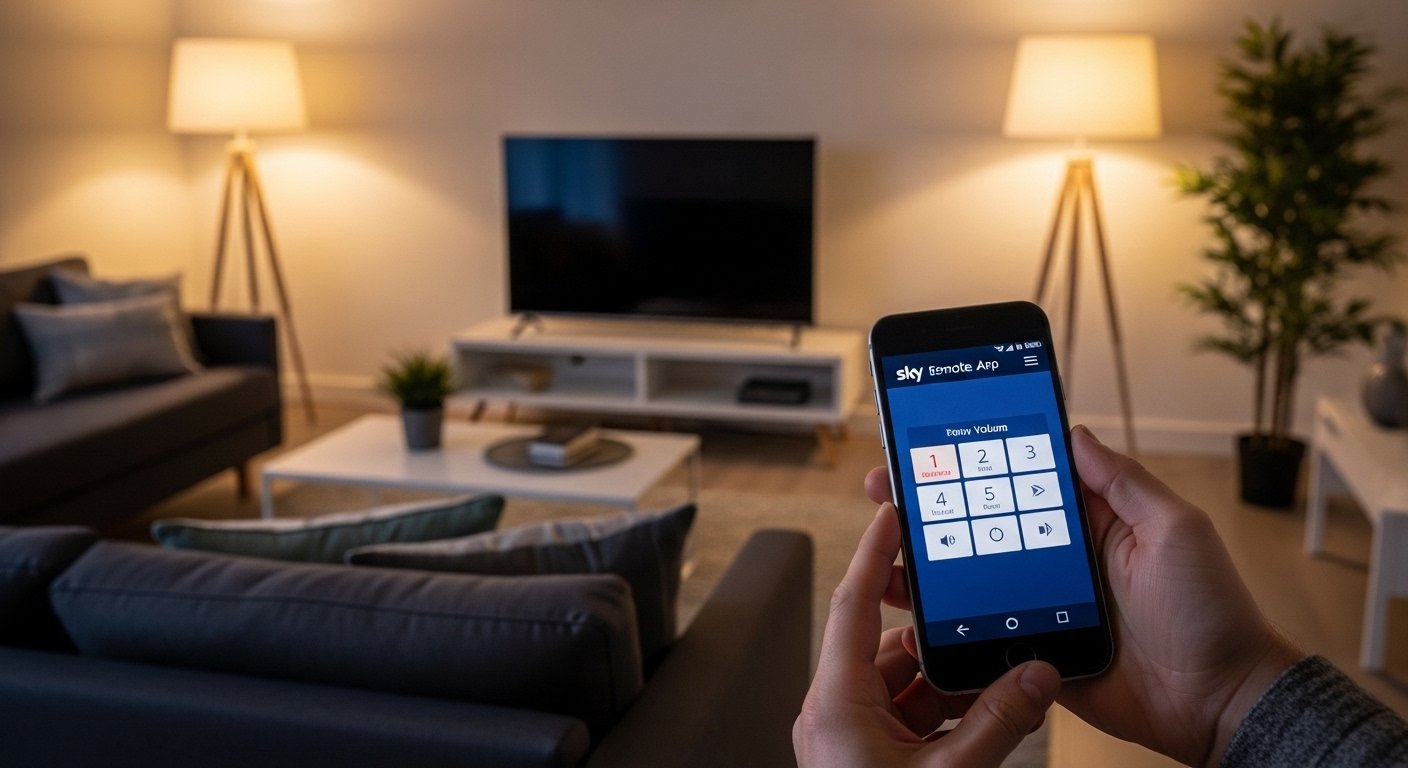
Instead of using the physical remote that comes with your Sky device, you open the app on your phone. The screen shows buttons like power, volume, channel change, play/pause, and more. It feels like holding a remote, but it’s on your phone.
This app is perfect for everyday use. You can sit on the sofa, control the TV without getting up, or help family members who find small buttons hard to press.
Sky launched this app to make life easier for customers. It became available around late 2025 and works smoothly on both iPhone and Android phones.
Why Use the Sky Remote App? Key Benefits
Using your phone as a TV remote has many good points. Here are the main ones:
- Always with you — Your phone is usually in your hand or pocket. You never lose it like a regular remote.
- Easy when remote is lost or dead — If batteries die or the physical remote is missing, the app saves the day.
- Big screen buttons — Phone screens are large, so buttons are easy to see and tap, especially for older people or those with sight issues.
- No extra cost — The app is free to download and use if you have a Sky Glass or Sky Stream subscription.
- Accessibility help — It supports screen readers (like VoiceOver on iPhone or TalkBack on Android). This makes it good for people who need voice guidance.
- Quick control — Change channels, adjust volume, pause shows, or go to settings fast.
- Works over Wi-Fi — As long as your phone and TV device are on the same home Wi-Fi, it connects automatically.
Many users say it changes how they watch TV. No more arguments about “where’s the remote?” Everyone can control it from their own phone if needed.
What Devices Does It Work With?
The Sky Remote app is made for specific Sky products:
- Sky Glass — The all-in-one smart TV from Sky.
- Sky Stream — The puck (small streaming device) that brings Sky channels to any TV.
It does not work with older Sky Q or Sky+ boxes for this dedicated app. For Sky Q, use the Sky Go app’s remote feature instead.
Your phone or tablet needs to meet simple requirements:
- For iPhone/iPad (Apple): iOS 16.0 or newer.
- For Android phones/tablets: Android 7.1 or newer.
Most modern phones from the last few years work fine. Check your phone settings to see your OS version.
Both your phone and Sky device must connect to the same Wi-Fi network at home. No mobile data needed — it uses home internet.
How to Download the Sky Remote App
Getting the app is very simple. Follow these steps:
For iPhone or iPad users:
- Open the App Store on your device.
- Tap the search bar at the bottom.
- Type “Sky Remote” and press search.
- Look for the official app by Sky UK (it has the Sky logo).
- Tap Get or the cloud icon if you downloaded it before.
- Use your Apple ID password or Face ID/Touch ID if asked.
- Wait for it to install — it takes only a few seconds.
For Android phone or tablet users:
- Open the Google Play Store.
- Tap the search bar at the top.
- Type “Sky Remote” and search.
- Find the app published by Sky (check the logo and developer name).
- Tap Install.
- Accept any permissions if asked (like Wi-Fi access).
- It downloads and installs quickly.
Important: Always download the official app from Sky to stay safe. Avoid third-party apps that say they control Sky — they might not work well or could have issues.
After download, open the app. Sign in with your Sky account if asked (use the same login as your Sky TV subscription).
Step-by-Step Setup Guide
Setup takes less than 5 minutes. Here’s how:
- Make sure your Sky Glass or Sky Stream is turned on and connected to Wi-Fi.
- Put your phone on the same Wi-Fi network (check in phone settings > Wi-Fi).
- Open the Sky Remote app on your phone.
- The app looks for your Sky device automatically. It shows your TV or puck name.
- Tap to connect or pair it.
- If you have more than one Sky device (like in different rooms), the app lets you choose or switch.
- Done! The app screen now shows remote buttons.
If it does not find your device:
- Check both are on same Wi-Fi.
- Restart your phone and Sky device.
- Make sure no VPN is on in phone settings.
- Try again — it usually connects fast.
Once paired, it remembers your device next time you open the app.
Main Features of the Sky Remote App

The app gives you almost all controls from the physical remote. Here are the key things you can do:
- Power on/off — Turn your Sky TV or Stream on or off.
- Volume control — Up, down, mute — works on TV sound.
- Channel change — Up/down buttons or type numbers.
- Navigation — Arrow keys to move in menus, select shows, or go back.
- Playback controls — Play, pause, rewind, fast forward, skip (great for live TV or recordings).
- Home button — Go straight to main Sky menu.
- Settings access — Change picture, sound, or other options.
- Voice search (if your phone supports) — Some users combine with phone voice for quick finds.
- Multi-device switch — Easy if you have Sky in more than one room.
The layout is clean and simple. Big icons make it easy to tap without mistakes. No complicated menus in the app itself.
Tips and Tricks for Best Use
Want to get the most from the app? Try these easy tips:
- Keep your phone charged — low battery might slow things.
- Use dark mode on your phone at night so the screen does not glare.
- Place your phone on a table for easy reach during movies.
- If kids use it, show them how — they love controlling TV from phone.
- Update the app often — go to App Store or Play Store to get new features and fixes.
- For family, multiple phones can connect (each needs to pair once).
- If Wi-Fi is weak, move closer to router for better connection.
Some people use the app as main control and keep physical remote as backup.
Common Problems and Fixes
Most users have no issues, but here are fixes for common problems:
- App not finding device — Check same Wi-Fi, restart both.
- Connection drops — Wi-Fi signal weak? Move closer or restart router.
- Buttons not working — Close and reopen app, or restart phone.
- App crashes — Update to latest version or reinstall.
- No sound control — Make sure TV is set to use Sky audio output.
If still stuck, visit Sky Help website (sky.com/help) or call Sky support. They know the app well.
Is the App Better Than the Physical Remote?
It depends on you. The physical remote is quick with real buttons and no need for phone battery.
But the app wins in many ways:
- Bigger, clearer buttons.
- Always available.
- Good for accessibility.
- Fun and modern.
Many people use both — app for daily, physical for backup.
Final Thoughts
The Sky Remote app makes controlling your Sky TV super easy from your phone. Whether you have Sky Glass or Sky Stream, this free tool saves time and adds comfort.
Download it today, set it up in minutes, and enjoy TV without hunting for remotes. It’s a small change that makes big difference in daily life.
If you have Sky Glass or Stream, try the app now. You will wonder how you watched TV without it!
Disclaimer:
This article is only for information. It is not an ad or promotion. We are not connected to Sky. We are not responsible if something goes wrong when you use the app. Use it carefully.
Explore More
- What Is the Loop App NHS? Full Guide for Patients
- Temporary Car Insurance App: Quick, Easy Coverage on the Go
About the Author