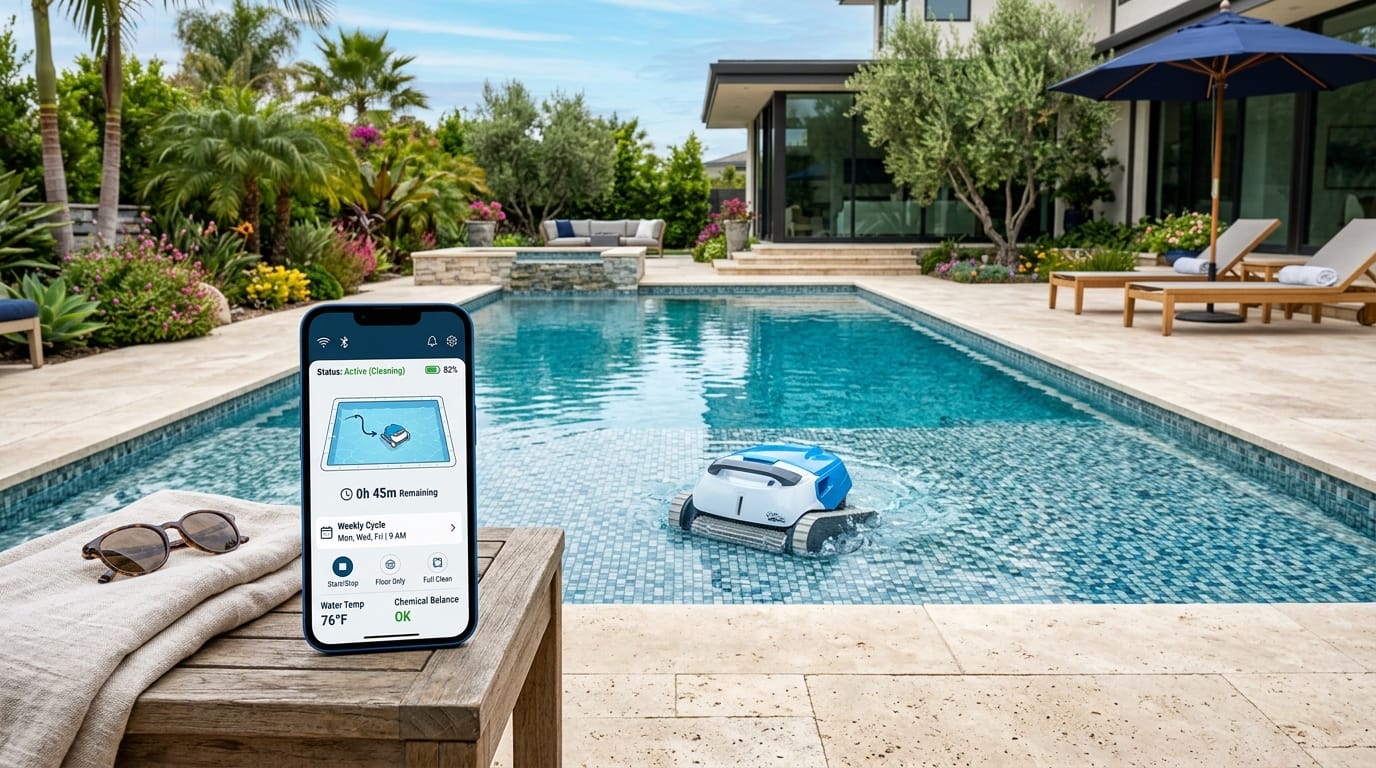
Imagine coming home after a long day and seeing your pool sparkling clean without any hard work on your part. In 2026, many pool owners enjoy this kind of easy life thanks to smart tools like the MyDolphin Plus app. This helpful app lets you manage your Dolphin robotic pool cleaner right from your phone, no matter where you are. It saves so much time and makes pool care feel simple and fun. In this friendly guide, you will learn everything you need to get started, use the main tools, and fix any small problems that might come up.
What Is the MyDolphin Plus App?
The MyDolphin Plus app comes from Maytronics, the company that makes the popular Dolphin robotic pool cleaners. It works as the smart partner that connects your robot to the internet through Wi-Fi. This connection opens up new ways to care for your pool that basic cleaners cannot do.
Unlike the regular MyDolphin app that mainly uses Bluetooth for short distances, the Plus version gives you full control from anywhere in the world. In 2026, it works well with many newer Dolphin models, such as the Sigma, E series, and M series. Owners love how it turns their pool robot into a truly hands-free helper that fits busy family schedules.
Key Features of MyDolphin Plus App
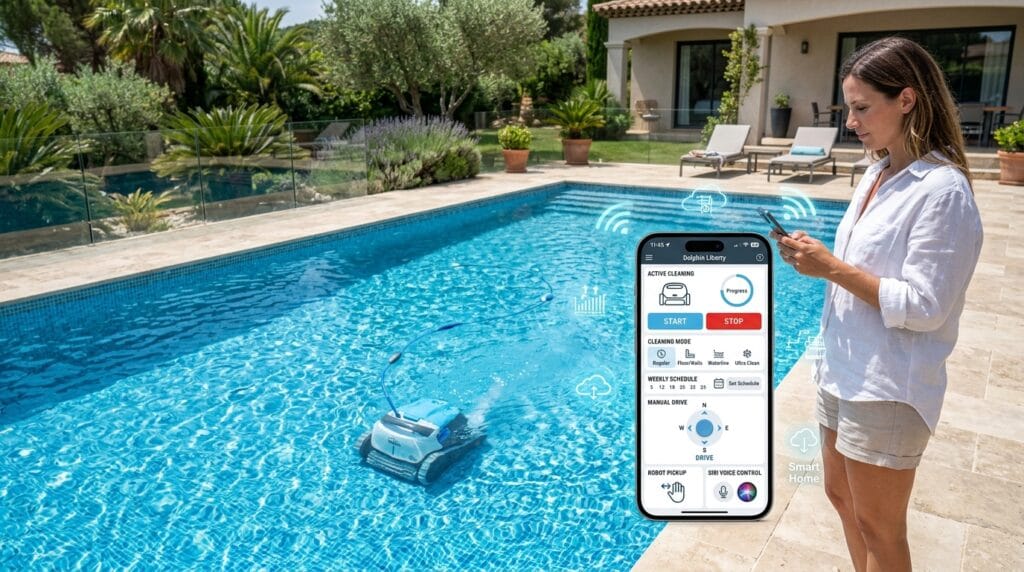
One of the best parts about this app is how much power it puts in your hands. You can start or stop the cleaning from your phone even when you are away at work or on vacation. Voice control with Siri makes it even easier because you can just speak a simple command and the robot listens.
The app also offers several cleaning modes so you can pick what fits your pool best on any given day. For example, you might choose a quick cycle after a party or a longer one for deep cleaning. Another nice touch is the pick-up command that brings the robot to the edge of the pool so you can lift it out without reaching far. You can even give your robot a fun name in the app to make it feel more personal.
Manual driving lets you steer the robot yourself for special spots or just to play around. Plus, timer settings help you plan ahead. These tools together mean you stay in charge of your pool cleaning routine in ways that feel natural and convenient.
MyDolphin Plus App Interface Overview
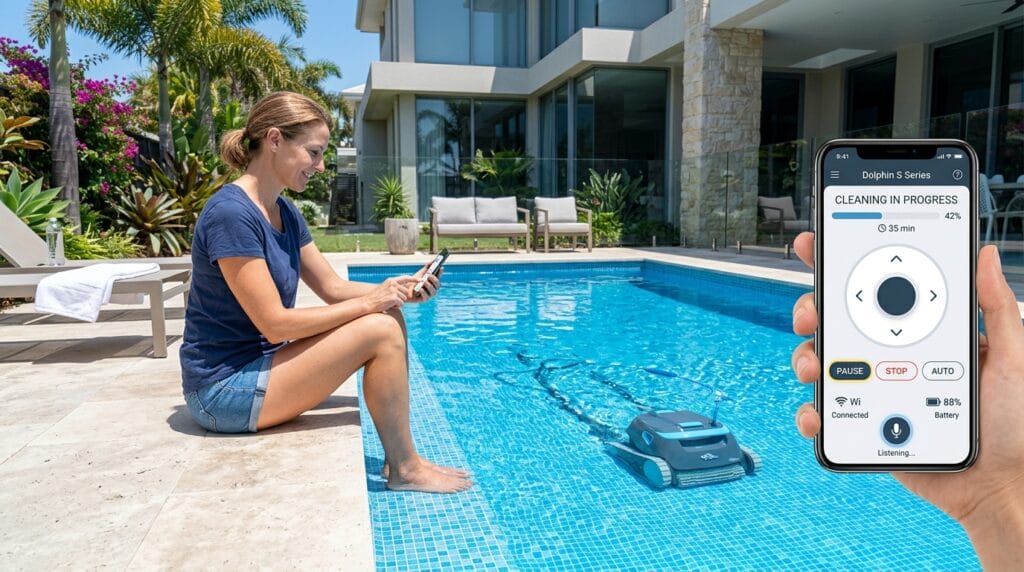
When you first open the MyDolphin Plus app, the home screen feels welcoming and clear. Big buttons show the main controls right away, so you do not have to hunt for anything. At the top, you usually see your robot’s name and its current status, like whether it is cleaning or resting.
Navigation stays simple with a bottom menu that takes you to sections for cleaning, scheduling, settings, and more. Icons use easy pictures, such as a play button for starting a cycle or a clock for timers. Beginners often say that after just a few minutes, the layout feels comfortable, like using any other favorite phone app. This design helps new users feel confident without getting lost.
Step-by-Step Setup Guide for MyDolphin Plus App
Getting everything ready takes only a short time if you follow these steps carefully. First, download the MyDolphin Plus app from your phone’s store, whether you use an iPhone or Android device. Make sure your Dolphin robot is plugged in and sitting in the water with its power supply turned on.
Next, open the app and create a free account if you do not have one yet. The app will look for your robot using Bluetooth at first. When it finds the device, follow the clear instructions on screen to connect to your home Wi-Fi. This part usually asks for your network password, so have it ready.
For iOS users, turn on location services and Bluetooth in your phone settings. Android users should check the same things plus make sure the app has permission to use Wi-Fi. Once paired, the robot will update if needed and show as connected. Many people finish the whole setup in under ten minutes and feel proud of their new smart pool helper.
How to Control Your Dolphin Pool Cleaner with the App
Daily use feels smooth once you know the basics. From the main screen, tap the clean button to send your robot out right away. You can watch its progress and pause at any moment if something comes up.
Manual control brings extra joy because you can drive the robot to tricky corners or just enjoy guiding it around. Voice commands add freedom too, letting you start a cycle while your hands stay busy with other tasks. Over time, these options help you keep the pool looking its best without extra effort.
Scheduling and Automating Pool Cleaning
Planning ahead makes pool care almost disappear from your daily list. In the app, you can set weekly timers that run the robot on chosen days and times. Some models let you pick specific modes for different pool needs, like after heavy rain or during hot summer weeks.
One-time schedules work great for special events, while recurring ones keep things steady all year. Smart options even adjust based on basic conditions to give great results. Busy families often say this feature changes everything because the pool stays clean while they focus on fun together.
MyDolphin Plus App Manual and Advanced Settings
For those who like to explore more, the app includes useful deeper tools. You can check for firmware updates that bring small improvements over time. Robot diagnostics show how well the cleaner performs and help spot any needs early.
Customization lets you adjust settings to match your exact pool shape or cleaning habits. These advanced parts stay easy to reach in the menu, so even curious beginners can try them safely and learn new things about their robot.
Troubleshooting Common Issues
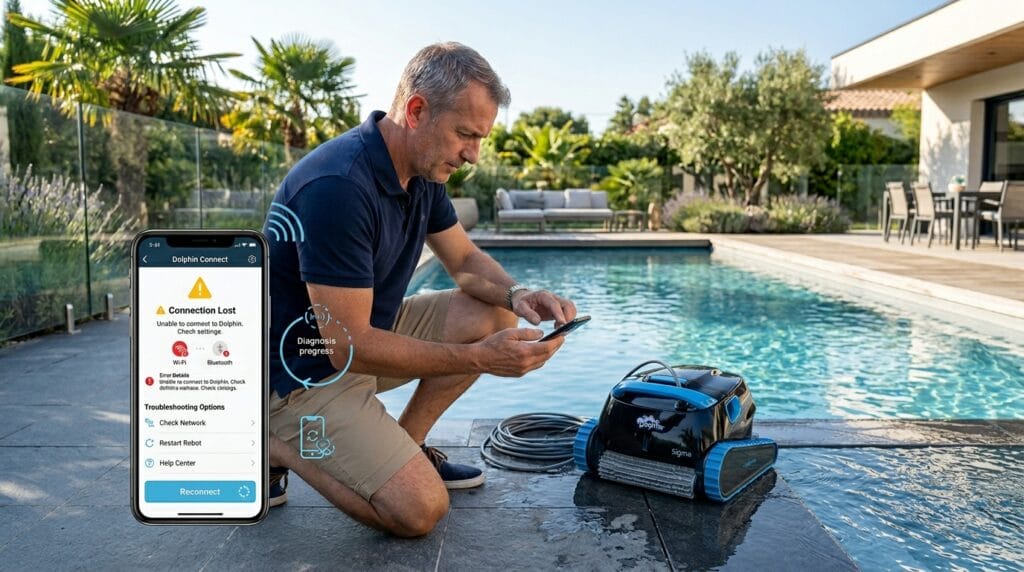
Sometimes small hiccups happen with any tech, but most fixes stay quick and simple. If the MyDolphin Plus app not working, try closing the app fully and opening it again. Make sure your phone has a strong Wi-Fi signal and that Bluetooth is turned on. Restarting the power supply by unplugging it for about a minute often solves connection glitches too.
Error messages usually come with hints in the app, so read them carefully. Keeping the app updated helps avoid many older problems. With a little patience, most users get back to smooth operation fast.
MyDolphin Plus App Not Working or Won’t Connect – Quick Fixes
When the MyDolphin Plus app won’t connect, start by checking your Wi-Fi. The robot works best on a steady 2.4 GHz network, so move closer to the router if needed. Forget the network in your phone settings and join again to refresh the link.
For Bluetooth pairing failures, turn off nearby devices that might interfere, like speakers or headphones. Reinstalling the app fresh can clear hidden issues. Also, check that your Dolphin model matches the Plus app support in 2026 guides. These steps help most people fix connectivity drops and app crashes without calling for help.
Another common fix involves restarting both the phone and the power supply unit. Give everything a few minutes to settle before trying to connect again. Many owners share that these easy actions bring reliable results again quickly.
Pros and Cons of Using MyDolphin Plus App
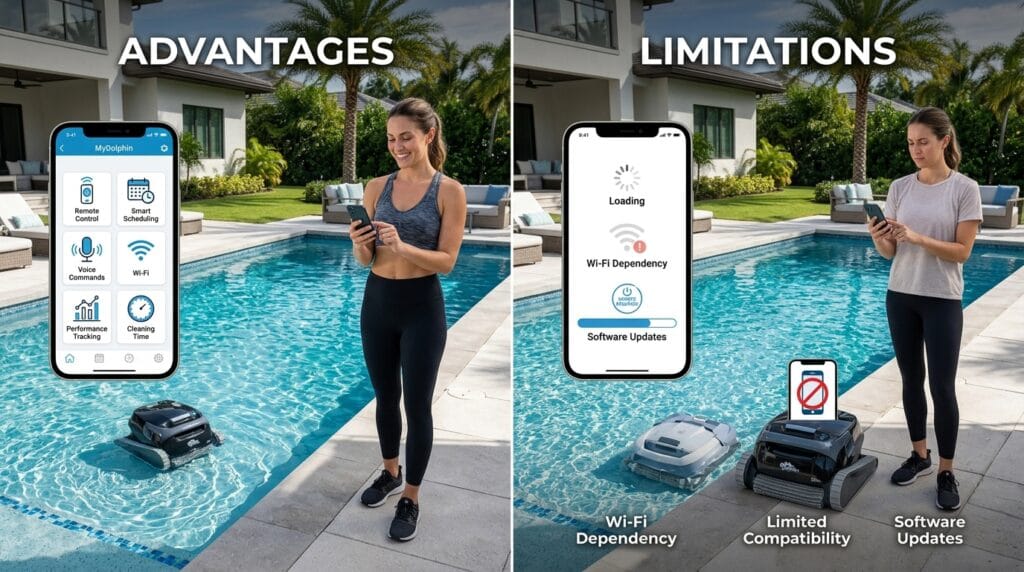
On the good side, the app brings wonderful freedom and time savings for pool owners. Remote control, smart scheduling, and voice options make daily life easier. Users in 2026 often praise the clear interface and helpful performance tracking that shows how much the robot cleans each time.
At the same time, some notice that not every Dolphin model gets all the newest tools. Wi-Fi connection needs a stable home network, and occasional updates might require a quick restart. Compared to basic manual cleaners, it still feels like a big step up for most families who value convenience.
Frequently Asked Questions (FAQs)
Does the MyDolphin Plus app need a special subscription?
Most features work with a free account, though some advanced tracking might offer optional paid upgrades in the future. Check the app for current details.
Will it work if my internet goes out?
Basic manual starts through the power supply still function without Wi-Fi, but full remote control needs an internet connection.
Is my personal information safe in the app?
Maytronics follows standard privacy rules, and the app uses secure connections. Always use strong passwords and review the privacy settings.
Which languages does the app support?
It includes several common languages to help users around the world feel comfortable.
Can I use it with older Dolphin models?
Compatibility depends on the specific robot. Newer 2025 and 2026 models work best with full Plus features.
How do I add more than one robot?
The app supports multiple devices in one account, making it nice for larger properties.
What if my phone is Android and my friend uses iPhone?
Both systems work well with the same app, so sharing tips stays easy.
Does it track how clean my pool water stays?
Some models show basic cleaning history, like cycles completed and distance traveled, which helps you see the good work your robot does.
Conclusion
Taking care of a pool becomes much more enjoyable when you have the right tools at your fingertips. The MyDolphin Plus app brings together simple setup, easy daily control, and smart scheduling that fits real life in 2026. Whether you want to save time, keep things automatic, or just enjoy a sparkling pool, this app offers practical help that grows with your needs.
Why not download it today and give your Dolphin robot a try? You might be surprised at how much freedom it adds to your days. Remember to explore the settings slowly and reach out to support if any questions come up. Your clean pool adventure awaits.
Disclaimer:
This article is for general information and helpful guidance only. Pool equipment and app features can change, so always check the official Maytronics website or your robot manual for the latest details. Results may vary based on your specific model, network setup, and local conditions. We do not provide technical support or guarantees for any product performance.
Explore More
- MyDashCard App: Complete Guide to Check Balance, Pay Bills & Track Spending
- A Logistics-First Guide to the East Sikkim Silk Route
- My Subaru App Not Working – Quick Troubleshooting Solutions for 2026
About the Author