Imagine waking up each day and feeling more in charge of how you hear the world around you. The nucleus smart app makes this possible for many people who use Cochlear Nucleus 7 and Nucleus 8 sound processors. This helpful tool turns your smartphone into a simple way to manage your hearing. In 2026, with better connections and easier controls, the app helps you enjoy clearer sounds in daily life. This review will walk you through everything you need to know. You will learn about its main features, how to set it up safely, and smart tips to get the best results.
What Is the Nucleus Smart App?
The nucleus smart app serves as a friendly companion for your Cochlear implants. It connects directly to your Nucleus 7 or Nucleus 8 sound processor so you can make changes right from your phone. Instead of pressing small buttons on the processor, you open the app and adjust things with a few taps. This gives you more freedom in different places, like at home, school, or outside with friends. The app lets you check battery levels, switch listening programs, and even track how well you hear over time. Because it works smoothly with your phone, it feels like having a helpful guide always in your pocket.
Nucleus Smart App Compatibility
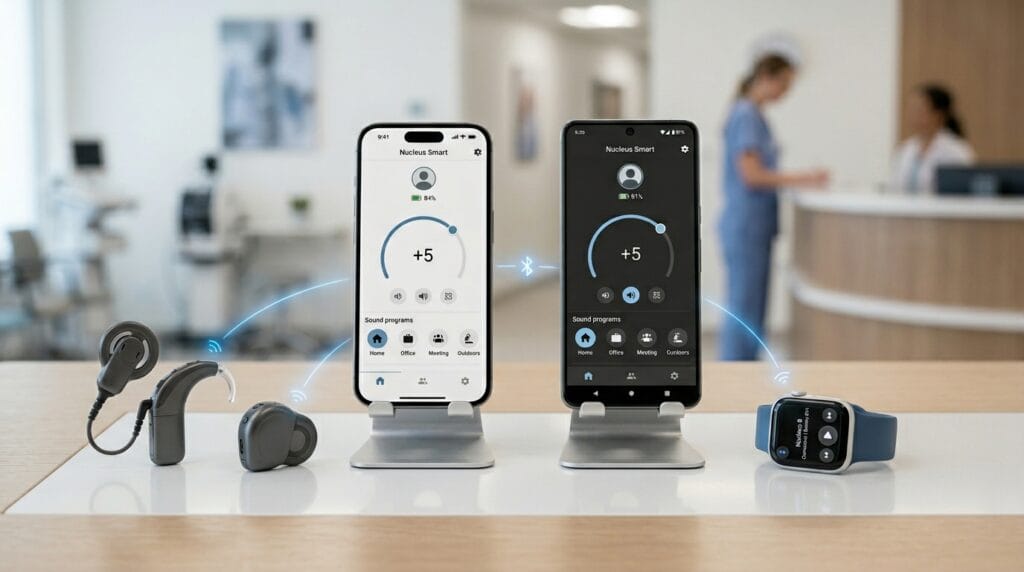
You will want to know if your phone works well with the nucleus smart app before you begin. It supports both nucleus smart app for android and nucleus smart app for iphone. For Apple users, newer iPhones and iPods running recent iOS versions pair nicely. Android phones need Android 8 or higher along with Bluetooth support. Always check the official Cochlear compatibility list because some phones work better than others. The app also runs on Apple Watch for quick checks during the day. For Nucleus 7 and Nucleus 8 users, this means most modern phones can join in without trouble. Just make sure your phone meets the basic needs so everything connects the first time.
Nucleus Smart App Download and Installation
Getting the nucleus smart app download is quick and safe when you use the right places. On an iPhone, open the App Store and search for “Nucleus Smart.” On Android, go to Google Play and do the same. Download only from these official stores to keep your information protected. After the app installs, open it and follow the simple screens that appear. Take your time so you do not miss any steps. Many people finish this part in just a few minutes. If you feel unsure, ask a family member or friend to sit with you. This careful start helps avoid mix-ups later on.
How to Set Up the Nucleus Smart App
Setting up the nucleus smart app feels exciting once you begin. First, turn on your sound processor and make sure your phone’s Bluetooth is ready. Open the app and log in with your Cochlear account. The app will guide you to pair the processor. It might ask you to hold the processor close to the phone for a short time. After that, you can name your device if you use two processors. Test the connection by changing the volume a little. If something feels off, restart your phone and try again. This first setup usually takes about ten minutes, and then you are ready to explore. Many users say it becomes second nature after one or two tries.
Cochlear Nucleus Smart App Interface Overview
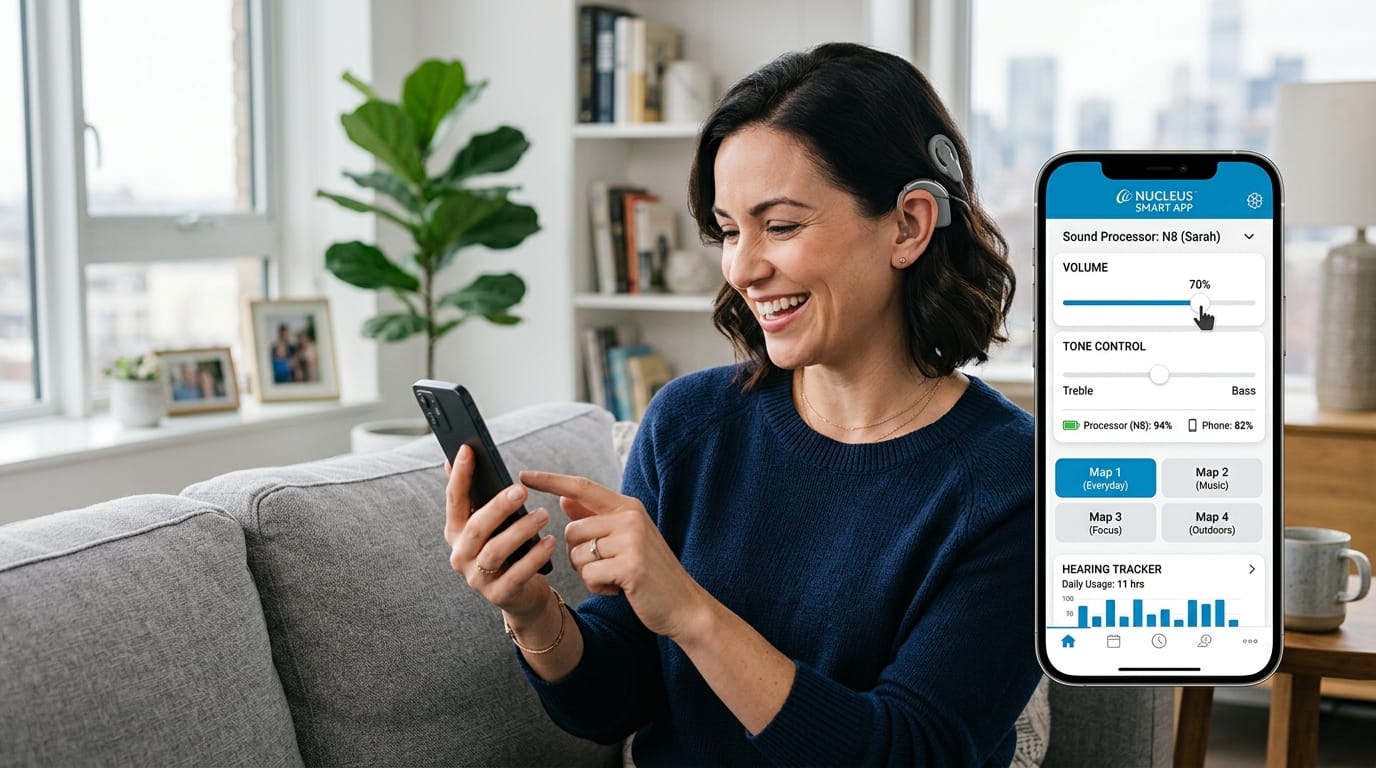
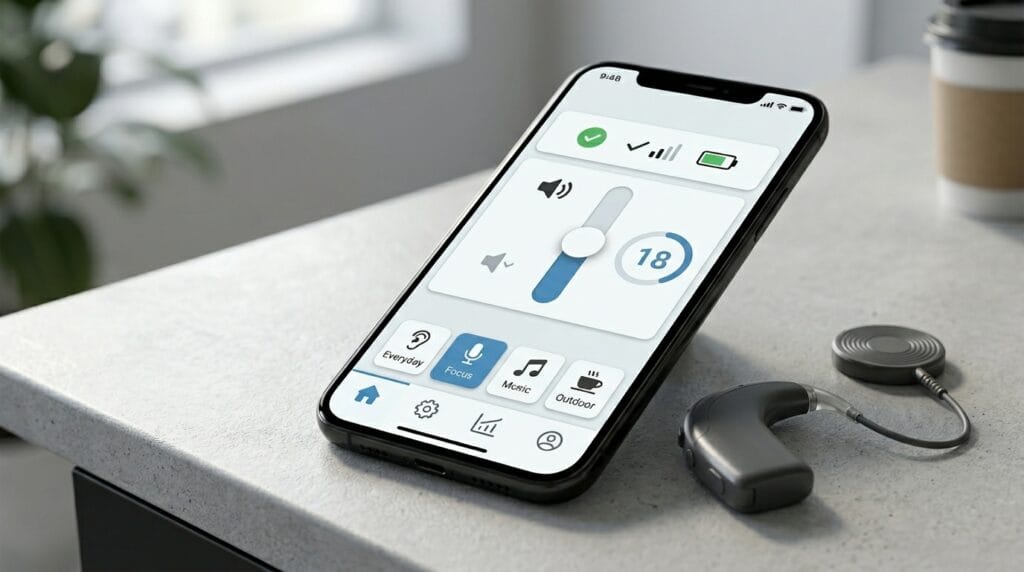
The cochlear nucleus smart app interface looks clean and easy to understand. The main screen shows your processor’s battery level and current status at the top. Below that, you see big controls for volume and programs. Swipe or tap to open more options like sound settings. Everything feels organized so you find what you need without hunting. The layout works well on both small and larger phone screens. Over time, you will remember where each button lives, which makes daily use even smoother.
Key Features of the Nucleus Smart App
One of the best parts of the nucleus smart app is how many useful tools it offers. You can change programs quickly when you move from a quiet room to a busy street. Volume adjustments help you hear soft voices or turn down loud noises. Streaming audio from your phone or other devices brings music and calls straight to your ears. The Hearing Tracker shows how much time you spend listening to speech each day, which feels encouraging. You can also set alerts for when the coil slips or the battery runs low. These features work together to make your hearing experience more personal and reliable.
Nucleus Smart App Mute Microphones and Advanced Controls
Sometimes you need to focus on one sound and block others. The nucleus smart app mute microphones feature lets you do that with a simple tap. This comes in handy during meetings or when you want to rest your ears. You can also adjust bass and treble to make voices clearer or music richer. Sensitivity settings help in windy places or crowded rooms. Your hearing professional might turn on extra options just for you. Playing with these controls teaches you what feels best in different situations. Many people discover new favorite settings after a week of gentle practice.
Nucleus Smart App Find My Processor
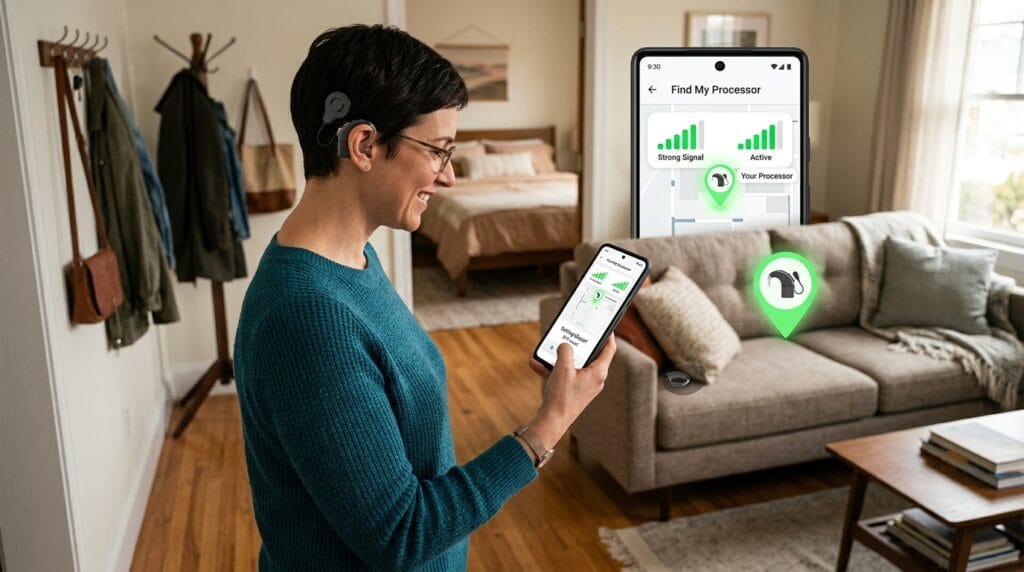
Losing a sound processor can feel scary, especially for kids or busy adults. The nucleus smart app find my processor tool helps you locate it fast. It shows the last place the processor connected to your phone on a simple map. A nearby feature even tells you how close you are getting with growing bars on the screen. Keep the app open and walk around slowly. This feature has helped many families find processors under beds or in coat pockets. It brings peace of mind every day.
Nucleus Smart App User Guide Highlights
The official nucleus smart app user guide holds many good ideas for daily success. Keep your app updated so you always have the newest improvements. Check your processor status regularly to catch small issues early. Use the app while doing normal activities to learn what works best for you. Pair only one main processor at a time if you switch between ears. Simple habits like these make the app feel like a true friend that grows with you.
Troubleshooting Nucleus Smart App Not Connecting and Not Working
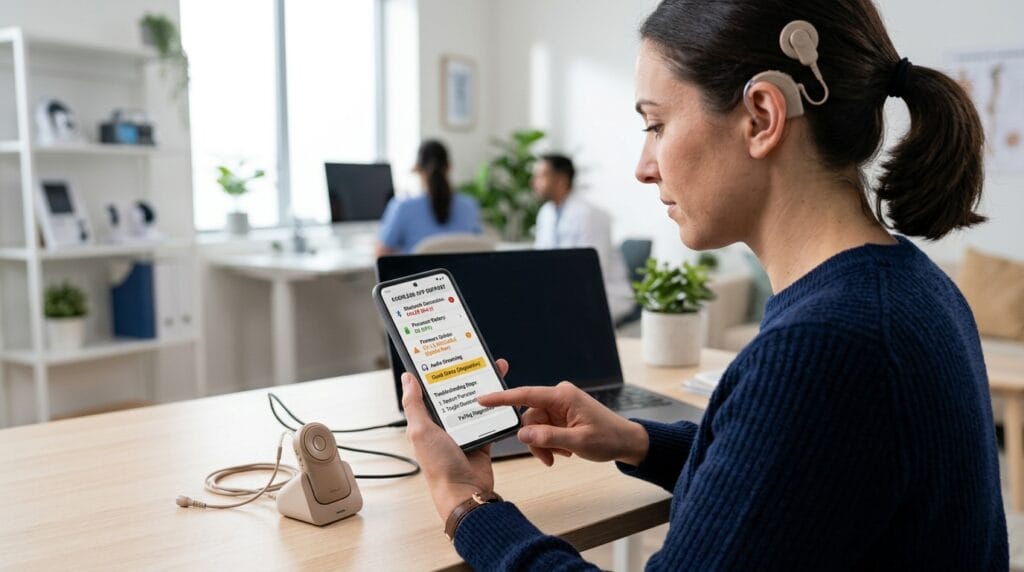
It can feel frustrating when the nucleus smart app not connecting. First, make sure Bluetooth is on and the processor has power. Restart both your phone and the processor. Sometimes forgetting the device in phone settings and pairing fresh helps. Update the app if a new version waits in the store. For nucleus smart app not working problems, close the app completely and open it again. These small steps fix most everyday troubles. Patience usually brings success.
Nucleus Smart App Troubleshooting Guide
For more stubborn issues, the nucleus smart app troubleshooting guide inside the app or on the Cochlear site offers clear steps. Check for phone software updates too. Turn off other apps that might fight for Bluetooth. If streaming stops, test with different audio sources. Battery warnings or connection drops often improve after a full restart. Write down what happens each time so you can tell your hearing professional if needed. Most users solve things on their own with these ideas.
Tips and Best Practices for Using the Nucleus Smart App
Good habits help you love the nucleus smart app even more. Charge your phone and processor every night so they stay ready. Practice changing settings in calm places before trying noisy ones. Share favorite programs with family so they can help if you need it. Track your hearing goals and celebrate small wins, like hearing birds more clearly. Keep the app open in the background for find my processor to work best. Over time, these practices turn the app into something you use without thinking.
Nucleus Smart App on Windows and Other Platforms
The nucleus smart app works mainly on phones and watches, not directly on Windows computers. Some users connect their phone to a Windows laptop for bigger screens during setup, but full control stays on the mobile app. There are no official Windows versions yet. If you need computer access, use your phone and mirror the screen when possible. This keeps things simple for most people.
Pros and Cons of the Nucleus Smart App
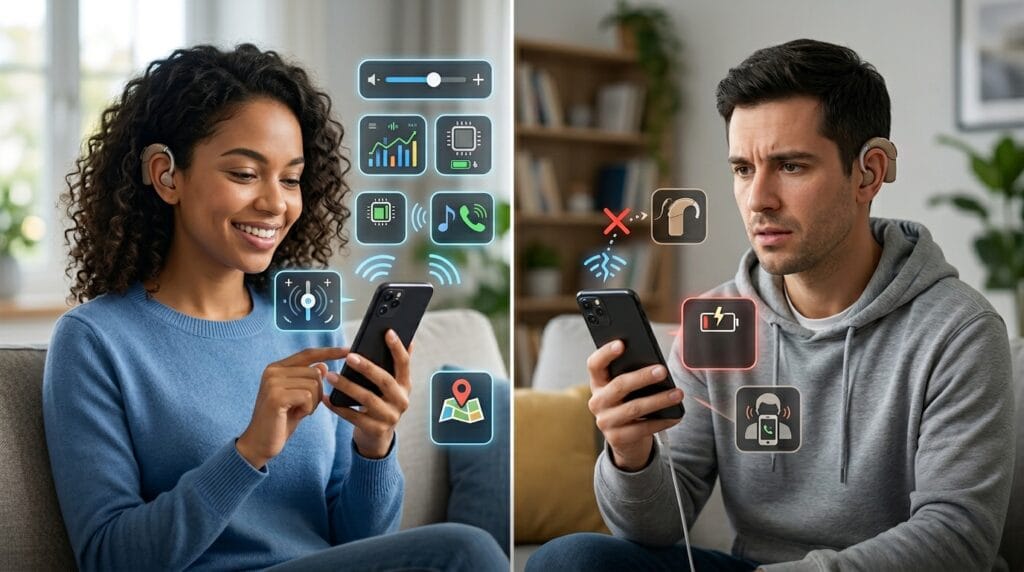
Many users enjoy how the nucleus smart app makes life easier with quick controls and helpful tracking. It feels freeing to adjust sounds without extra devices. The find my processor and alerts add real safety. On the other side, some people notice occasional connection drops on certain Android phones. The app needs your phone to stay charged and nearby for full features. Still, the good points usually win out for daily comfort.
Frequently Asked Questions
Can children use the nucleus smart app safely?
Yes, many families use it with kids. Parents can monitor and adjust settings while teaching children how to use it themselves as they grow.
Does the app use a lot of phone battery?
It uses some power when open, but closing it when not needed helps. Most phones handle it well during normal days.
What if I have two processors?
You can pair both, but switch focus in the app when you change which one you wear. It works smoothly once set.
Is the nucleus smart app free?
Yes, you download it at no cost from official stores.
How often should I check for updates?
Check every few weeks so you get new improvements and fixes.
Can I use it while driving?
Only make small changes when safely stopped. Let a passenger help if needed.
Does it work with other hearing accessories?
Yes, it pairs nicely with many Cochlear wireless devices for even better sound.
What if I forget my Cochlear account password?
Use the forgot password link in the app to reset it quickly.
Conclusion
The nucleus smart app brings more joy and control to your hearing journey with Nucleus 7 and Nucleus 8 processors. From easy daily adjustments to smart tracking and helpful location tools, it supports you in so many ways. Take time to explore its features at your own pace. Try the tips shared here, and you will likely notice clearer, more comfortable hearing in your favorite moments. You deserve to connect with the world around you. Start small today, and watch how much better things can feel. Your ears and your days will thank you.
Disclaimer:
This article is for general information only and shares experiences based on public details. It is not medical advice. Always talk to your hearing professional or doctor before making changes to your devices or apps. Results can differ for each person. Check official Cochlear sources for the latest facts to keep your hearing care safe and right for you.
Explore More
- MyDolphin Plus App: How to Set Up, Control, and Schedule Your Dolphin Robotic Pool Cleaner from Anywhere
- MyDashCard App: Complete Guide to Check Balance, Pay Bills & Track Spending
- A Logistics-First Guide to the East Sikkim Silk Route
About the Author