Signature: 2XZEBvDxvyQiqOLjIxPM2niObb2bDTKII6vKZeq6trqf+1gTN+YpNMhELIB81gXBRDik4jKGpN8oYf713vQG8p22qkQ/VHtA+TV/HNcMRA0NkuL36WZET7FeLPHBmILigOnDMjR7zMZMVjo4wkYUDYHQGbb82+jwE95P4mhusxjaauxqWZIFO+RVw0T4+8jR
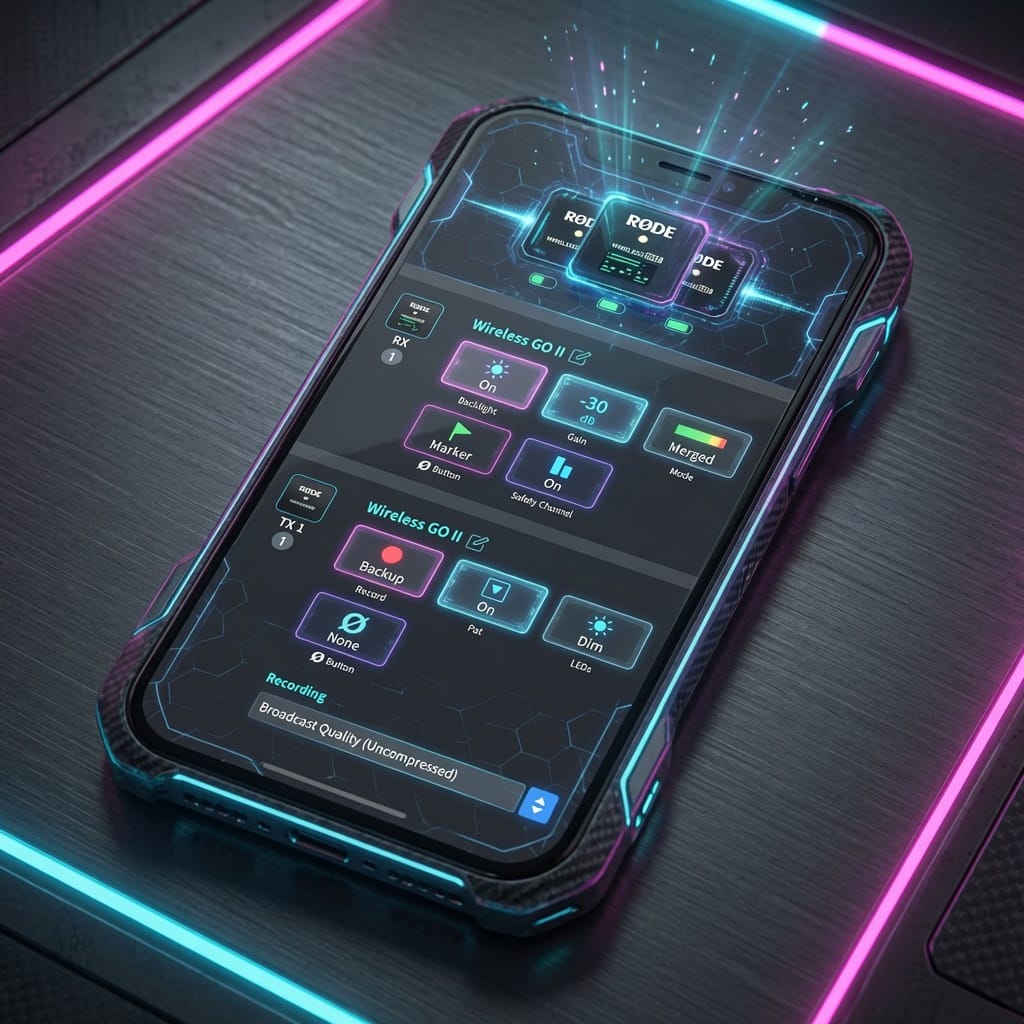
Imagine you just picked up a new wireless microphone from RØDE and you want clear sound for your videos or talks without any trouble. That is where the rode central app comes in as your helpful friend. This free tool from RØDE makes it simple to manage your wireless microphones and other audio devices. In 2026, many creators, podcasters, and videographers rely on it because life moves fast and good audio matters more than ever. The app got a fresh new look that feels easier and smoother to use. It helps you set things up quickly, find smart hidden tricks, and pick the right settings for professional results every time. You will feel confident and ready to create great content without stress.
What is the Rode Central App?
The rode central app serves as the main companion tool for RØDE wireless microphones and audio gear. It works on both desktop computers and mobile phones so you can adjust your devices almost anywhere. People use it with popular items like the Wireless PRO, Wireless GO series, Wireless ME, Interview PRO, and many more.
This app opens up special abilities that make your microphones work even better. You can update the software inside your devices to keep them running smoothly. It also lets you change custom settings and grab recordings saved right on the devices, especially when you use the desktop version. Because it connects through Bluetooth or a simple cable, you stay flexible during busy days. Many friends who make videos or podcasts say this tool saves them time and helps their audio sound clear and natural.
System Requirements and Download Links
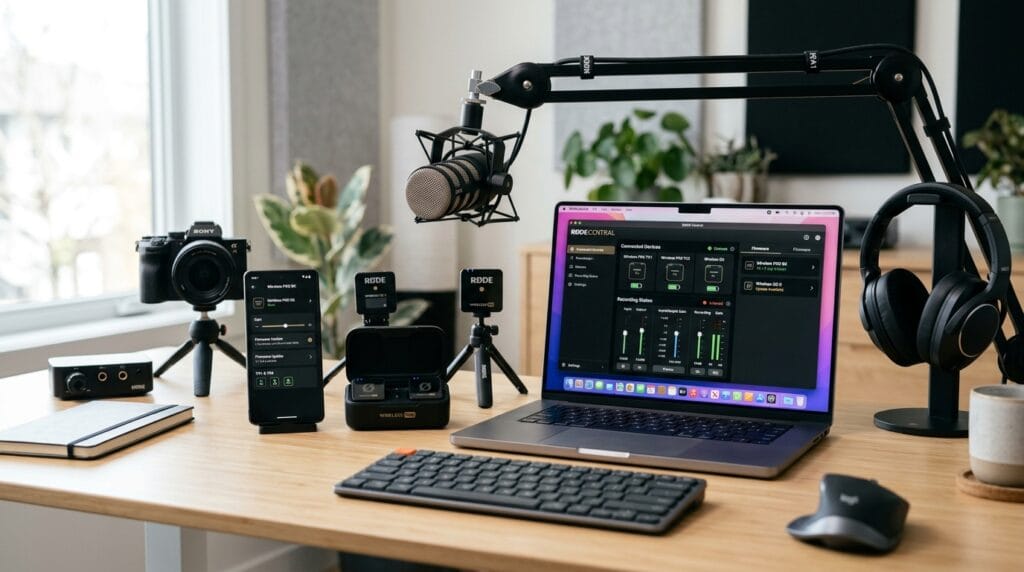
Before you start, check that your device meets the simple needs for the rode central app. For desktop computers, you need macOS 11 or newer on a Mac or Windows 10 version 1803 or later on a PC. Mobile users should have iOS 14 or higher on an iPhone or iPad, and Android 9.0 or above on their phones. These requirements help the app run fast and without problems in 2026.
You can download the app for free straight from the official RØDE website. Just visit their apps page and pick the version for your computer or phone. The mobile version is also easy to find on the Apple App Store or Google Play. When you install it, make sure you have a good internet connection for the first time. After that, the app often works fine even offline for basic changes. A quick tip is to restart your device after install so everything connects nicely right away.
Step-by-Step Setup Guide
Setting up the rode central app feels like following a kind friend who shows you each small step. Begin by opening the app on your computer or phone. Next, turn on your RØDE receiver and transmitters. The app will search for them automatically through Bluetooth or when you plug in a USB cable.
Once it finds your devices, follow the on-screen steps to pair the transmitters with the receiver. This usually takes just a minute. For the first time, the app might ask you to update the firmware so your gear has the newest improvements. If you see a connection problem, try moving closer or using a different cable. Many beginners fix issues by turning everything off and on again. After pairing, the app shows your devices clearly, and you can start making small test recordings to check the sound. This process builds your confidence fast because each success feels exciting.
Key Features of Rode Central App
One wonderful part of the rode central app is how it lets you update firmware with just a few taps. This keeps your microphones working at their best with new fixes and abilities. You can also set up your devices exactly how you like them for different jobs.
On the desktop version, you get easy access to recordings saved inside the transmitters. This means you can pull them out, listen, and save them to your computer without extra hassle. The app offers preset choices that match many popular cameras so your audio levels fit perfectly from the start. Built-in guides inside the app explain each button in simple ways, which feels like having a teacher right there with you. All these tools work together to make your daily audio work quicker and more dependable than before.
Understanding the User Interface (Desktop vs Mobile)
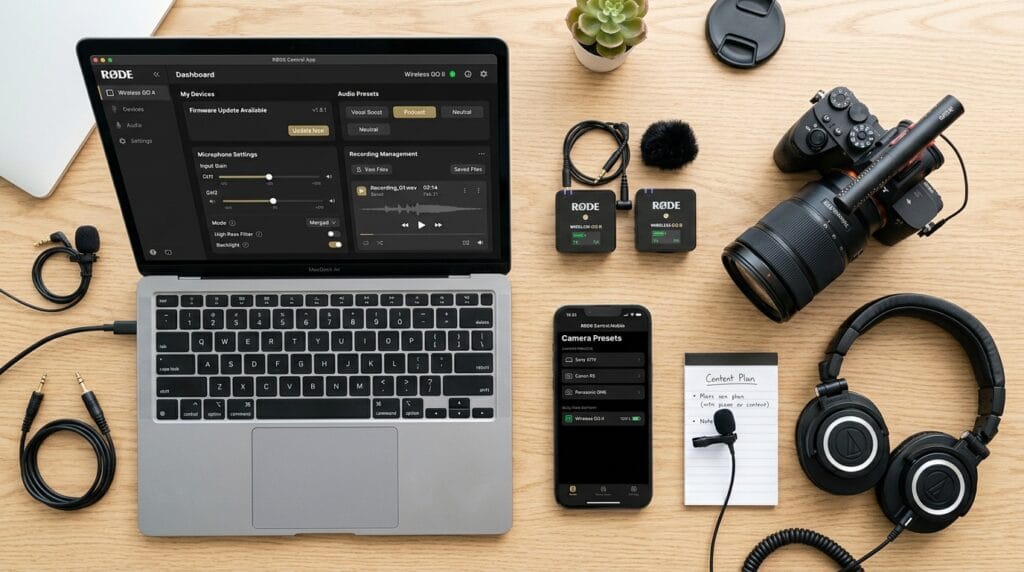
The rode central app looks fresh and clean in its 2025-2026 design. On desktop, you see a bigger screen with lots of space to check every detail at once. Tabs and buttons sit neatly so you can switch between devices or settings without getting lost. This version shines when you want to manage recordings or dive deep into options.
Mobile feels lighter and perfect for quick changes while you are out filming. The layout stays simple with big touch-friendly areas. You can adjust basic settings on your phone without pulling out a laptop. Both versions connect your workflow nicely. For example, you might set things up on desktop at home and then tweak them on mobile during a shoot. This difference helps you pick the right platform depending on where you are and what you need to do.
Best Settings for Professional Audio
Finding the right settings in the rode central app makes your recordings sound rich and clear. Start with gain levels, which control how loud the microphone picks up sound. For quiet talks like interviews, keep gain lower to avoid extra noise. In busy places for vlogging, a bit higher gain helps capture your voice well.
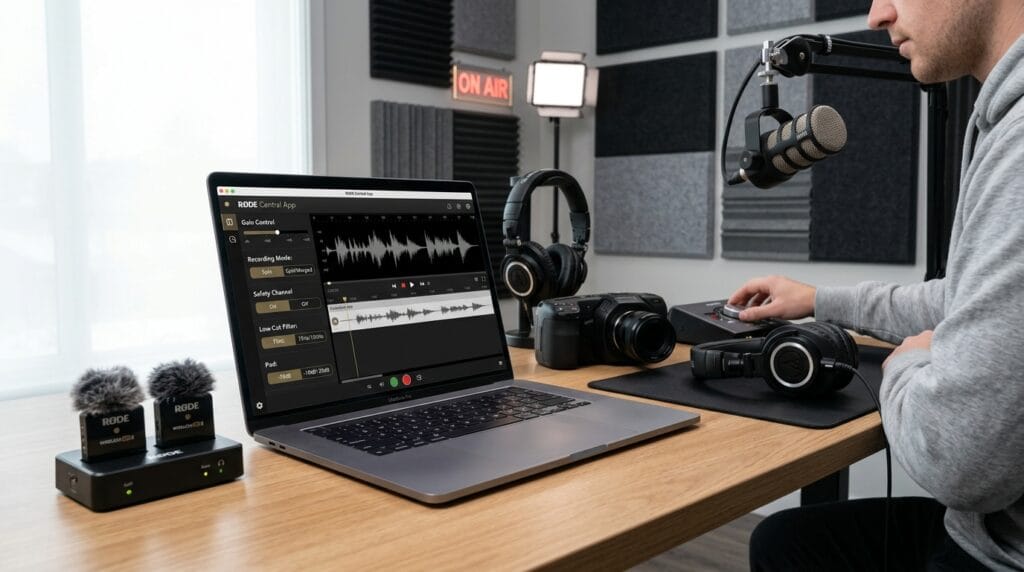
Recording modes give you nice choices too. Merged mode mixes both transmitters into one easy file, which works great for simple podcasts. Split mode saves each microphone on its own track so you can fix them separately later. Many creators also turn on the safety channel because it records a quieter backup just in case the main sound gets too loud.
You can add a low-cut filter to remove unwanted rumbles from wind or traffic. Pad adjustments lower the sensitivity when sounds are very strong. For podcasting, try medium gain with the filter on. Vloggers often use split mode with safety on for extra safety. These small choices add up to audio that feels professional and ready for sharing.
Advanced Tips and Hidden Features
The rode central app holds some clever tricks that many people miss at first. You can save your favorite presets for different cameras and load them quickly later. This saves time when you switch between projects. Managing several devices at once becomes simple too because the app shows them all clearly.
Exporting recordings works smoothly on desktop, and you can organize files right away. Another smart idea is to keep your settings consistent across apps by checking them regularly. Some users discover that fine gain control lets them make tiny adjustments for the perfect balance. Try these tips during practice sessions so they feel natural when it counts. Over time, these hidden features help your work feel easier and more creative.
Troubleshooting Common Issues
Even with a great tool like the rode central app, small problems can pop up. If the app does not see your devices, first check that Bluetooth is on and the devices have fresh batteries. A different USB cable often fixes connection troubles right away.
Firmware updates sometimes stop partway, so make sure your internet stays steady and try again. Audio dropouts during use usually mean you need to move closer or reduce interference from other wireless items nearby. If the app feels slow, close other programs on your computer or restart your phone. These easy fixes work well in 2026 and get you back to creating fast. Remember, the RØDE support pages have more help if needed.
Rode Central App vs Other RØDE Apps
It helps to know when the rode central app is the best choice compared to others from RØDE. This app focuses on deep setup, firmware, and device management for wireless systems. It shines for detailed configuration and accessing saved recordings.
RØDE Capture works better for mobile video recording with creative extras. RØDE Connect suits live streaming or podcasting with mixing tools. RØDECaster apps handle bigger studio setups. Pick the rode central app when you need to tweak microphone settings or update gear. Understanding these differences means you always grab the right tool for the job and save time.
FAQ
How do I know if my RØDE microphone works with the rode central app?
Check the official list on the RØDE site. Most wireless models like Wireless PRO and GO series connect easily. The app will show compatible devices when you open it.
Can I use the rode central app completely free?
Yes, the whole app is free to download and use. No hidden costs for basic or advanced features.
Why does my audio sound different on mobile versus desktop?
Desktop gives fuller access to recordings and fine details. Mobile is great for quick changes but some options stay on desktop only.
What should beginners try first in the app?
Start with a simple firmware update and test recording. Then play with gain settings in a quiet room to hear the changes.
Does the app work without internet after setup?
Yes, most settings and controls work offline. You only need internet for updates or downloads.
How often should I check for new firmware?
Open the app every few weeks or before big projects. New versions often bring small improvements that help your sound.
Can I connect more than one microphone at the same time?
Absolutely. The app handles multiple devices nicely so you can manage a full set for group recordings.
What if I lose my settings after an update?
Save your presets before updating. Most times the app keeps them, but it is smart to double-check.
Conclusion
Mastering the rode central app opens up so many possibilities for better audio in your creative work. You now know how to set it up, use its best features, and pick settings that match your style. Take time to experiment with different options because your own tests will teach you the most. Soon you will create recordings that sound clear and professional without any worry. Head over to the official RØDE site to grab the latest version and stay updated. You have everything you need to make wonderful content that people love to watch and hear. Enjoy the process and keep sharing your voice with the world.
Disclaimer
This guide about the Rode Central App is for informational purposes only and is based on publicly available information as of 2026. It is not an official document from RØDE and does not replace the manufacturer’s instructions or support. Always check the official RØDE website for the latest updates, features, and accurate guidance before using the app. Results may vary depending on your devices and setup.
Explore More
- What to Expect When Performing Umrah in the First Weeks After Hajj Reopens
- Scoopupdates .com: Fastest Way to Get Breaking News and Scoops
- RedNote App Download: How to Get the Latest Version in 2026 (Android & iOS)
About the Author