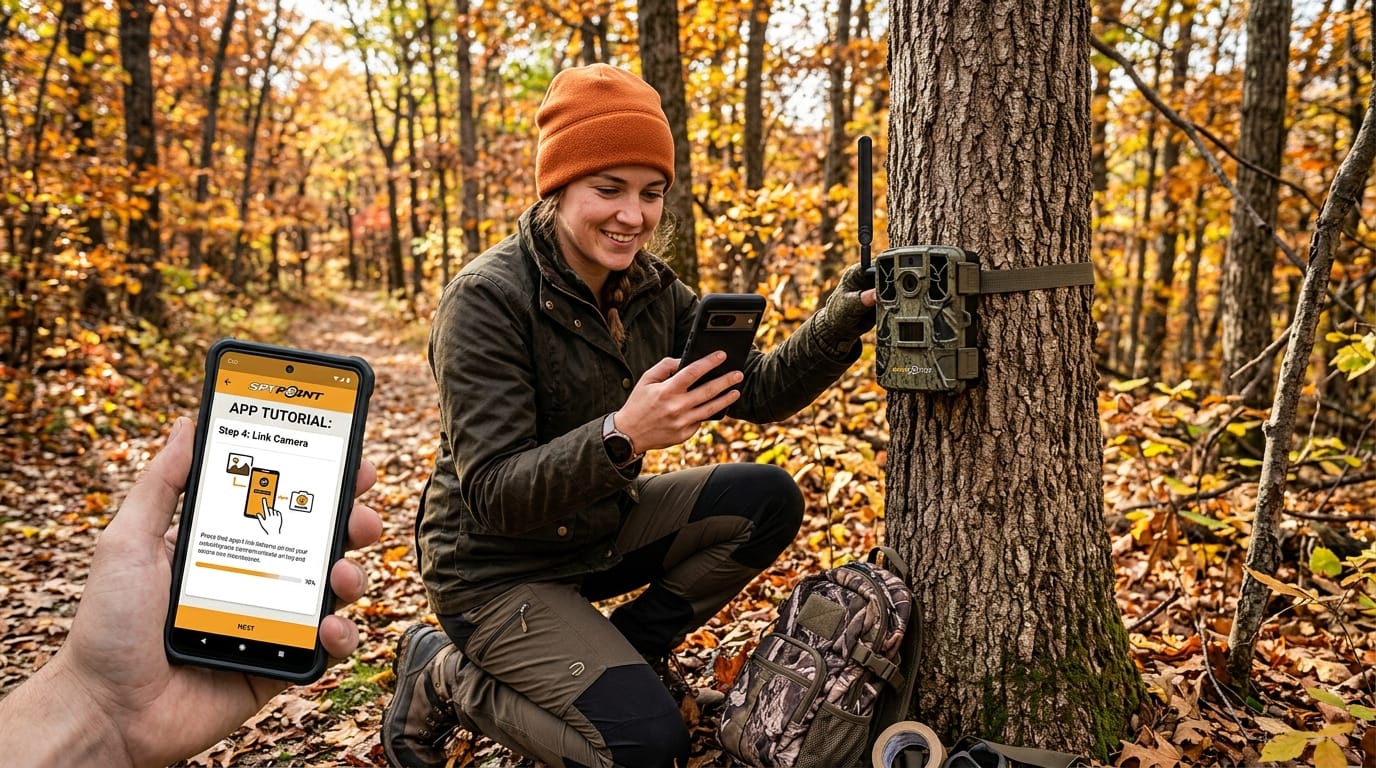
Hey there, friend. If you just got a new Spypoint cellular trail camera or you want to make the most of the one you already have, this guide is for you. The spypoint app is the official mobile helper that lets you see photos and videos from your camera right on your phone. It makes watching over your property, checking on wildlife, or helping with hunting so much easier. In 2026, the app feels smoother and friendlier than ever for new users. This full tutorial will walk you through everything step by step, from making your first account to fixing common problems. You will feel confident using it in no time.
What is the Spypoint App and How Does It Work
The spypoint app is a simple tool that connects your phone to your Spypoint trail cameras. These cameras take pictures or short videos when they sense movement and send them over a cellular signal straight to your device. You do not need to walk out to the camera every time to check it.
Key features include getting new photos and videos quickly, controlling the camera from far away, and receiving alerts when something happens. You can also ask the camera to take a picture right now with instant mode. The app works well on both Android phones and iPhones. Keep in mind that the cameras need an active data plan so they can send pictures through the cell network. Many people use it for hunting, watching deer, or keeping an eye on their land when they are not there. Because it is so easy, even kids and grandparents enjoy using it with a little help.
How to Create Account on Spypoint App
Starting is quick and free. You can make your account inside the app or on the Spypoint website. Open the app or go to the site and look for the button that says create account or sign up.
You will need to share your email address, pick a strong password, and add your name. Choose a password that mixes letters, numbers, and a special mark so it stays safe. After you fill in the details, check your email for a message from Spypoint. Click the link inside to confirm everything. Once you verify your email, you can log in and start using the app. Many beginners make this step their first win because it opens the door to all the fun features.
Downloading and Installing the Spypoint App
Finding the app is easy. On an Android phone, open the Google Play Store and search for Spypoint. On an iPhone, go to the Apple App Store and do the same. Make sure you pick the official one made by the Spypoint company.
Download and install it just like any other app. After it finishes, tap to open it for the first time. The app may ask for permission to send you notifications and use your location. Say yes to these so you get alerts and the map works well. In 2026, both the spypoint app for Android and the version for iPhone run nicely on newer phones. If your phone is older, check that it meets the basic version needs listed in the store.
How to Login to Spypoint App and Fix Can’t Login Issues
Once your account is ready, type in your email and password on the login screen. The app should take you to your home page right away. If you forget your password, tap the forgot password link. You will get an email with steps to make a new one.
Sometimes people face trouble with login. If you see can’t login to spypoint app, first check your internet. Try closing the app completely and opening it again. You can also restart your phone. For extra safety, some accounts use a second check like a code sent to your email. If nothing works, reach out to Spypoint support through the app or website. Most login problems go away with a simple update or fresh password.
How to Add a Camera to My Spypoint App
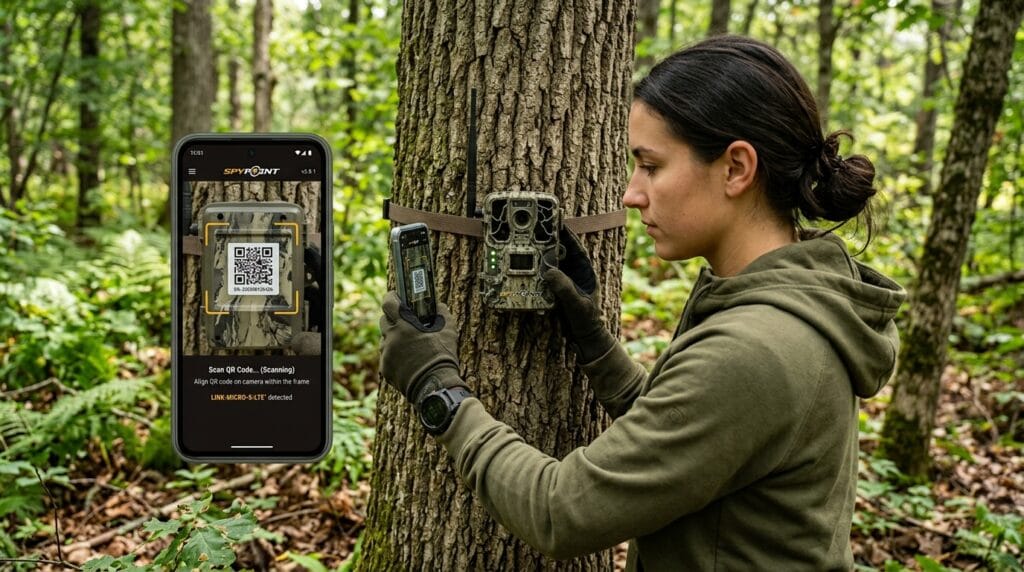
Adding your camera is exciting. After you turn on your new camera and put in fresh batteries, open the spypoint app. Tap the plus button usually at the bottom or top of the Cameras tab.
The app will ask you to scan a QR code on the camera or type in the device information. Pick your exact camera model from the list. Follow the on-screen steps to pair it. You might need to enter an activation code shown on the camera screen. When you see a success message and your camera appears in the list, you know it worked. Test it by walking past the camera to trigger a picture. This step connects your camera to the cloud so pictures start coming to your phone.
Navigating the Spypoint App Interface
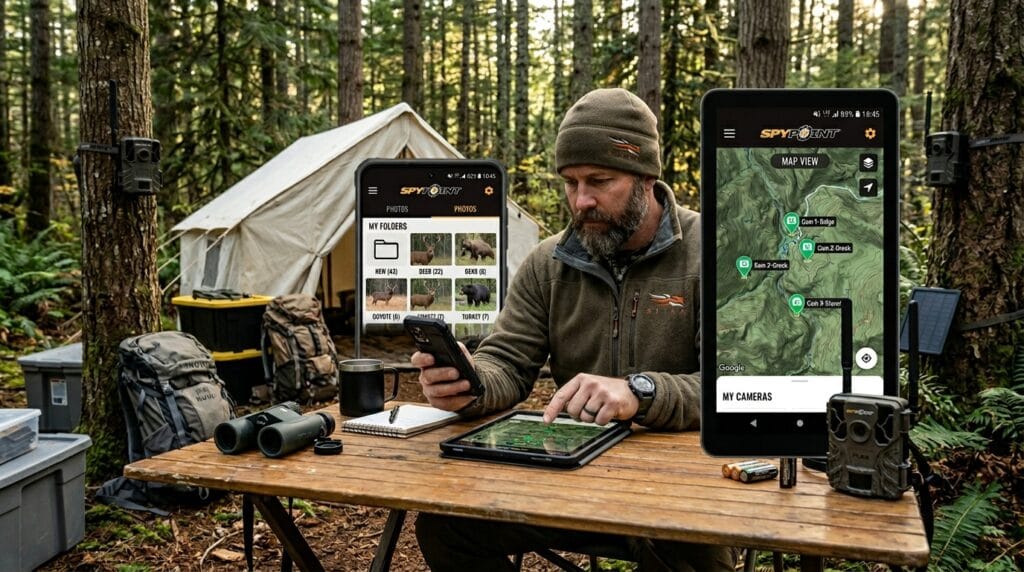
The app has a clean layout that feels welcoming even for first-timers. At the bottom or top, you will see main tabs like Cameras, Gallery, Settings, and Profile. The Cameras tab shows all your devices with quick info like battery level and signal strength.
Tap any camera to see more details. The Gallery holds all your photos and videos. Settings let you change how the app behaves. Your Profile keeps your personal information and account options. Spend a few minutes tapping around so the layout feels like home. Over time, you will move between sections without thinking twice.
Viewing Photos and Videos in the App
When a new picture arrives, it shows up in your Gallery. You can sort them by date, camera, or type. Tap any image to open it bigger. Pinch with two fingers to zoom in and see fine details like animal markings.
Videos play right inside the app too. You can save pictures to your phone or share them with friends through text or email. This makes it simple to show others what is happening on your land without extra steps. The gallery keeps growing as your camera sends more captures, so you build a nice record over weeks and months.
Setting Up and Managing Spypoint App Notifications
Notifications are one of the best parts because they tell you right away when your camera sees something. Go to your Profile, then find App Notifications. Turn on push alerts for new photos, low battery, or camera problems.
You can pick exactly what you want to hear about so your phone does not buzz too much. For example, some people only want alerts for big animals during hunting season. If spypoint app notification stops coming, check your phone settings to make sure the app has permission. Also look inside the app to confirm alerts are active. Good notification settings help you stay connected without feeling overwhelmed.
Adjusting Camera Settings Through the App
One wonderful thing about the spypoint app is changing camera settings from your couch. You can adjust trigger speed so the camera reacts faster to movement. Pick higher photo quality when you want clear pictures, or lower it to save battery and data.
Set detection zones to watch only certain areas. Create a schedule so the camera sleeps at night or during quiet times. Use instant mode to request a fresh photo anytime you like. These choices help your camera work smarter for your needs. Start with basic changes and try more advanced ones as you grow comfortable.
Spypoint App for Android vs iPhone – Key Differences
The spypoint app works great on both Android and iPhone, but small differences exist. Android users sometimes enjoy more options for organizing files. iPhone users often notice smoother animations and easier sharing with other Apple tools.
Both versions need similar permissions like notifications and background refresh. Performance feels close on newer phones. Choose whichever phone you already love using. The important part is keeping the app updated so you get the latest improvements.
Troubleshooting Spypoint App Not Working
Even the best apps can have hiccups. If you wonder why is my spypoint app not working, first update it in the app store. Close the app and open it again. Restart your phone to clear small glitches.
Clear the cache on Android if the app loads slowly. For bigger troubles, delete and reinstall the app. Most general problems like crashes or slow loading fix with these easy steps. Remember to check your phone has enough storage space too.
Fixing Spypoint App Says No Internet Connection
The message spypoint app says no internet connection can appear even when your phone works online. First, switch between Wi-Fi and mobile data. Turn airplane mode on for ten seconds, then off again.
Clear the app cache or reinstall it. Make sure the app has permission to use data in the background. Sometimes a simple phone restart solves it. These fixes help the app talk to Spypoint servers again so pictures flow smoothly.
Spypoint App Not Working on iPhone – Specific Fixes
iPhone users sometimes need extra steps. Go to Settings on your phone, find the Spypoint app, and check that background app refresh is on. Allow notifications and cellular data.
Update your iOS if an older version causes trouble. Restart your iPhone and try the app again. These small changes often bring everything back to normal for spypoint app not working on iphone.
Is the Spypoint App Down? How to Check Server Status
Sometimes the problem is not on your side. To see if the spypoint app is down, try opening the web version at webapp.spypoint.com on your browser. If it works there but not in the app, the issue might be with the mobile service.
Check Spypoint’s official social pages or support site for outage news. Many users report problems at the same time when servers need fixing. Knowing this helps you stay patient and try again later.
Advanced Tips and Best Practices for Using the App
After you feel comfortable, try these ideas. Group multiple cameras on one map view so you see your whole area at once. Share camera access with family members by inviting them to your account. Turn on battery-saving modes when you leave cameras out for long periods.
Organize your gallery into folders by date or animal type. Use the app in the field by checking signal strength before placing cameras. These smart habits make your experience even better and help the system last longer.
Frequently Asked Questions (FAQ)
How much does a data plan cost for Spypoint cameras?
Plans start at different prices depending on how many pictures you expect each month. Check inside the app for current choices that fit your needs.
Can I use the spypoint app without a cellular camera?
No, the app works best with Spypoint cellular models that send pictures on their own. Regular trail cameras need you to pull the memory card.
Why do some pictures take a long time to arrive?
Weak cell signal, low battery, or busy networks can slow things down. Check camera status in the app for clues.
Is it safe to share my Spypoint account?
Only share with people you trust. Use the built-in sharing tools so you control what others can see.
How do I delete old photos to save space?
Open the Gallery, select pictures, and choose delete. You can also set the app to remove very old files automatically.
Does the app work well in cold weather?
Yes, but keep your phone warm when you check it outside. The cameras themselves handle winter nicely with good batteries.
Can I get video instead of photos?
Many models let you choose video clips. Adjust settings in the app to try this option.
What should I do if my camera stops sending pictures?
Check batteries, signal, and make sure the camera is still paired in the app. A quick power cycle often helps.
Conclusion
You now know how to use the spypoint app from start to finish. Take it slow, try one new thing each day, and soon it will feel natural. Beginners do great when they practice with small steps and keep their cameras well cared for. Explore more features as you go, and do not hesitate to contact Spypoint support if you need a helping hand. Have fun watching the outdoors from your phone, and enjoy every new picture that arrives. You are going to love this adventure!
Disclaimer:
This article is for informational and educational purposes only. It is not affiliated with or endorsed by Spypoint. Always check the official Spypoint website and app for the latest instructions, as features may change over time. Results can vary based on your device, location, and camera model.
Explore More
- Why a Verified Business Address Is the Backbone of GST Compliance for Digital Enterprises
- Best Super Clone Watches: What You Should Know Before Buying Online
- Premium Dry Cleaning Service in London for Everyday Busy Professionals
About the Author