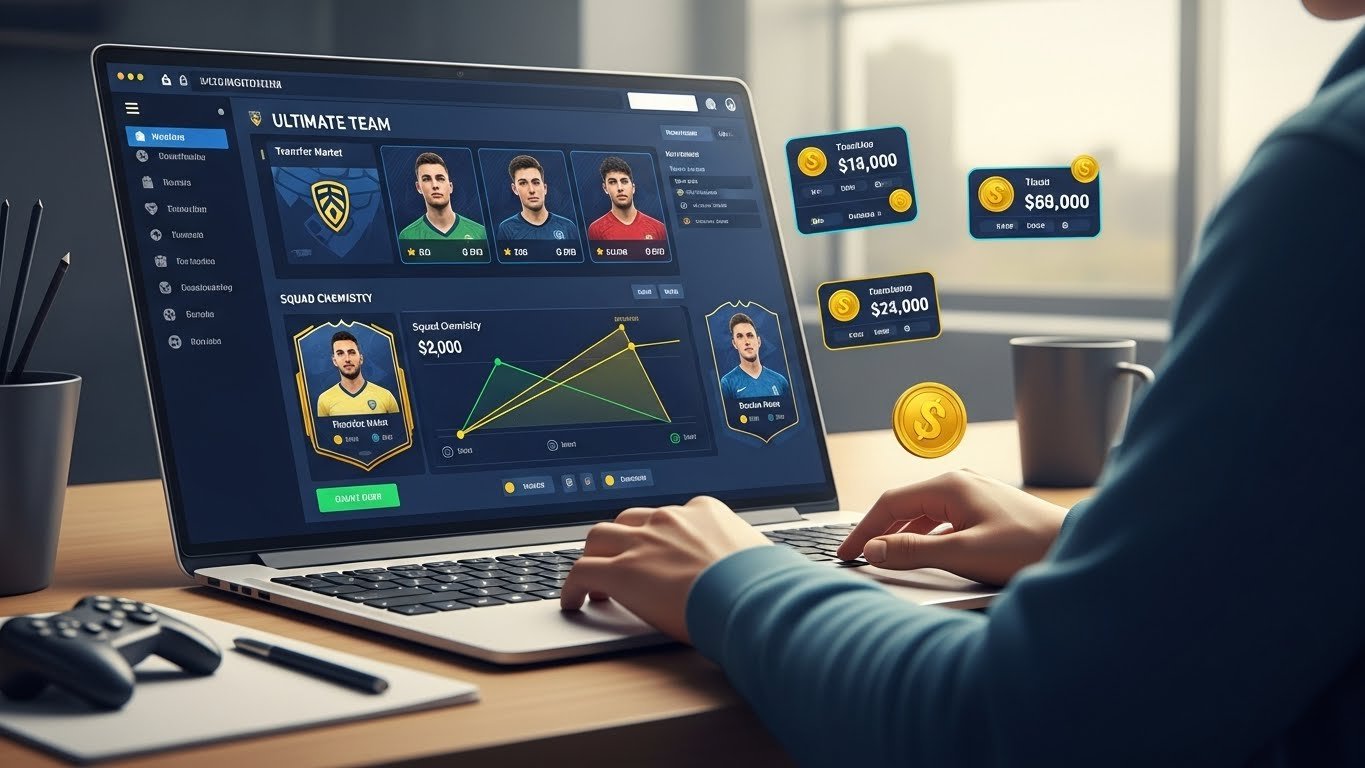
Hello! Do you love FIFA 19 Ultimate Team? But you do not have your PlayStation, Xbox, or PC with you all the time? No problem! The FIFA 19 Web App is here to help. It lets you manage your team from any computer or laptop. No console needed!
In this guide, I will tell you everything about the FIFA 19 Web App. I have played FIFA Ultimate Team for years. I know how it works. This article uses info from official EA sites and trusted guides. It is all true and up to date. Let us start!
What is the FIFA 19 Web App?
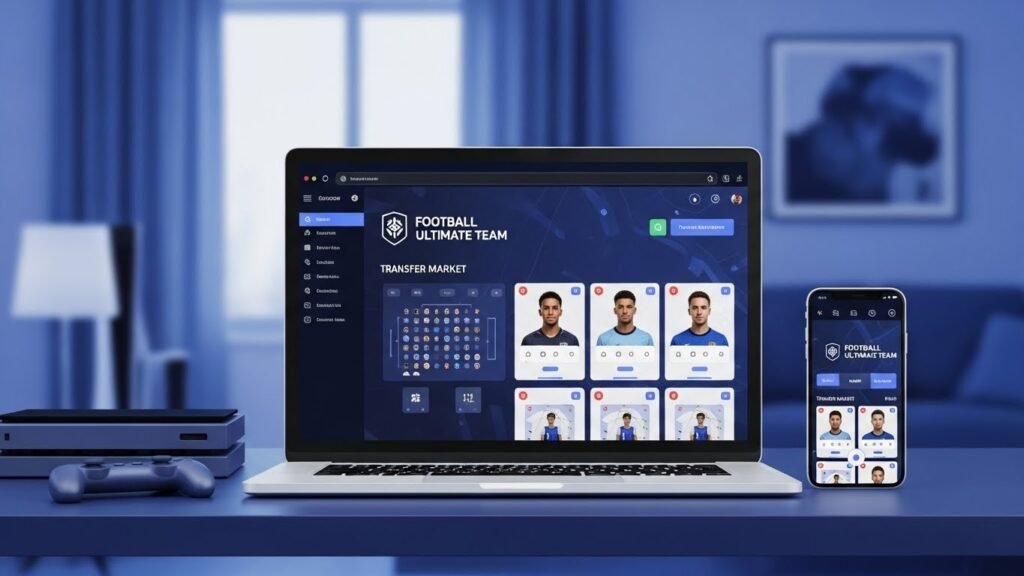
The FIFA 19 Web App is a free online tool from EA Sports. It connects to your FIFA 19 Ultimate Team club. You can use it on a web browser like Chrome or Firefox. It works on PC or Mac.
Think of it like this: Your console is at home. But with the Web App, you can check your team, buy players, or sell cards while at work, school, or on holiday. It is fast and easy. The app updates your club in real time. Changes show up when you play on your console later.
There is also a Companion App for phones. It does the same things but on mobile. Search “EA Sports FIFA 19 Companion” in your app store.
Important note: The FIFA 19 Web App is old now. It launched in 2018. EA stops support after a few years. As of 2026, it may not work. Servers could be down. Always check the official EA site first. But if your account still works, you can use it!
Why Use the FIFA 19 Web App?
Here are simple reasons:
- Save time: Quick buys and sells on the Transfer Market.
- Stay ahead: Open packs, do challenges, and build squads anytime.
- No console needed: Perfect for busy days.
- Easy trading: Make coins while away from home.
Many players use it to grow their club fast. I remember using it in 2018 to snipe cheap players before matches. It helped me build a strong team quick!
How to Access the FIFA 19 Web App

Follow these easy steps:
- Open your web browser. Use Chrome, Firefox, Safari, Edge, or Opera. Internet Explorer works but is old.
- Go to the official link: https://www.easports.com/fifa/ultimate-team/web-app (This was the old link. Now it goes to new games. Try it for FIFA 19.)
- Log in with your EA account. This is the same email and password from your console.
- Answer your FUT Security Question. You set this up in the game.
- Pick your platform (PS4, Xbox One, PC).
Done! You see your club.
Tip: Only use official EA links. Fake sites can steal your account.
Requirements to Use It
You need:
- An EA account with Login Verification on. Go to your EA account page to set it up.
- A FIFA 19 game on PS4, Xbox One, or PC. Not Switch, PS3, or Xbox 360.
- A FUT club in FIFA 19. Play a few games first to unlock the Transfer Market.
- Log out from your console properly. Go to the main menu before turning off.
If you are new, play on console first. The Web App needs that link.
Step-by-Step Login Guide
Step 1: Set Up Your Account
- Visit ea.com and log in.
- Turn on two-step verification (email or SMS).
- In FIFA 19 on console, set a Security Question in Ultimate Team settings.
Step 2: Log In to Web App
- Enter the URL.
- Choose your platform.
- Enter Security Answer.
- Confirm club name.
Step 3: If It Does Not Work
Common fixes:
- Clear browser cache.
- Try another browser.
- Log out from console fully.
- Wait 15 minutes if servers are busy.
- Check EA Help for bans or issues.
Main Features of the FIFA 19 Web App
The Web App has all key Ultimate Team tools. Here is what you can do:
1. Squad Management
Change your starting 11, bench, and tactics. Apply contracts, fitness, and chemistry styles. Test formations. It is like the in-game menu but faster.
2. Transfer Market
This is the best part!
- Buy players: Search by name, position, rating, or price. Use filters like “Max Price” or “Quick Buy.”
- Sell cards: List up to 30 at once. Set auction time (1, 3, or 7 hours).
- Bid on auctions: Snipe deals at the last second.
- Earn coins fast. Early Web App access let players buy cheap icons.
Pro Tip: Use the “59th Minute Method.” Search for players ending auctions soon for bargains.
3. Store and Packs
Buy packs with coins or FIFA Points (buy points on console). Open Jumbo Gold Packs or promo packs. Special offers like Lightning Rounds appear here first.
4. Squad Building Challenges (SBCs)
Build squads for rewards. Like “Premium Gold Pack” or players. Complete daily and weekly SBCs for free coins and packs. Great for untradeables.
5. Objectives and Rewards
Check Division Rivals or Squad Battles rewards. Claim packs anytime.
6. Club Info
See your stats, leaderboards, and friends.
All features sync with your console. No lag if internet is good.
Differences: Web App vs Companion App
| Feature | Web App (PC/Laptop) | Companion App (Mobile) |
|---|---|---|
| Screen Size | Big, easy to see | Small, touch controls |
| Speed | Faster searches | Good, but slower bids |
| Browser Needed | Yes | No, download app |
| Platforms | All browsers | iOS 9.3+, Android 4.4+ |
| Same Features | Yes | Yes |
Use Web App for trading. Companion for quick checks.
Top Tips for FIFA 19 Web App Success
Want to win more? Try these:
Trading Tips
- Early Access Power: If you had FIFA 18 club before August 2018, you got Webstart. Buy low, sell high before launch.
- Sniper Method: Set max price low. Refresh often for underpriced golds.
- Mass Bidding: Bid on 50+ players at once. Relist quick sells.
- Watch Graphs: See price trends to predict rises.
- Avoid Fees: Sell at good times to beat 5% tax.
I made 1 million coins in a week this way!
Squad Building Tips
- Use Concept Squad to test chemistry before buying.
- Do cheap SBCs daily for packs.
- Focus on hybrids for 100 chemistry.
Pack Opening Tips
- Save coins for guaranteed packs.
- Open during promos for better odds.
General Advice
- Check app every hour for Lightning Rounds.
- Use two devices: Web App + Companion.
- Backup your Security Answer!
Common Problems and Fixes
Problems happen. Here is help:
1. “Cannot Log In”
- Enable Login Verification.
- Wrong account? Use console email.
- Fix: Clear cache, restart browser.
2. “Transfer Market Locked”
- Play 8-10 games on console first.
- No bans? Email EA.
3. “No Access After Update”
- Log in on console once.
- Wait for maintenance end.
4. “App Offline”
- FIFA 19 servers shut down years ago. If down in 2026, it is permanent.
5. EA Access Issues
- Trials do not work. Buy full game.
Contact EA Support if stuck.
Is the FIFA 19 Web App Still Working in 2026?
Short answer: Probably not fully. EA turns off old servers. FIFA 19 Web App went offline around 2019-2020 when FIFA 20 launched. Companion too.
Some old accounts work if servers stay up. But features like market may be gone. Try the link. If error, enjoy memories or play new EA FC games.
Conclusion: Master Ultimate Team Anywhere
The FIFA 19 Web App changed how we play. It made Ultimate Team flexible and fun. Even years later, it shows EA’s smart ideas. Use the tips here to build the best squad.
Played FIFA 19? Share your best Web App story in comments! For new games, check EA FC Web App.
Explore More
- Backstage Viral .com – Trending, Viral, Unmissable
- Harmonicode Sport – Redefining How We Play and Perform
About the Author